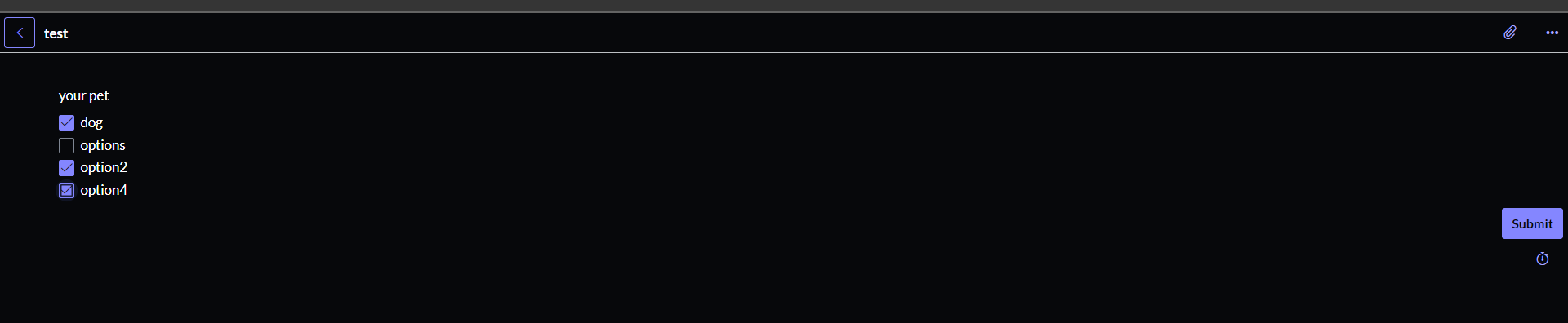
Field Type - Select multiple values

- Mark as New
- Bookmark
- Subscribe
- Mute
- Subscribe to RSS Feed
- Permalink
- Report Inappropriate Content
08-22-2018 08:26 AM
- Mark as New
- Bookmark
- Subscribe
- Mute
- Subscribe to RSS Feed
- Permalink
- Report Inappropriate Content
05-29-2025 12:57 AM
this is so easy and clean! Thanks man!
- Mark as New
- Bookmark
- Subscribe
- Mute
- Subscribe to RSS Feed
- Permalink
- Report Inappropriate Content
06-29-2022 06:03 PM
Unfortunately this solution tends to break down and have to be rebuilt. I have built a list collector using this method and it worked for a day. But now out of nowhere it will not show the options. I verified that the items are still on the question_choice table under the same sys_id as the question itself. I tried flipping it between multiple choice and or select box then back to list collector, and still it does not fix itself.
Verified the table. If I take the filter out it shows ALL items on the table. But when I put the "question=800a0ddc1bccd91024a5848ce54bcb70" back in place it returns to "no matches found".
- Mark as New
- Bookmark
- Subscribe
- Mute
- Subscribe to RSS Feed
- Permalink
- Report Inappropriate Content
07-16-2025 03:48 AM
Hi, Have you tried opening that question or variable in form view, and then copying its sys-id and using it. or just when writing this reference qualifier take sysid from url of your question.
- Mark as New
- Bookmark
- Subscribe
- Mute
- Subscribe to RSS Feed
- Permalink
- Report Inappropriate Content
09-04-2023 05:39 AM
- Mark as New
- Bookmark
- Subscribe
- Mute
- Subscribe to RSS Feed
- Permalink
- Report Inappropriate Content
03-22-2024 06:47 AM
Yes, Bittu Raj is right, this is the best way to do it:
Check box - multiple choices
The check box variable lets you enable and disable options by selecting and clearing it.
To make a check box mandatory, select the Selection Required option when you create the variable. For example, use this option to require users to select the I agree check box for an agreement form. If users try to submit the agreement form without selecting the check box, an alert message is displayed to tell users that they must select the check box.
A group of check box variables is created when you create consecutive check box variables. These check box variables are sorted by their order within the group. If you want to define a custom label for the group of check boxes, create a label variable at the start of the consecutive check box variables. The label is then considered a part of this group and acts a label of the group. If there is no custom label, check boxes are grouped under an Options label by the application.
In a group of check box variables:
- If any check box variable in the group is mandatory, the entire group becomes mandatory irrespective of the visibility of the mandatory check box variable. An asterisk (*) is then displayed next to the group label and you must select at least one of these check boxes.
- Hiding the label hides the entire group.
- If all other check box variables of a mandatory check box group are hidden and not selected, the following scenarios are applicable:
- The group remains mandatory as long as there is one check box in the group that is visible and not selected.
- The last check box of this group cannot be hidden if it is not selected.
In Service Portal, to make a group of check box variables mandatory, set at least one of the check box variables as mandatory. While defining the label for a group of check boxes, setting a label mandatory does not make the group of check box variables mandatory.