Update the business impact analysis (BIA) dependencies manually from the snapshot if the scheduled job is not activated in the Impact analysis dependency update configuration module. You can update the dependencies in an
active BIA.
Before you begin
Role required: sn_bcm.program_manager, sn_bcm.planner, sn_bcm.admin
Procedure
-
Navigate to .
-
Open a BIA in the Draft state and navigate to the Assessments tab.
If the dependencies have been updated in the sources, the scheduled job fetches the dependencies, and a UI message is displayed on the screen: To review and apply the changes, select here -
SNAP0010078. You can select the snapshot record to view the updates.
-
To view the snapshot record, select the Pending updates module in the Business Impact Analysis list view and select a snapshot record.
The Impact analysis dependency delta snapshot is displayed.
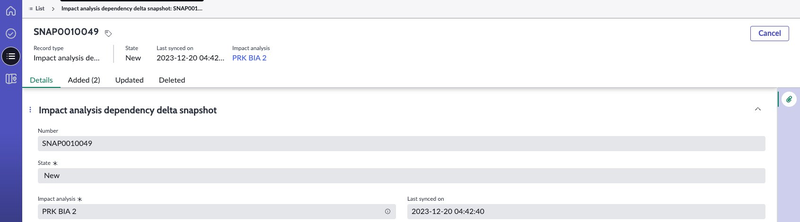
- Added: The Added tab shows you the assets which are newly added from the source.
- Updated: The Updated tab shows you the assets which are updated from the source.
- Deleted: The Deleted tab shows you the assets which are deleted from the source, which were previously pulled in. All those assets will be marked as Invalid once the snapshot is
committed.
The BCM application stores one active snapshot for the BIA at a time. The snapshots that are in the Completed state and that have not been updated in
the past six months are removed from the application automatically.
-
To update the dependencies manually, select Open assessment in Dependency assessment.
-
Select Update dependencies.
Note: When the system is updating the dependencies, the UI actions on the BIA record are blocked and you cannot proceed further with the BIA states. The user cannot proceed with further states of the BIA unless the
system completes importing the dependencies. The dependencies in the Dependency assessment should be completed before the user proceeds with further states of the BIA. Once all the dependencies have been imported and
the dependencies in the Dependency assessment are completed, the user can continue with the workflow for the BIA record.
A UI message is displayed on the screen: Dependencies are being updated. Refresh the page to view the updated dependencies and complete the assessment.
-
To save the changes to the BIA, select Save.
The BIA owners and approvers can update the dependencies by saving the changes to the BIA.