Set controls in the Crisis map interface in BCM UIB Workspace. You can then customize the alerts for assets, locations, and so on.
Before you begin
Role required: sn_bcm.admin or sn_bcm.program_manager
Procedure
-
Navigate to .
-
Select Crisis map in the list view.
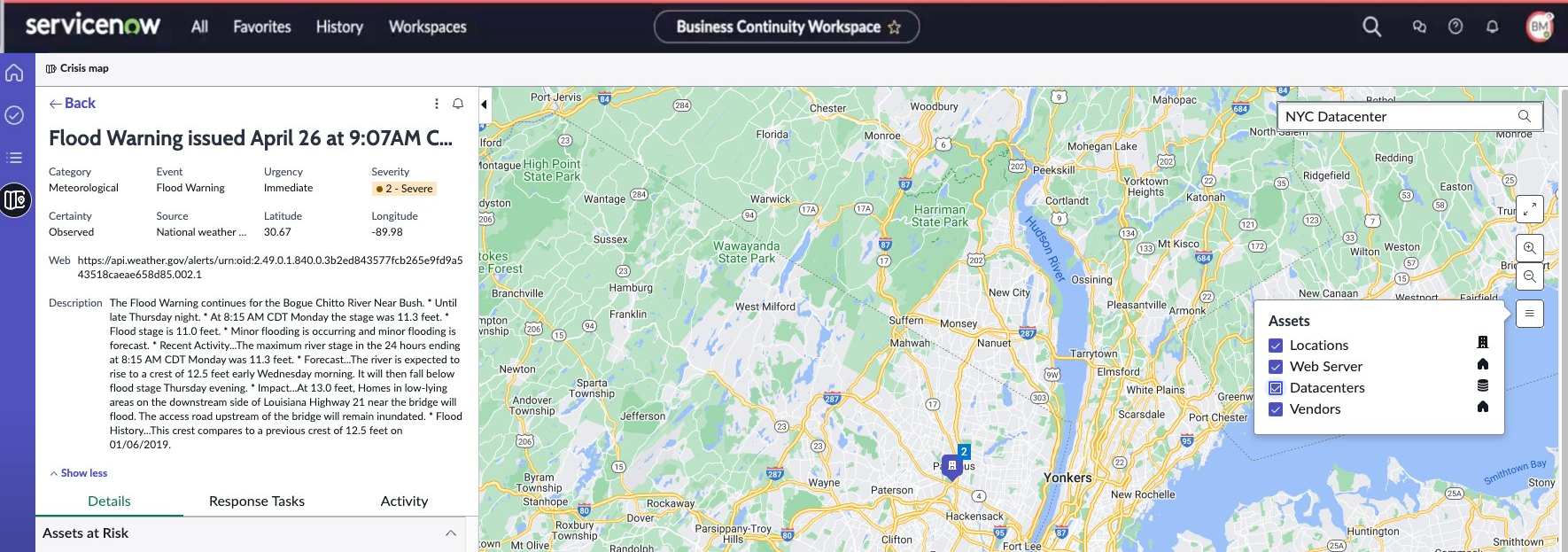
The Workspace view is divided into two sections: the alerts list and the map view.
-
Select the Search assets and locations search field in the map view and enter the location or datacenter that is impacted by an alert.
When you search for a location, the results display a combined list of your company records (showing their display values and icons) along with Google map pin icons. If you aren’t sure of both the employee locations or datacenters, then use the Layers control.
-
Change the zoom level of the map and view specific areas with the zoom-in and zoom-out control buttons.
-
Select and display the assets on the map using the Layers icon.
The assets such as Locations, Web Servers, Datacenters, or Vendors are displayed on the map as shown in the example.
-
Clear the map of all the search results with the Reset icon.