View comprehensive information about data assets on the asset detail page.
Before you begin
Role required: WDF Consumer (wdf_consumer)
About this task
Asset detail pages organize information into tabs for easy navigation. The Overview tab provides summary information, while additional tabs offer detailed views of specific aspects like columns, relationships, and lineage. 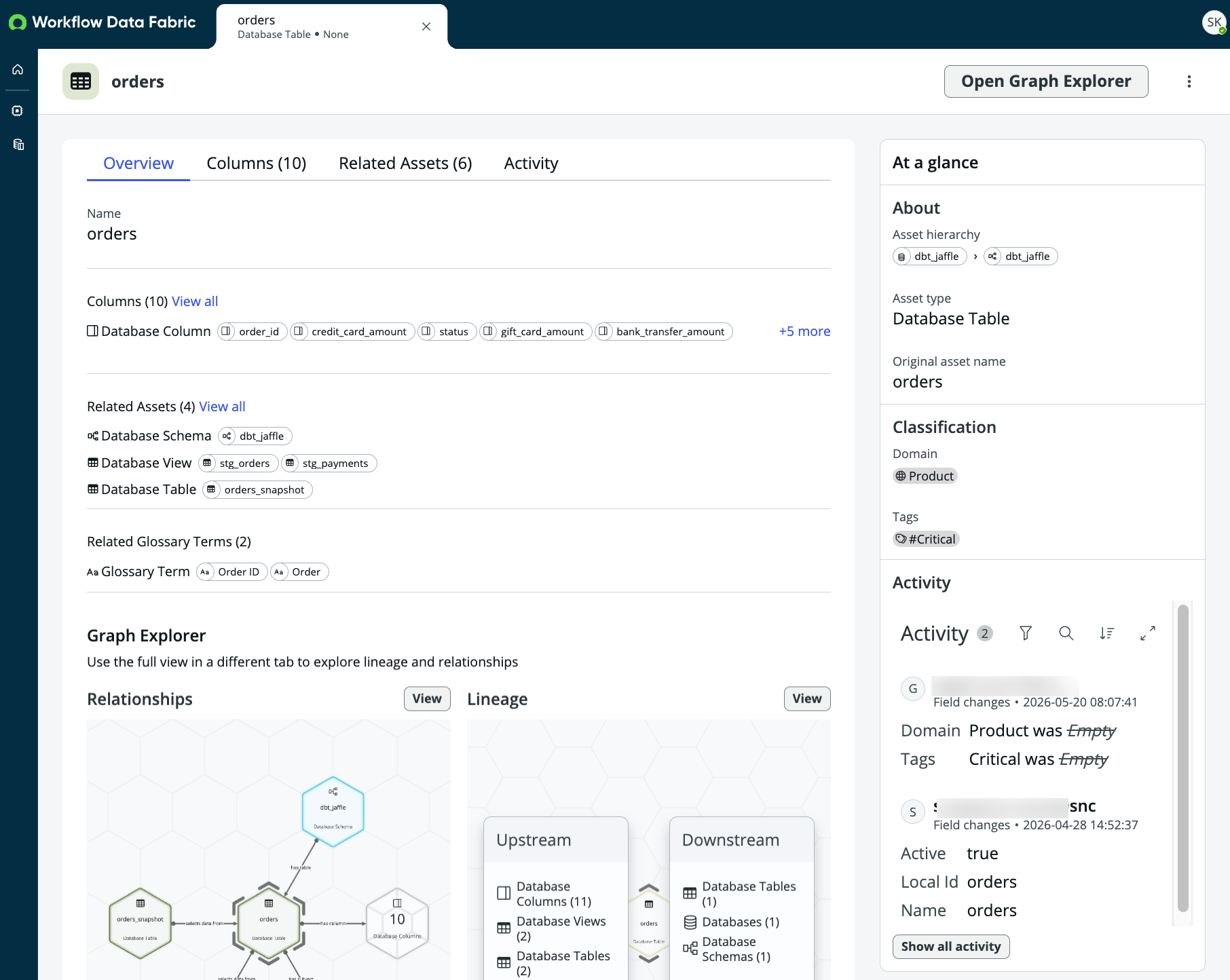
Procedure
-
Navigate to .
-
Select the Data catalog icon in the left sidebar.
-
Select the data asset you want to view.
-
On the Overview tab view the general details about the asset, such as, the name, source, columns included (if it is a table), the preview of relationships and lineage.
For table and column assets, the Overview tab also shows a Quality section with the overall data quality status, the number of rules, the number of passed rules, and when quality was last evaluated. Select
View all to open the Quality tab.
-
On the Columns tab, view column information for tabular assets, such as tables.
Select a column name to browse to the details page of the column.
-
On the Related assets tab, view the list of connected catalog assets.
-
On the Quality tab, review data quality information for the asset.
The Quality tab is available for table and column assets. The summary shows the overall data quality status, the total number of rules, and the number of passed rules. Quality badges awarded to the resource are also
displayed here.
The Rules table lists each rule with its source, asset type, asset name, category, status, and last run time. External data quality tools (such as Anomalo, Soda, or Monte Carlo) submit rule results via the Data Quality
API. Use filters and search to locate a specific rule.
-
On the Activity tab, review the activities performed on the data asset.
The system stores the name of the user who made the change, the change details, and the timestamp. Use filters, search, and sort to locate the change you want to track.