既存のエクスポータースクリプトをカスタムエクスポーターの開始点としてコピーします。
始める前に
重要: DevOps コンフィグ は現在廃止されており、新しいアクティベーションのサポートや利用は終了しています。
必要なロール:cdm_exporter_editor または cdm_editor または cdm_admin
このタスクについて
DevOps コンフィグ コンテンツパックには、さまざまなエクスポーターが含まれています。提供されているエクスポータースクリプトのいずれかを、設計するカスタムエクスポーターの開始点として使用できます。
手順
-
アドミンアイコン (
 ) を選択して [アドミニストレーション] ページを開きます。
-
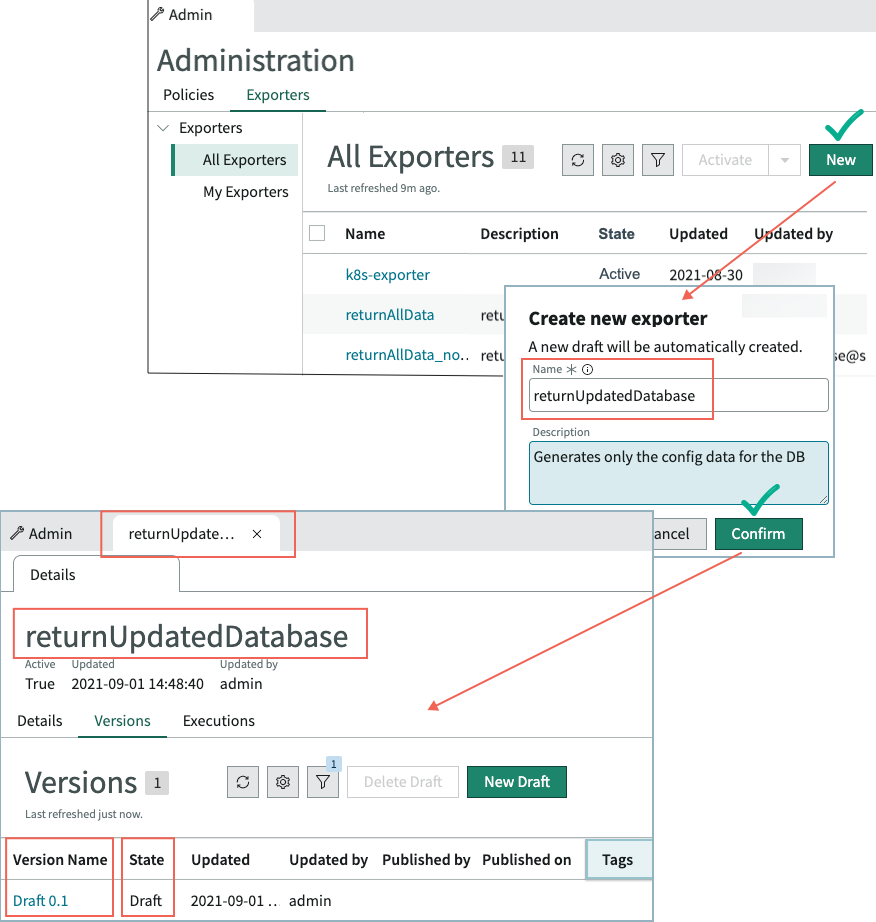
[エクスポーター] タブで、[新規] を選択し、一意で意味のある名前と説明を入力して、[確認] を選択します。
エクスポーターの最初のドラフトバージョンの名前は
ドラフト 0.1で、
[バージョン] タブに一覧表示されます。
-
[バージョン名] を選択して、[Exporter Builder] タブでデフォルトのエクスポータースクリプトを開きます。
エクスポータースクリプトのテキストが表示専用パネルに表示されます。
-
[エクスポーター] タブで、新しいカスタムエクスポーターの開始点として機能するエクスポーターの名前を選択します。
-
エクスポーターの [バージョン] タブで、使用するエクスポーターのバージョンを選択します。
エクスポーターが [Exporter Builder] タブで開きます。エクスポータースクリプトのテキストが表示専用パネルに表示されます。
-
新しいエクスポーターで使用するためにスクリプトのテキストをコピーします。
- オプション:
エクスポーターの編集時にユーザーが動的実行条件または CDI 値を指定できるようにするには、入力引数を作成します。
-
[入力引数] タブで、[新規] をクリックします。
-
[引数を作成] ポップアップウィンドウで、引数を定義します。
表 : 1. [引数を作成] ポップアップウィンドウ
| フィールド |
説明 |
名前/説明 |
引数のわかりやすい名前と説明。 |
| デフォルト値 |
ユーザーがエクスポーターを編集用に開いたときの引数の値。 |
| 必須 |
引数値の指定を必須にするには、このチェックボックスをオンにします。 |
-
[作成] を選択します。
これで、引数が [テストプレイグラウンド] パネルの [入力引数] フィールドに表示されます。