Security incidents can be created and updated after they are created with a
bi-directional interface with the Splunk Enterprise Security integration.
始める前に
The Splunk Enterprise Security integration has a bi-directional interface that
allows notable events to create security incidents as well as update the notable events
after the security incident is created and/or closed.
Relevant incident details include SIR incident number,
assignment group, SIR incident URL. This section is the
final portion of the profile configuration set-up that provides optional capabilities to
update the Splunk Enterprise Security notable events.
Role required: sn_si.ingestion_profile_admin
注: Users with the sn_si.admin role can perform all operations available to a profile admin, as the sn_si.admin role inherits the required permissions by default.
手順
-
If the Additional Options page on the progress bar is not displayed, select
Additional Options.
-
Follow the instructions below to complete the configuration for updating notable
events based on security incident updates.
| Option or Field | Description |
|---|
| Update Notable Events upon SIR Incident Creation |
Select this option if you want to update the notable event status and add
additional comments when a security incident is created from the notable event.
This can occur for both the initial triggering notable events that create the
security incident, as well as aggregated events. |
| Initial Notable Event Status Update |
You must select a status option from the menu that displays all available
status values retrieved from the Splunk Enterprise Security server. This
may include a custom created status, such as ServiceNow - Assigned as shown in the screen shot below. Select the status value to be
set for all notable events when a security incident is created for an ingested
notable event. This includes notables that create new incidents and notables
that are ingested and aggregated to an existing open incident. |
| Initial Comments posted back to Notable Event |
In addition to updating the notable status value, you can also post
comments to the notable event incident review history. As indicated in the
instructions, you may edit the default text displayed in the comments section
including adding or modifying the substitution variables using format ${field
name}$ for any field on the Security Incident Response incident
form. |
| Close out Notable Events upon SIR Incident Closure |
Select this option if you want to update the notable event status and add
additional comments when a security incident is closed from the notable event.
This will occur for both the initial triggering notable events that create the
security incident, as well as aggregated events. |
| Closure Notable Event Status Update |
You must select a status option from the list menu that displays all
available status values that are retrieved from the Splunk Enterprise Security server. This may include a custom created
status, such as ServiceNow - Assigned as shown in the
screen shot below. Select the status value to be set for all notable events
when a security incident is created for an ingested notable event. This
includes notables that create new incidents as well as notables that are
ingested and aggregated to an existing open incident. |
| Closure Comments Posted back to Notable Event |
In addition to updating the notable status value, you can also post
closure comments to the notable event incident review history. As indicated in
the instructions, you may edit the default text displayed in the comments
section including adding or modifying the substitution variables using format
${field name}$ for any field on the Security Incident Response
incident form. |
| Update SIR Automation Activity with Splunk Event comments |
Option to update your Splunk Event comments in the SIR Automation Activity. The comment in the SIR Automation Activity appears with the prefix Comment from Splunk.注:
Starting from Splunk Enterprise Security version 8.0.x, the comments field has been deprecated, and therefore our application can no longer retrieve comments from Splunk Enterprise Security.
|
| Update Splunk comments with SIR work notes |
Option to update your SIR work notes in the Splunk Event comments. The comment in Splunk Event appears with the prefix Comment from ServiceNow. |
-
Click Finish to complete the configuration.
A confirmation dialog is displayed. You have successfully completed the
setup and configuration for the integration. Activate this profile to pull notable
events from the
Splunk Enterprise Security console based on your scheduling.
There is a limit of 1,000 security incidents that can be created in a 24-hour period.
Up to 100 notable events are per fired alert. Subsequent notable events will be
ignored after the limits are reached.
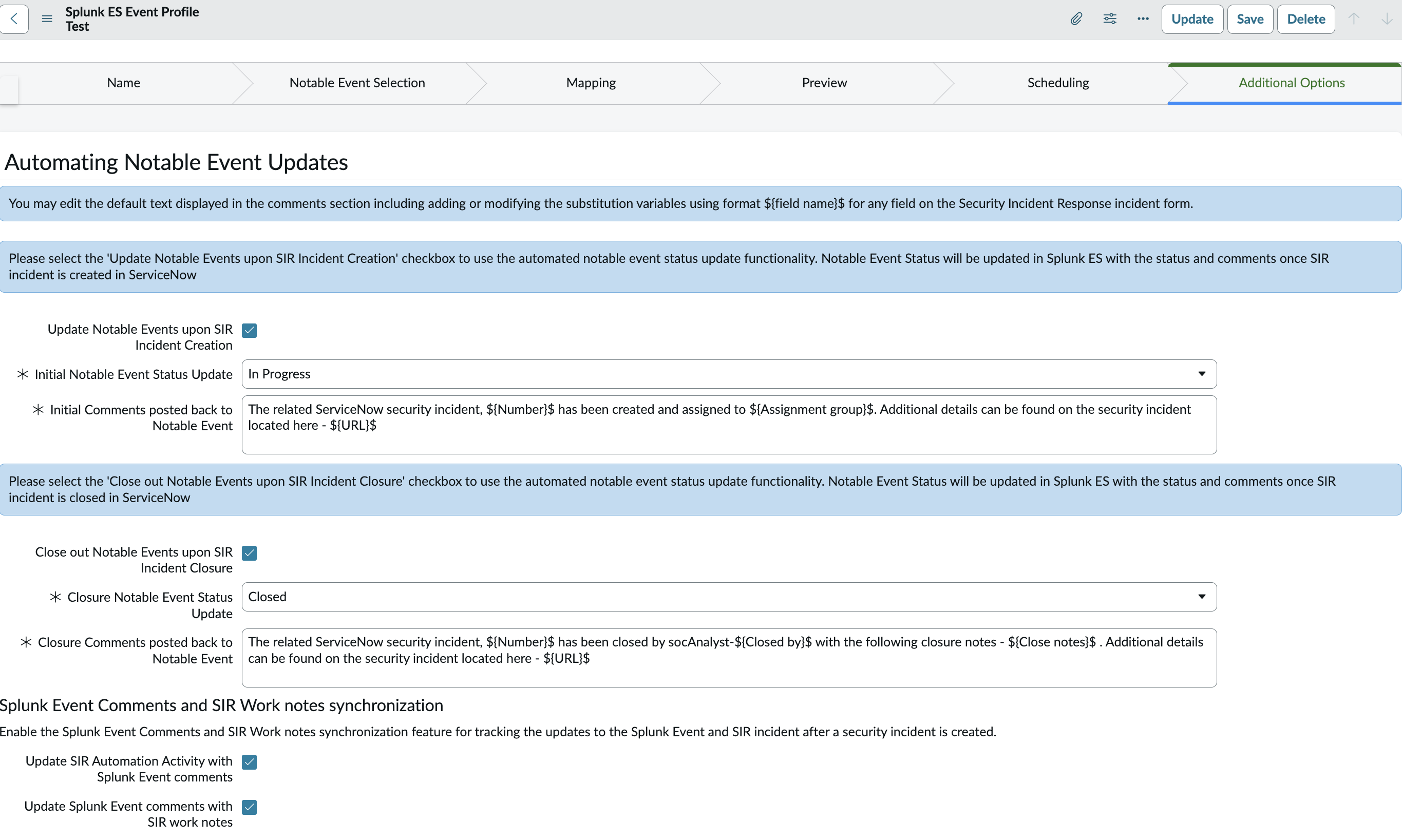
The following image shows the Additional
Options tab with default values populated:
With the Additional Options configuration enabled, the notable event incident
review shows the status change and an update to the history comments:
