The Home page in Business Continuity Workspace serves as the landing page of the BCM application.
Home page in Business Continuity Workspace
The Home page in
Business Continuity Workspace provides an overview of the
BCM functional components in an interactive dashboard. The visualizations help the
Workspace users to know the status of their tasks and act on them in an organized manner. The Home page consists of the following tabs:
- Crisis events
- Business impact analysis
- Planning
- Exercises
Crisis events tab
The Crisis events tab in the Home page displays various cards that offer information on the crisis events. You can review the crisis events in various states, details of the selected crisis events, and
monitoring and tracking of the crisis events. The following example shows the cards in the Crisis events tab.

See the following table for the description of the cards in the
Crisis events tab:
Table 1. Cards in the Crisis events tab
| Card |
Description |
| Crisis events overview |
Overview of the crisis events in different states. You can view the details of the crisis events in the following states:
- In progress
- Number of the crisis events that are in the In progress state.
- Pending
- Number of the crisis events that are in the Pending state.
- Returned
- Number of the crisis events that are in the Returned state.
- Pending approval
- Number of the crisis events that are in the Pending approval state.
- Approved
- Number of the crisis events that are in the Approved state.
- Closed
- Number of the crisis events that are in the Closed state.
|
| Details of the selected event card |
Details of the crisis events for the selected state of the card. For example, if you selected In progress in Crisis events overview, then details of the crisis events that
are in the In progress state are displayed in this panel. You can view the following details on the crisis events:
- Active
- State of the crisis event. The state can be True or False. You can select the link to open the crisis event record.
- Activity due
- Activity that is due on the crisis event.
- Participants
- Participants of the crisis event.
- Approval
- Approval information for the crisis event.
- Approval history
- Approval history of the crisis event.
- Assigned to
- Name of the assignee responsible to respond to the crisis event. When you select the assignee name in the column, it opens the record form where the following tabs are displayed:
- Details
- Roles
- Groups
- Delegates
- Assignment group
- Assignment group for the crisis event.
- Business duration
- Business duration of the crisis event.
- Service
- Service impacted due to the crisis event.
|
| Monitoring and tracking of ongoing events |
Graphical representation of all crisis events. You can filter the information based on their associated assets, plans, and tasks in a pie chart format:
- Assets by recovery status
- Shows the number of the assets by their recovery status for ongoing events. The following details are displayed on the asset in a pie chart:The example in the image shows that out of the total 18 assets, 17 assets are not yet recovered and one asset is recovered.
- Plans by status
- Shows the plans by the following status of the ongoing events:
- Pending
- Work in Progress
- Closed Complete
- Tasks by status
- Shows the tasks by the following status of the ongoing events:
- Open
- Pending
- Closed Incomplete
- Closed Complete
- Closed Skipped
|
| Report crisis action button |
Action button to report a crisis and create a crisis event from the Crisis events tab. When you select Report crisis, it launches the Create New
Event form where you can fill in the details of the crisis event. |
Business impact analysis tab
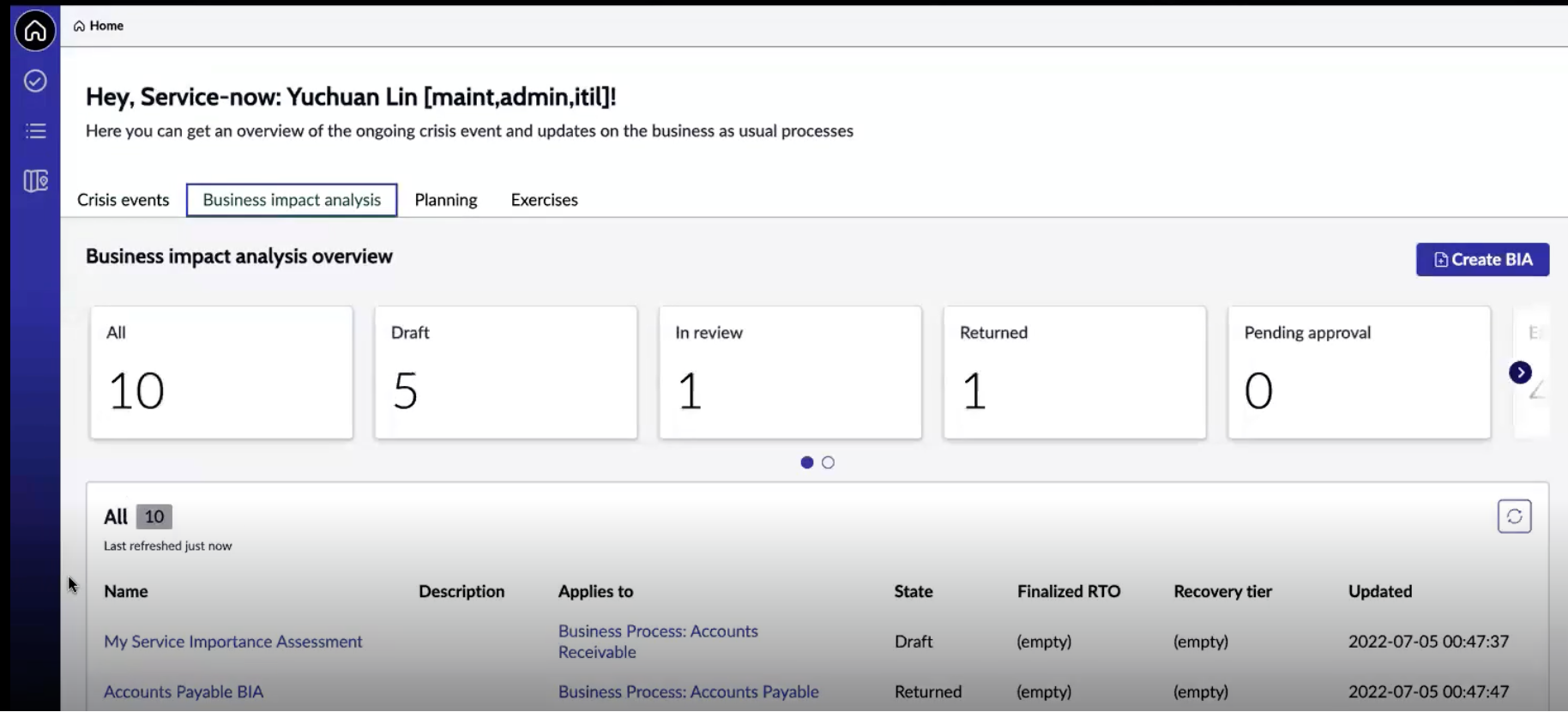
The Business impact analysis tab in the Home page displays various cards that offer information on the business impact analyses. You can review the business impact analyses in various states, details of the
selected analyses, and monitoring and tracking of the analyses. The following example shows the cards in the Business impact analysis tab.
See the following table for the description of the cards in the
Business impact analysis tab:
Table 2. Cards in the Business impact analysis tab
| Card |
Description |
| Business impact analysis overview |
Overview of the business impact analysis in different states. You can view the details of the business impact analysis in the following states:
- All
- Total number of the business impact analyses in the BCM application.
- Draft
- Number of the business impact analyses in the Draft state.
- In review
- Number of the business impact analyses in the In review state.
- Returned
- Number of the business impact analyses in the Returned state.
- Pending approval
- Number of the business impact analyses in the Pending approval state.
- Expired
- Number of the business impact analyses in the Expired state.
- Approved
- Number of the business impact analyses in the Approved state.
- Archived
- Number of the business impact analyses in the Archived state.
|
| Details of the selected business impact analysis card |
Details of the business impact analyses for the selected state of the card. For example, if you selected In progress in Crisis events overview, then details of the
business impact analyses that are in the In progress state are displayed in this panel. You can view the following details on the business impact analyses in a tabular format:
- Name
- Name of the business impact analysis.
- Description
- Description of the business impact analysis.
- Applies to
- Service, process, or company that the business impact analysis applies to.
- State
- State of the business impact analysis.
- Updated
- Date and time when the business impact analysis gets updated.
|
| Monitoring and tracking of ongoing business impact analyses |
Graphical representation of all business impact analyses for their assets in a pie chart format:
- Assets by RTO
- Shows the number of the assets that have different recovery time objectives (RTO). The image shows an example of three assets that have an RTO of 8 hours and one asset that has an RTO of 4 hours.
- Assets by recovery tier
- Shows the number of assets that have different recovery tiers. The image shows an example of three assets that have mission critical recovery tiers and two assets that have business critical recovery tiers.
|
| Create BIA action button |
Action button to create a business impact analysis from the Business impact analysis tab. When you select Create BIA, it launches the Create New Impact
Analysis form where you can fill in the details of the business impact analysis. |
Planning tab
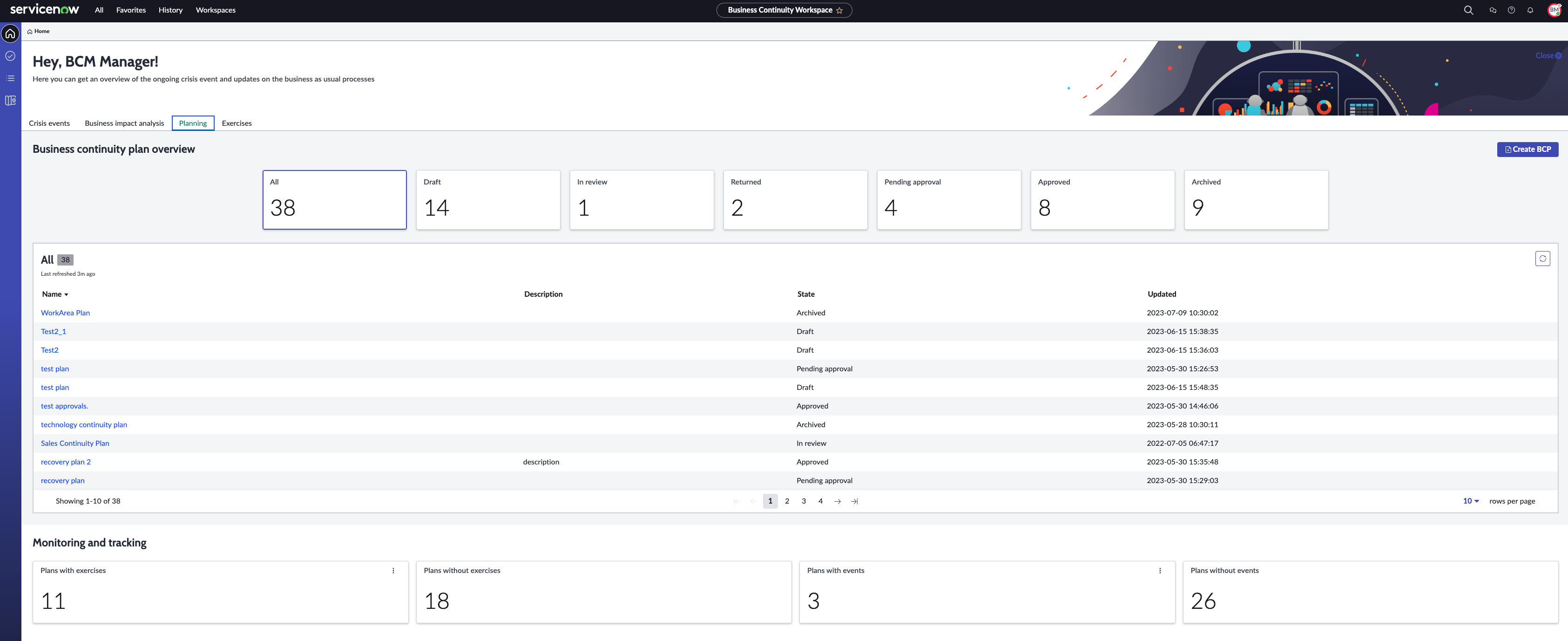
The Planning tab in the Home page displays various cards that offer information on the business continuity plans. You can review the business continuity plans, details of the selected plans, and monitoring
and tracking of the plans. The following example shows the cards in the Business continuity plan tab.
See the following table for the description of the cards in the
Planning tab:
Table 3. Cards in the Planning tab
| Card |
Description |
| Business continuity plan overview |
Overview of the business continuity plans in different states. You can view the business continuity plans in the following states:
- All
- All business continuity plans in the BCM application.
- Draft
- Business continuity plans that are in the Draft state.
- In review
- Business continuity plans that are in the In review state.
- Returned
- Business continuity plans that are in the Returned state.
- Pending approval
- Business continuity plans that are in the Pending approval state.
- Approved
- Business continuity plans that are in the Approved state.
- Archived
- Business continuity plans that are in the Closed state.
|
| Details of the selected business continuity plans card |
Details of the business continuity plans for the selected state of the card. For example, if you selected In progress in Business continuity plan overview, then details of
the business continuity plans that are in the In progress state are displayed in this panel. You can view the following details on the business impact analyses in a tabular format:
- Name
- Name of the business continuity plan.
- Description
- Description of the business continuity plan.
- State
- State of the business continuity plan.
- Updated
- Date and time when the business continuity plan gets updated.
|
| Monitoring and tracking |
Graphical representation of all the active business continuity plans in a pie chart format:
- Plans with exercises
- You can select the card to view the plans with exercises.
- Plans without exercises
- You can select the card to view without exercises.
- Plans with events
- You can select the card to view the plans with events.
- Plans without events
- You can select the card to view the plans without events.
|
| Create BCP action button |
Action button to create a business continuity plan from the Planning tab. When you select Create BCP, it launches the Create New Plan form where you
can fill in the details of the business continuity plan. |
Exercises tab
The Exercises tab in the Home page displays various cards that offer information on the exercise events. You can review the exercise events in various states, details of the selected exercise events, and
monitoring and tracking of the exercise events. The following example shows the cards in the Exercises tab.

See the following table for the description of the cards in the
Exercises tab:
Table 4. Cards in the Exercises tab
| Card |
Description |
| Exercises overview |
Overview of the exercise events in different states. You can view the details of the exercise events in the following states:
- In progress
- Exercise events that are in the In progress state.
- Pending
- Exercise events that are in the Pending state.
- Returned
- Exercise events that are in the Returned state.
- Pending approval
- Exercise events that are in the Pending approval state.
- Approved
- Exercise events that are in the Approved state.
- Closed
- Exercise events that are in the Closed state.
|
| Overview of the exercises for the selected state |
Details of the exercise events for the selected state of the card. For example, if you selected In progress in Exercises overview, then details of the exercise events that
are in the In progress state are displayed in this panel. You can view the following details on the exercise events in a tabular format:
- Active
- State of the exercise event. The state can be True or False. You can select the link to open the exercise event record.
- Activity due
- Activity due on the exercise event.
- Participants
- Participants of the exercise event.
- Approval
- Approval information on the exercise event.
- Approval history
- Approval history of the exercise event.
- Assigned to
- Name of the assignee responsible for the crisis event. When you select the assignee name in the column, it opens the record form where the following tabs are displayed:
- Details
- Roles
- Groups
- Delegates
- Assignment group
- Assignment group for the exercise event.
- Business duration
- Business duration for the exercise event.
- Service
- Service for the exercise event.
|
| Monitoring and tracking of ongoing exercises |
Graphical representation of all active exercises in a pie chart format:
- Assets by recovery status
- Shows the number of the assets by the recovery status for ongoing events. The following details are displayed on the asset in a pie chart:The example in the image shows that out of the total 18 assets, 17 assets are not recovered and one asset is recovered.
- Plans by status
- Shows the plans by the following status of the ongoing events:
- Pending
- Work in Progress
- Closed Complete
- Tasks by status
- Shows the tasks by the following status of the ongoing events:
- Open
- Pending
- Closed Incomplete
- Closed Complete
- Closed Skipped
|
| Create exercise action button |
Action button to create an exercise event from the Exercises tab. When you select Create exercise, it launches the Create New Event form where you
can fill in the details of the exercise event. |
Home page views for BCM Manager and BCM Planner
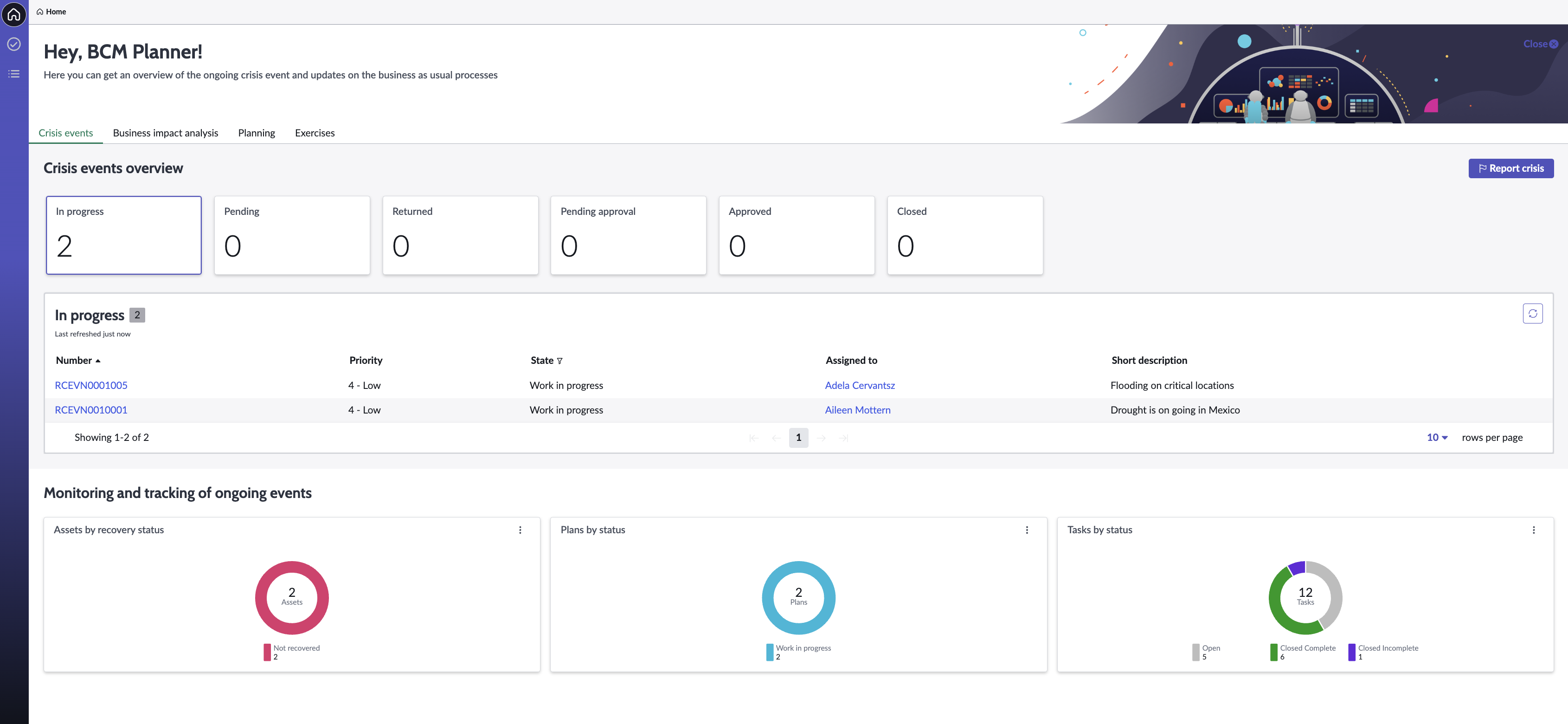
When you log in to the BCM application, the Home page view is displayed according to your user role, responsibilities, and the assigned tasks.
A typical Home page view for a BCM manager is shown in the following example.
A typical Home page view for a BCM planner is shown in the following example.
For information on the tabs and their associated actions in the Home page, see Home page view.