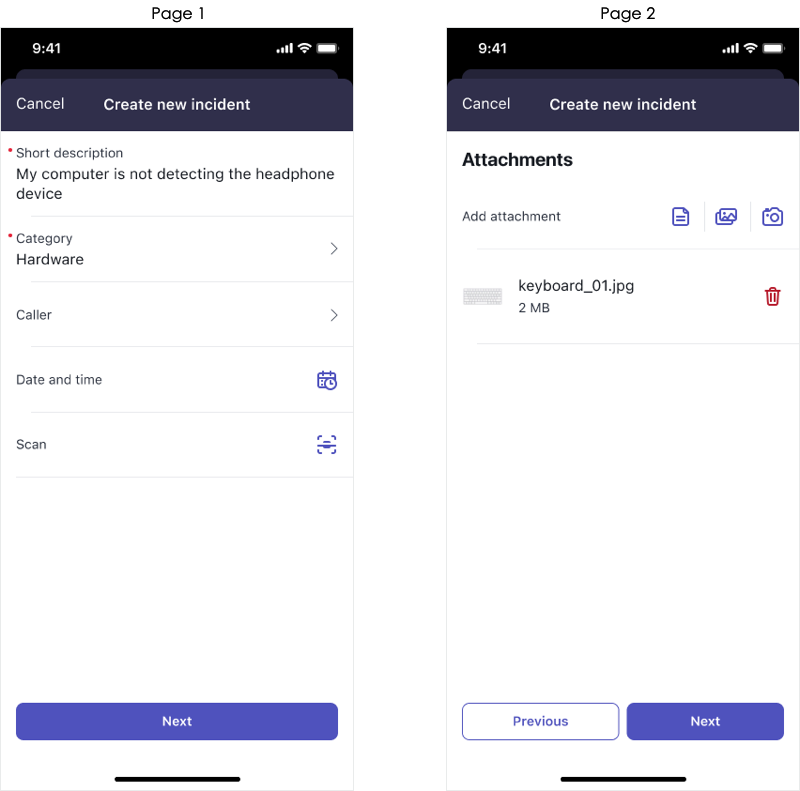
Create input form pages to enable users to view data over multiple organized pages,
rather than scrolling through a long list of entries. Input form pages host data from inputs
and sections. You control the layout of the pages, and which inputs and sections belong to
each page of the input form screen.
Procedure
-
Navigate to .
The Mobile App Builder opens in a new browser tab and
displays the application scope selection screen.
-
Search for the application scope you are working in and then select the name of
the application scope.
The Mobile App Builder categories home screen
displays.
-
Select the Screens category and then select the input
form screen for which you want to configure a page.
-
Scroll down to the Input form page display section and
make sure that Custom page and section setup is
selected.
If Custom page and section setup is not selected, the
option to configure Pages does not appear in the form.
-
Scroll down to the Pages section of the form and select an existing Page name
or select New to configure a new input form screen
page.
The Input Form Page appears.
-
Complete the following fields as needed.
Table 1. Input form page fields
| Field |
Description |
| Name |
The name of your page. This name appears as the title of
your mobile app page. |
| Order |
Enter a number to define the placement order of the
page.Note: An input form page displays variables and
sections according to the number entered. Sections and
variables do not have priority over each
other. |
| Active |
Whether the input form screen page is active. Inactive
pages do not appear on the input form screen. |
-
Select Save.
-
Map inputs to designated pages.
-
Select the input form screen where you want to use the page you
configured.
The input form screen appears.
-
Scroll down to the Inputs section and select the input you want to map
to a page.
-
In the Input form, scroll down to the Input placement section, and make
sure the Input form screen you want to use if selected.
-
In the Input form page field, select the page to which you want to map
this input.
-
Select Save.
Result
An input form screen can contain any number of pages. Each page can comprise inputs
and reusable sections.