You can publish a policy version at any time. When the policy is published, a
compliant, non-compliant, or compliant-exception decision is made for objects (tables or
document IDs) mapped to the policy.
Before you begin
Role required: sn_pace.code_editor
Procedure
-
Navigate to .
Note: To view all policies generated by admin/other users, navigate to .
-
Click the policy name for the policy that includes the version you want to
publish.
-
In the Details page, click the Policy builder tab.
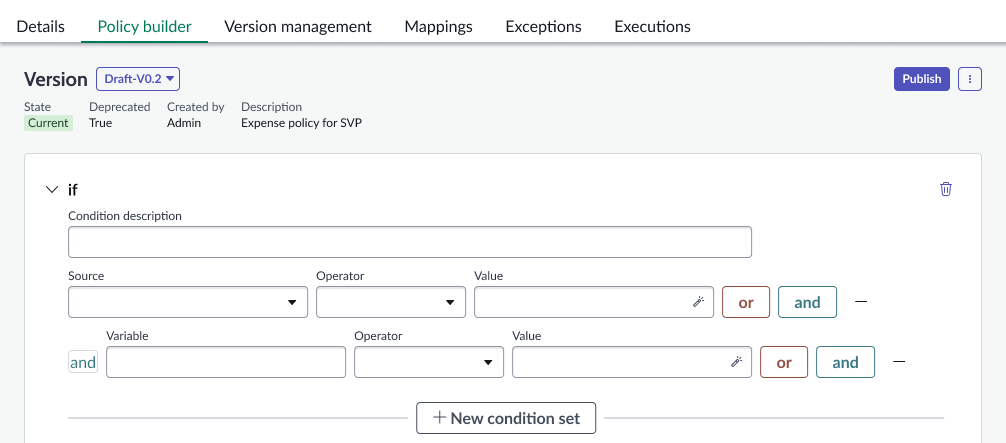
Typically you would publish a Draft policy, but you can also republish an Archived version.
-
Click Publish.
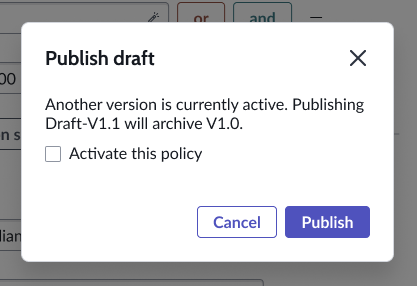
The following screen is displayed.
-
Select the Activate this policy check box to activate
the policy when it is published.
-
In the displayed confirmation message, click Publish.
The policy version becomes the Current version and is used the next time the policy is invoked.
Note: If the policy has an existing mapping to document IDs, when you publish a new version it verifies that all mandatory inputs for mapping inputs are provided. If you changed a mapping input, it must be updated. If you
changed a caller input, you must update the PaCE API call to ensure that the policy is executed. If there is no mapping associated with the policy, or the policy is in an Inactive state, the mapping inputs are not
verified.