Set up the relationship registry in the Data Relationships Framework and establish a connection between a record and an object defined in the table. You can configure details of the relationships in the Main node configuration, including name, source,
table name, filter conditions, and additional settings as needed. This ensures that the relationships are properly set up and managed within your system.
Before you begin
Role required: sn_oper_res.admin
Procedure
-
Navigate to .
You can view the configured relationship registries as shown in the example.
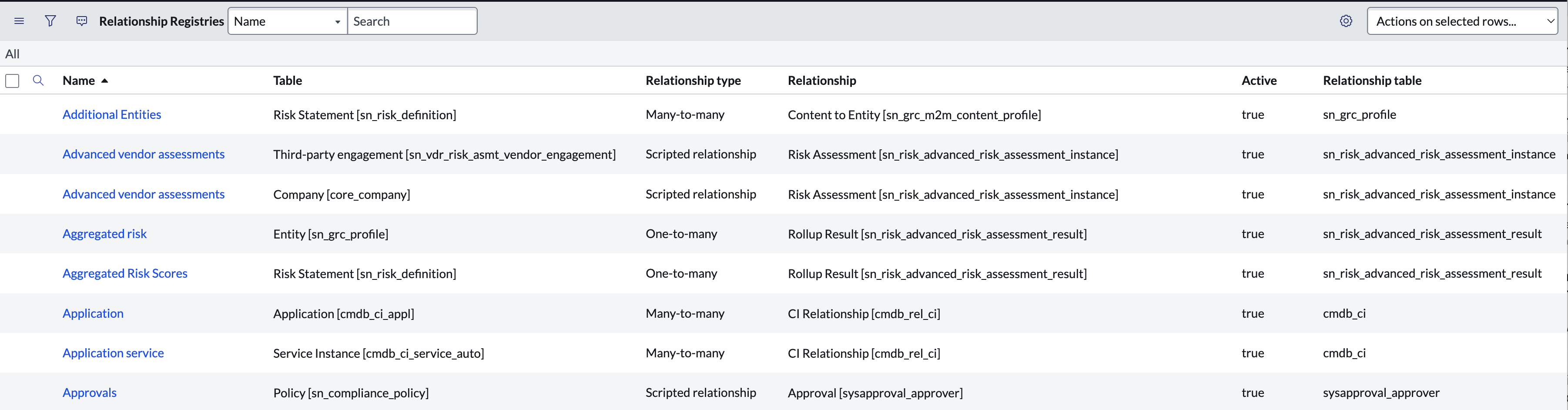
The configuration details of a record, such as its name, table, relationship type, relationship table, and so on, are shown in the example.

-
Select New.
-
On the form, fill in the fields.
Table 1. Create new relationship registry
| Field |
Description |
| Name |
A descriptive name for this registry. |
| Table |
The table for which you want to define a relationship. |
| Relationship type |
The type of relationship you are defining:
- One-to-many
- Many-to-many
- Scripted: a custom relationship from the ServiceNow AI Platform
- One-to-one: any relationship that is available as a field in the selected table
|
| Active |
Select if the relationship is active. |
| Relationship |
The relationship table of the selected relationship type. For example, if you are defining relationships for the Entity table and select a many-to-many relationship type, the list of
relationship tables consists of all many-to-many relationships that apply to the Entity table. |
| Relationship table |
The table name you selected in the Relationship field. |
-
Select Submit.
The relationship registry record is displayed in the Relationship Registries list. For more information on relationship registries, see
Register 360º relationships.