Document tasks generation
Document tasks can be generated either automatically or manually. The tasks get generated in the order defined for the participants.
Note:
Cancelling an HR case leads to the cancellation of document tasks associated with it. If you do not want the document tasks to be cancelled automatically, navigate to and inactivate the following business rules:
- Initiate Cancel Document Tasks
- Cancel Document Tasks
Automatically
Document tasks are automatically initiated for the participants when you:- Select the Automatically Initiate Document tasks option
on the HR service of a case.Note:Make sure that the configured template is added to the HR template of a service.
- Change the state of the HR case to Ready.
Manually
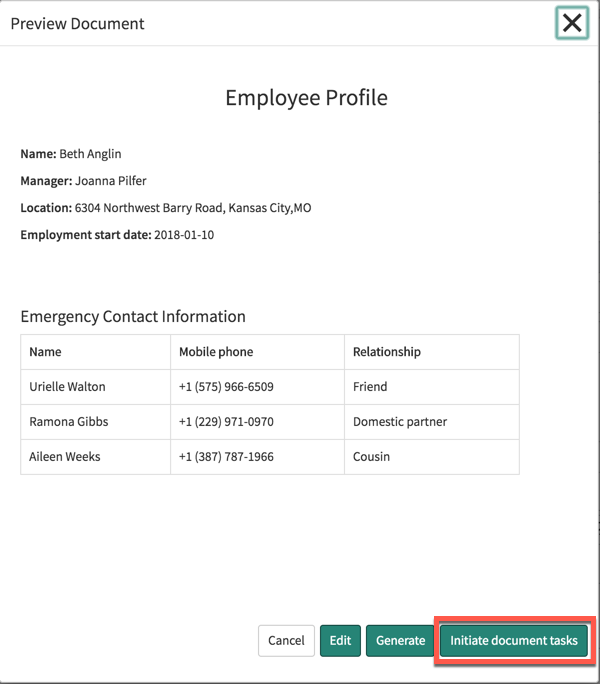
Document tasks are manually initiated when you click theInitiate document tasks button on the Preview Document option on the case.
Note:
The Initiate document tasks option does not appear when the Automatically Initiate Document tasks option is already enabled on the HR service of a case.
Note:
Initiating document tasks from a Preview model is not available for a word document template.