- Mark as New
- Bookmark
- Subscribe
- Mute
- Subscribe to RSS Feed
- Permalink
- Report Inappropriate Content
08-21-2019 07:47 AM
Hey Jay,
The document you listed does provide the instructions to do so.
Procedure
- Navigate to System Definition > Tags.
- Open the tag that you want to assign automatically.
- Configure the form to add the Conditions for Labels embedded list.
- Create a row in the Conditions for Labels list.
- Click the reference icon in the Table column.
The Label Table list opens in a pop-up window.
- Click New.
- Enter a Name, select a Table, and add conditions for the automatic assignment of the tag.
- Click Submit.
- Click the check mark icon to save the new row.
- Click Update.
Be sure to go into form design and add the 'conditions for labels' embedded list.
Let me know if you still have issues.
- Mark as New
- Bookmark
- Subscribe
- Mute
- Subscribe to RSS Feed
- Permalink
- Report Inappropriate Content
08-21-2019 10:54 AM
Hi Bill,
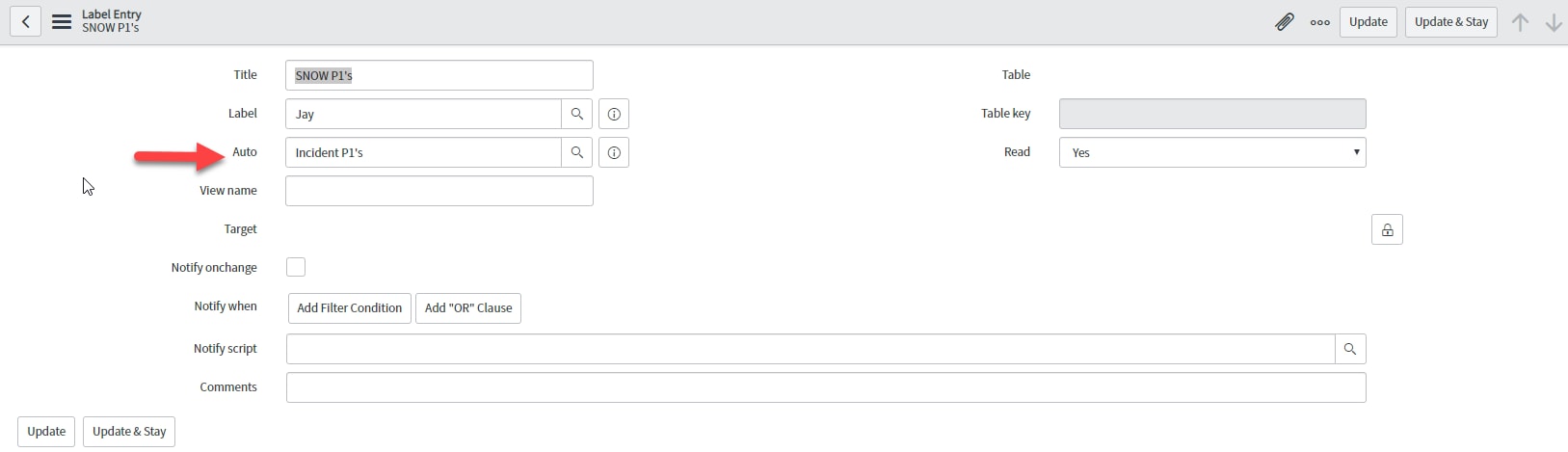
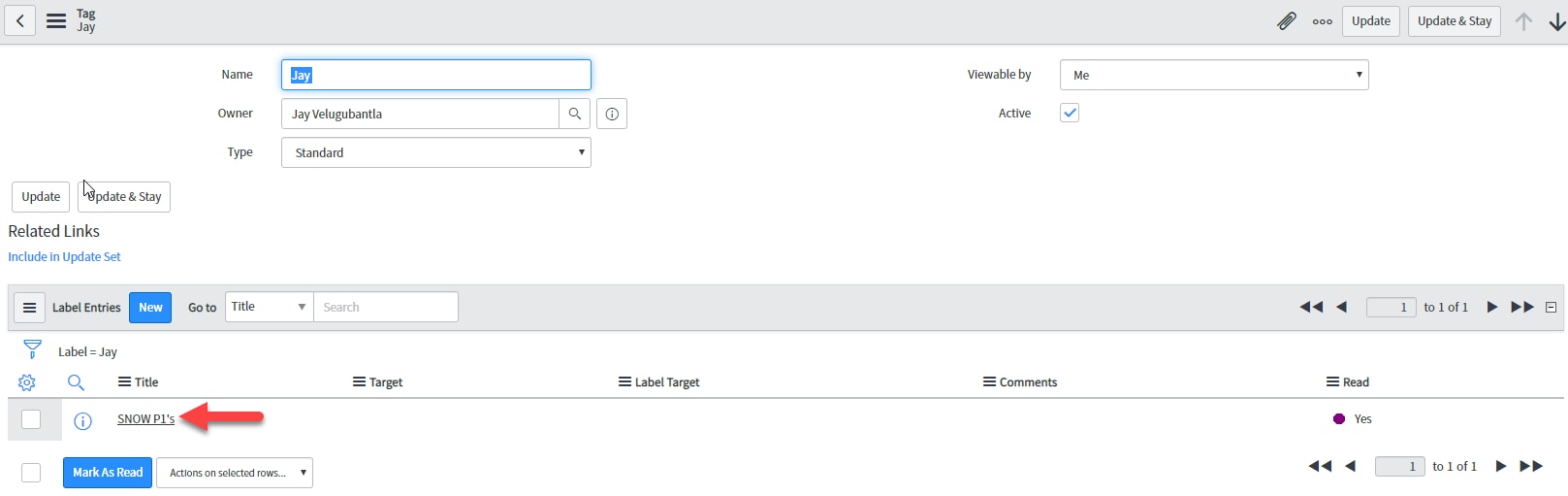
Thanks for the response. I am sharing a screenshot of process i have followed.
Step:1

Step:2

Step:3

I don't see any incidents got tagged with tag. Did i miss something or am i going wrong way..??
Thanks,
Jay
- Mark as New
- Bookmark
- Subscribe
- Mute
- Subscribe to RSS Feed
- Permalink
- Report Inappropriate Content
08-26-2019 10:15 AM
Can anyone help me on this??
Thanks,
Jay
- Mark as New
- Bookmark
- Subscribe
- Mute
- Subscribe to RSS Feed
- Permalink
- Report Inappropriate Content
02-18-2020 10:32 AM
Hello,
I am not sure if you got your issue resolved. But it seems the screen shots you added are showing you in the "Label Entries", not the "Conditions for Labels" related list.
When you go into the label, you have to add the related list for "Conditions for Labels". Hope that helps.
- Mark as New
- Bookmark
- Subscribe
- Mute
- Subscribe to RSS Feed
- Permalink
- Report Inappropriate Content
11-26-2024 02:51 AM