Chuck Tomasi
Tera Patron
Options
- Subscribe to RSS Feed
- Mark as New
- Mark as Read
- Bookmark
- Subscribe
- Printer Friendly Page
- Report Inappropriate Content
08-11-2012
02:12 PM
System properties are a great way to put configurable parameters in your system without having to modify scripts or workflows. Let's say you've been given a requirement 
System properties appear in various places in the system. You've probably dealt with them by going to System Properties> System to change the logo, or System Properties> CSS to change your banner background colors. Each property has an entry in the sys_properties table. The definition is very much like a dictionary entry for a field. Here's one for the css.base.color.
Accessing properties via a script is done using the gs.getProperty() method. For example:
var bgColor = gs.getProperty('css.base.color');

gs.addInfoMessage('Your base color is <span style="background-color:' + bgColor + '">This color</span>');
However, allowing others to edit your properties directly through the sys_properties list and form can be a bit cumbersome. There is an added risk that they might mess something up by editing the properties using the standard list and form. What's more, if you want to present a properties "page" for your related properties, you need to standardize your naming convention to ensure they can all be filtered together. For example, all the properties related to lists in the system start out with glide.ui.list. So you could create a "Properties" module on the left navigation menu that presents a filtered list like the following:
That may be fine for developers or admins, but there's a better way. The key to this is to use Property Categories. Here's an example.
- Begin by going to the sys_properties table. You can do this by typing "sys_properties.list" in the text area just above navigation menu.
- Click the New button
- Enter the following properties:
- Name: debug.script.enabled
- Description: Enable script debugging
- Type: true | false
- Value: false
- Right-click Save
- Right-click Personalize> Related Lists
- Move Categories from the left slush bucket column to the right and click Save. Your form should now have a related list on the bottom like the following.
- Click the New button to create a new category
- In the form, enter the following properties
- Name: My Debug Properties
- Title: Click Save when done making changes
- Click Submit
- Next, create a new module under the System Properties application by right clicking on the application name and choosing Edit Application, or go to System Definition> Applications, then open the System Properties record
- In the Modules related list, click New
- Enter the following field values
- Name: My Debug Properties
- Order: 40
- Active: true
- Link type: URL (from arguments)
- Arguments: system_properties_ui.do?sysparm_title=My%20Debug%20Properties&sysparm_category=My%20Debug%20Properties
- Click Submit
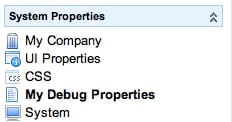
- If the navigation menu did not refresh automatically, click the refresh icon next to the "little A/big A" at the top of the menu. You should now see your "My Debug Properties" module under System Properties
- Click on the module and your shiny new properties page will appear
As you create additional properties, you can add them to "My Debug Properties" page simply by adding the My Debug Properties category on the related list. Note, the order in the list determines the order in which the properties appear on your page.
Now if you have statements like the following in your script, you can enable and disable script debugging in production on a moments notice without modifying any code using the gs.getProperty() method. Here's an example:
// The value of a true/false property is actually a string. We want a boolean.
var scriptDebugEnabled = gs.getProperty('debug.script.enabled') == 'true';
testDebugging('incident');

/*
 * testDebugging - read some records as a test
 *
 * @param: tableName - name of the table to get active records from
 * @return: none
 *
 */
function testDebugging(tableName) {

   myDebug('Setting up query');
   var gr = new GlideRecord(tableName);

   gr.addActiveQuery();
   gr.query();

   while (gr.next()) {
       myDebug('Found record: ' + gr. number);
       /*
         * Other important stuff might happen here
         */
   }
   myDebug('Done reading records.');
}

/*
 * myDebug - send a debug string to the system output w/prefix for easy searching
 *
 * @param: str - string value
 * @return: none
 *
 */
function myDebug(str) {

   if (scriptDebugEnabled) {
       gs.print('>>>DEBUG: testDebugging: ' + str);
   }
}
Check the checkbox on the properties page, and your log will have lots of lovely debug statements. Uncheck the checkbox, and the clutter is gone. Now you know how to keep your system properties organized for easy access.
5 Comments
You must be a registered user to add a comment. If you've already registered, sign in. Otherwise, register and sign in.