Jason Occhialin

ServiceNow Employee
Options
- Subscribe to RSS Feed
- Mark as New
- Mark as Read
- Bookmark
- Subscribe
- Printer Friendly Page
- Report Inappropriate Content
01-27-2017
06:06 PM
In my first post about CAB Workbench, I discussed some of the background of the new CAB Workbench feature of the Change Management application. Now that we know the why, how to enable it and what role we need to start scheduling CAB meetings, let's dig into how easy it is to get started and the key table structures that make it happen.
As you will, hopefully, recall when we enable the CAB Workbench feature, we're presented a new separator in the Change application that includes a number of new modules. Four of the five modules expose two of the key tables for CAB Workbench.
The first table is called the CAB Definition table. I have described the CAB Definition table as being analogous to a recurring meeting invitation. Recurring meeting invitations have meeting occurrences and the second record type, the CAB Meeting table, are those meeting occurrences in CAB Workbench.
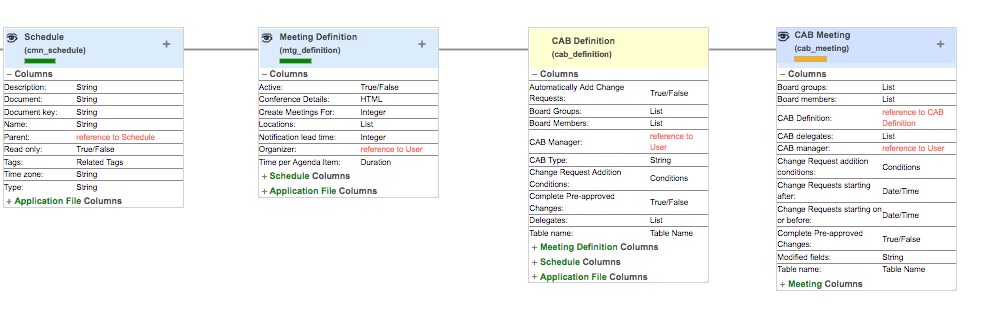
Before we get too far, let's take a look at that portion of the table schema:
One thing that may jump out is that the CAB tables are extended from the standard cmn_schedule table and extended from cmn_schedule is a generic Meeting Definition table.
As we worked through the design of CAB Workbench, we felt CAB Meetings were just one type of meeting that may benefit from our work. We thought of other meeting types like a project status meeting or Scrum meetings as two other use cases and I'm nothing, but confident the ServiceNow Community can think of many other possible uses. Needless to say, the foundation has been laid to apply our foundation else where.
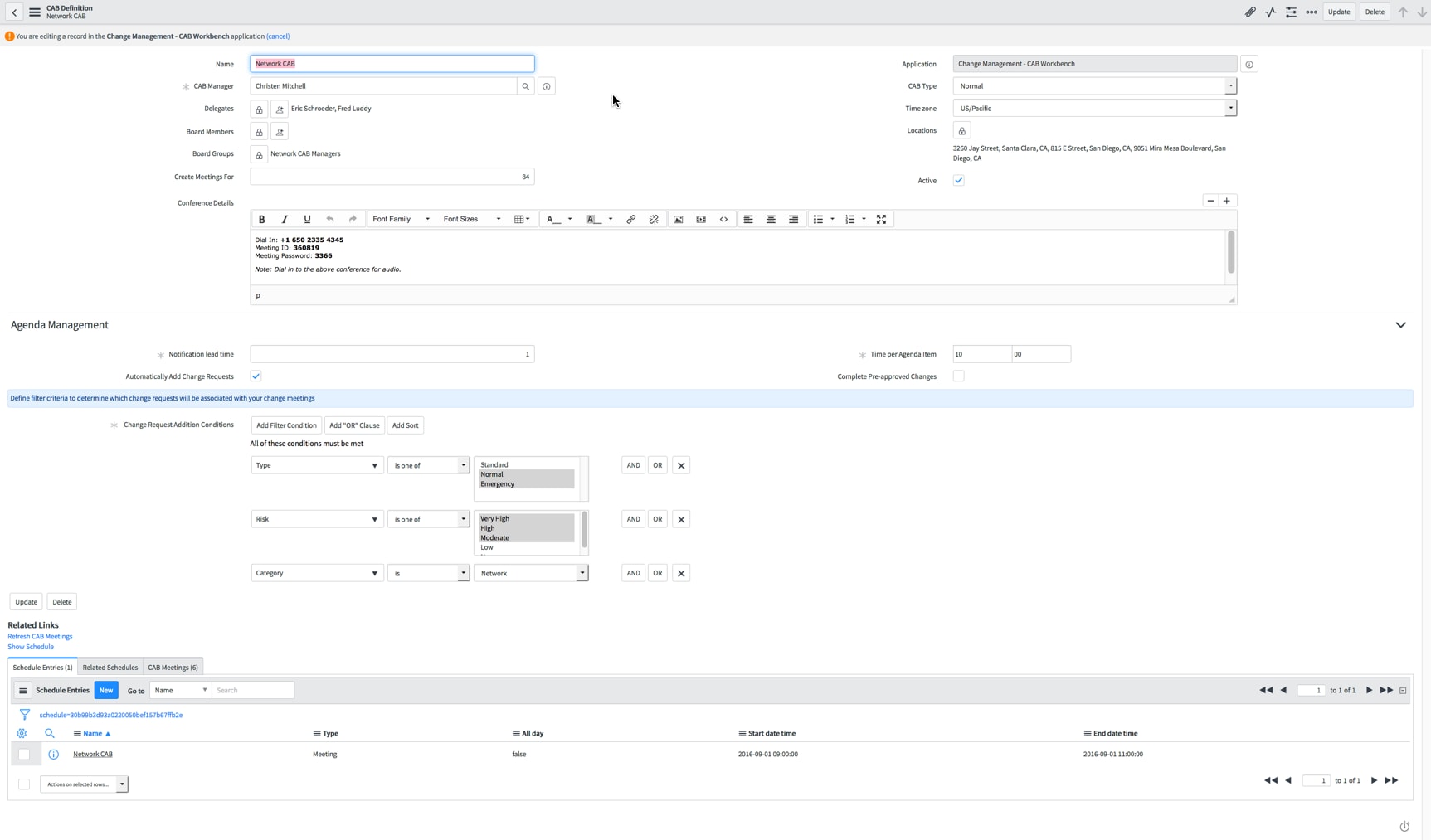
Let's break the CAB Definition table into two parts. The top half of the record contains standard attributes to associate with this recurring series. The meeting name, CAB Manager who will lead the series, Cab Delegates who can run a meeting in lieu of the normal CAB Manager and the CAB Board who are invited to every meeting in the series. CAB Board members can be included in this meeting series individually or as a group.
The bottom portion of the record is what's referred to as Agenda Management. Most ServiceNow customers manage their CAB Meetings using one of two platform tools; filtered lists or reports of type list. CAB Managers will be able to take that same criteria used to filter their existing lists and incorporate it into CAB Definition records.
For many customers, their existing filter criteria may include a date range. If you are one of those who do, you can exclude that information here and we'll explain why when we get to the CAB Meeting record.
CAB Definition Form
Before talking about the UI actions at the bottom of the form, let's create a schedule. As I mentioned, the key CAB Workbench tables are extended from cmn_schedule. Many change managers will already be familiar with this standard scheduling capability since it's the same table blackout and maintenance schedules extend.
Relating a schedule to your CAB Definition allows recurring CAB Meeting records to easily be generated using the "Refresh CAB Meetings" UI action. Based on your schedule, CAB Workbench will create the number of meeting occurrence into the future that fits within that schedule duration and the number of days specified in the 'Create Meetings For' field. Once you've defined your schedule, execute the Refresh CAB Meetings UI Action and we're ready to take a look at the CAB Meeting record.
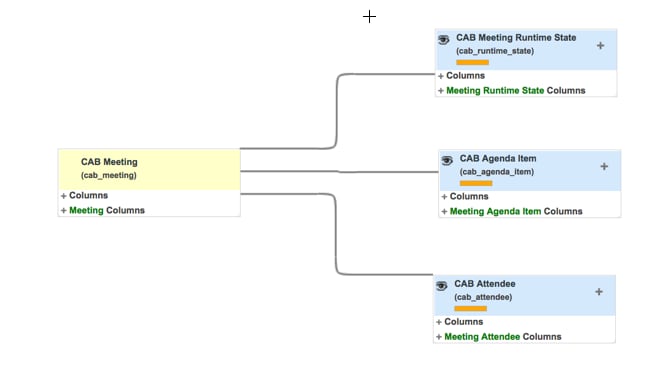
Before we get ahead of ourselves, let's take a peek at the CAB Meeting record and some of the tables related to it in a schema map.
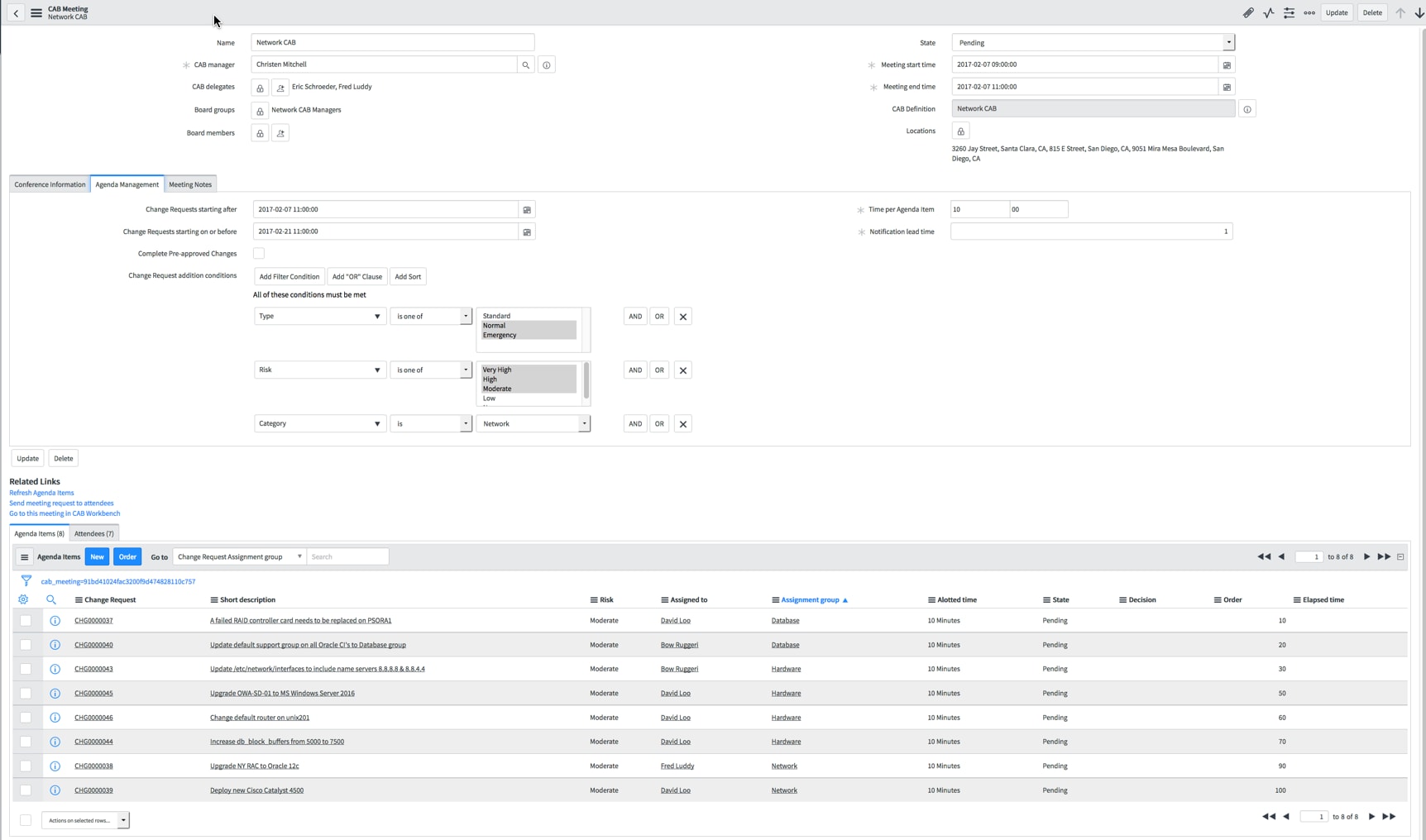
The CAB Meeting records look very similar to the CAB Definition record, by design. Many of the fields you've defined in your CAB Definition are inherited in these meeting occurrences and much like a recurring meeting series in Outlook, you can maintain the inherited values or modify the inherited values on a meeting by meeting basis. There are a couple of new fields that are introduced in the CAB Meeting record and some useful UI Actions under Related Links. Let's talk about the fields first.
In the upper section of the form, we have added the fields Meeting start time and Meeting end time. These fields are exactly as the labels describe and we auto-populate the fields with appropriate times and dates from the schedule related to the CAB Definition. It should be noted these times are used to populate the CAB Workbench calendar so if your meeting times need to change for some reason or another, ensure these fields are populated with any updated dates and times to ensure the meeting occurrence displays on the CAB Workbench calendar.
Under the Agenda Management form section, we've added and auto-populated fields labeled Change Requests starting after and Change Requests starting on or before. These fields establish a date range for the Change Requests that will be included in this meeting occurrence. If you wish to change this range or not include one, one or both fields can be cleared. Also specific to the CAB Meeting record are the Time per Agenda Item and Notification Lead Time fields. Time per agenda item enables the CAB Manager to allocate a default amount of time per agenda item. This allocation of time can be overridden on an item by item basis in the meeting agenda, which we will see in a minute. The Notification lead time field gives the CAB Manager control over a handy little feature.
Meeting attendees may only be needed in the CAB Meeting to discuss a single change request. The meeting agenda may be an hour or more in total. Within the CAB Workbench portals, which we will look at in the next post in this series, your attendees have the ability to set a notification for themselves so they don't have to attend the entire meeting. The Notification lead time field allows the CAB Manager to define the number of agenda items to notify any attendee who leverages this option prior to their item being discussed.
CAB Meeting Form
Ok, so we have a recurring meeting series and meeting occurrences in that recurring series. What agenda will be discussed?
The first UI Action under Related Links, "Refresh Agenda Items", associates an agenda with your CAB Meeting occurrence. It looks at your filter criteria, date range and automatically builds an agenda of change requests for you and associates attendees with the meeting. Those attendees will include the CAB Manager, CAB Board, and users who are associated with the change, either the assignee or a new field called CAB Delegate can be used to identify a delegate to attend in the assignee's place, perhaps a team lead or group manager.
The second related link, "Send meeting request to attendees" sends meeting invitations to the attendee list. The notifications that get sent include an iCal event so the attendee can add the invitation to their Outlook or another calendar tool. The CAB Manager is also prompted if they want to send invitations to their attendee list when they refresh the agenda, but this UI Action allows the CAB Manager to groom their agenda first and send invitations once their agenda is finalized.
Recognizing that's a lot of information already, I just want to offer a two helpful hints about agenda grooming.
- I mentioned you can adjust the default allocation of time per agenda item. This can be done in the agenda related list. Expose the Allotted time field to do so. The idea here is your default may only be a few short minutes, but may have a higher risk change you want to discuss for a longer period of time. The Allotted time field is your tool to adjust time allocation on an agenda item by agenda item basis.
- You can order your agenda by a number of fields, including fields from the change request table. Have your administrator expose the fields you want to order your agenda by using Configure -> Form Layout. Note: You will not be able to expose the change request fields by personalizing the list. Once the field you want to order by is exposed, use the standard list ordering capabilities and click the "Order" action on the related list. When you enter your meeting portal it will be ordered as you defined.
Alright, that's it for now. We now know how to schedule and plan CAB Meetings. In my next post, we'll look at what managing a meeting looks like in the CAB Workbench.
- 57,613 Views
48 Comments
- « Previous
-
- 1
- 2
- 3
- 4
- 5
- Next »
You must be a registered user to add a comment. If you've already registered, sign in. Otherwise, register and sign in.