maja_jovanovic

ServiceNow Employee
Options
- Subscribe to RSS Feed
- Mark as New
- Mark as Read
- Bookmark
- Subscribe
- Printer Friendly Page
- Report Inappropriate Content
12-10-2014
09:16 AM
A User Interface (UI) Policy is a rule that applies to a form that dynamically changes the information presented on it. UI Policies are a great alternative to using client scripts. Once you save the UI Policy a new UI Policy Actions is created in the Related List displays. Since Eureka, we have seen a flood of questions and incidents regarding UI policies failing. In most cases the cause of policy failure was because of the condition builder. In some of our earlier releases you could add in a Condition builder field that was not on a form and a UI Policy would still work, but this is no more.
Enable your UI Policy to work on a form:
An example of this issue is would be: On the incident form, we have a field called "Incident state" (incident_state) and by default this field is not visible on the form. If you make a UI Policy with the condition that "Incident state" "is" "Active" true, it will return with nothing.
As mentioned in the product documentation regarding Creating a UI Policy, the field has to be on the form for the UI policy to work.
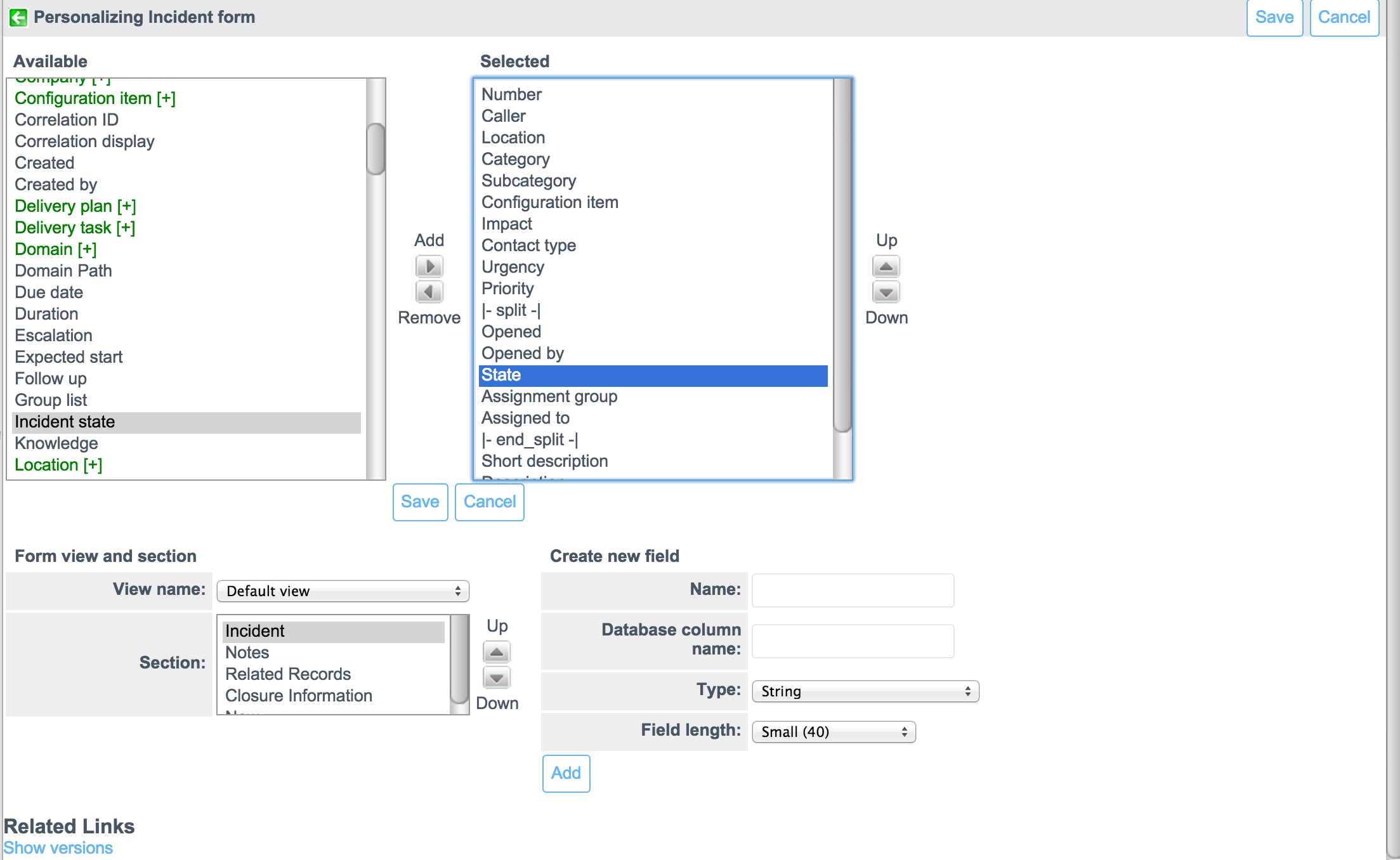
How to add the incident state on the form.
- Navigate to the Incident
- Right-click the header
- Click Personalize, then Form Layout.
- Select the Incident state field that you created from the slushbucket
- Click the Add button to move it to the Selected column
- Click Save.
It is important here to keep in mind that the policy isn't failing or causing the error in a log or console. This behavior is by design and when field isn't on the form the condition simply reverts to false. The same behavior is applied for a dot-walked field.
An example of a dot-walked field on an Incident would be Caller.Company or Caller.City.
**Even if this behavior was allowed in some of our previous releases that is no longer available in Eureka**
If you are on Eureka and you notice that your UI Policy is not working, be sure to check that the field is available on the form.
2 Comments
You must be a registered user to add a comment. If you've already registered, sign in. Otherwise, register and sign in.