Jason Occhialin

ServiceNow Employee
Options
- Subscribe to RSS Feed
- Mark as New
- Mark as Read
- Bookmark
- Subscribe
- Printer Friendly Page
- Report Inappropriate Content
01-31-2019
09:38 AM
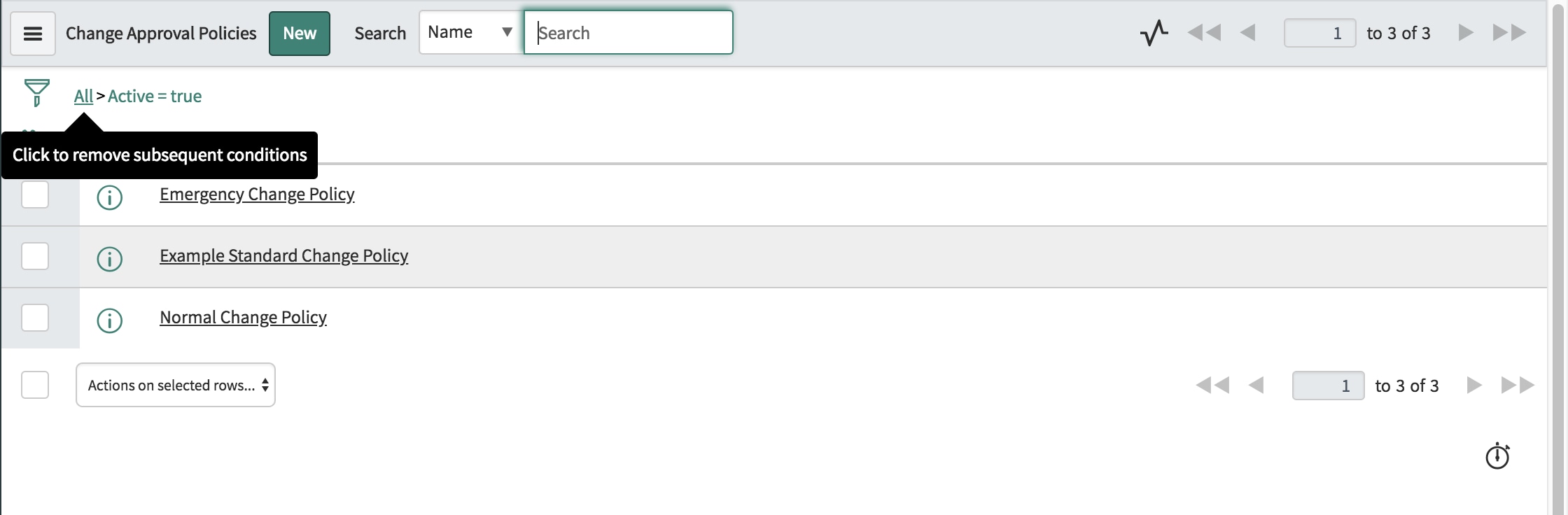
As mentioned in the first blog in this series, we include one change approval policy for the Normal change request type and one for the Emergency change type and this is how we expect these policies to be applied. Both of these policies include Decisions and Answers which replicate the OOTB approval configuration that were in both the Kingston and London releases and generated by Workflow Group Approval activities.
The Normal Change Policy will generate an approval to the members of the assignment group in the Assess state and members of the of the $cab_approval group when the Risk is either Moderate or High in the Authorize state. We will discuss what happens when a Normal change’s Risk value is low in just a moment.
The Emergency Change Policy generates approvals to members of the $cab_approval group in the Authorize state.
We also include an example of how you can use an approval policy to trigger an approval for the Standard change type, which is pre-approved by definition. Maybe the submission violates a policy your organization has defined. We picked the example if a standard change was being logged for more than 1000 CI’s. It is just an example and isn’t tied into the Standard Change Workflow in any way.
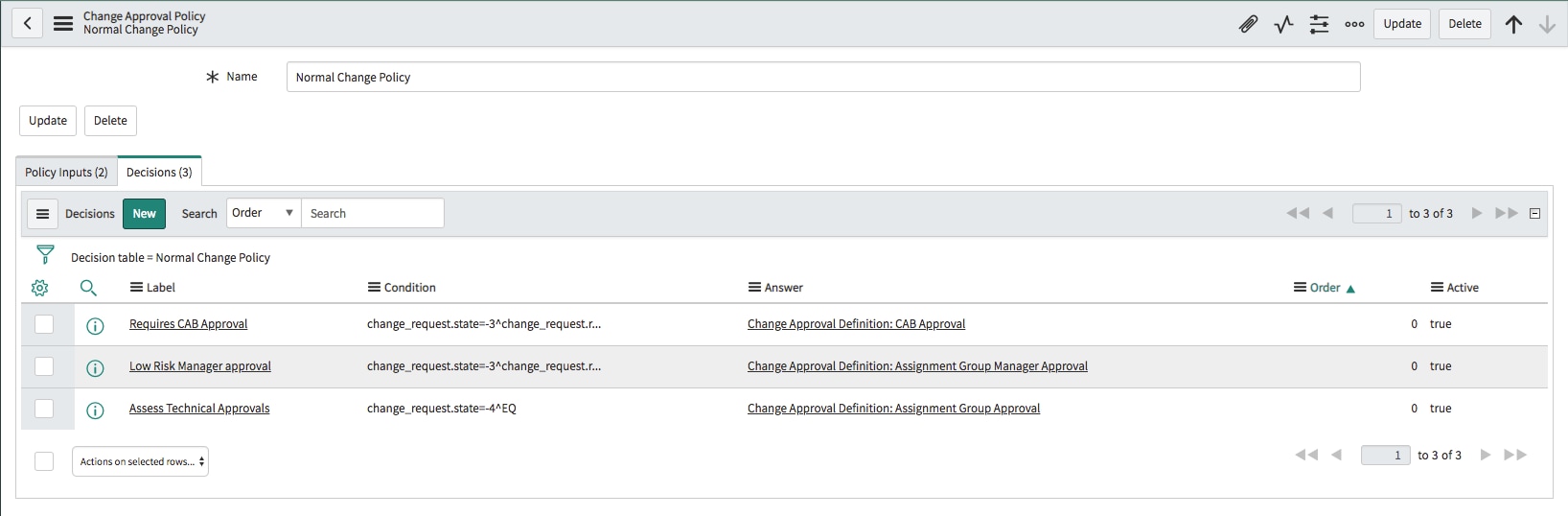
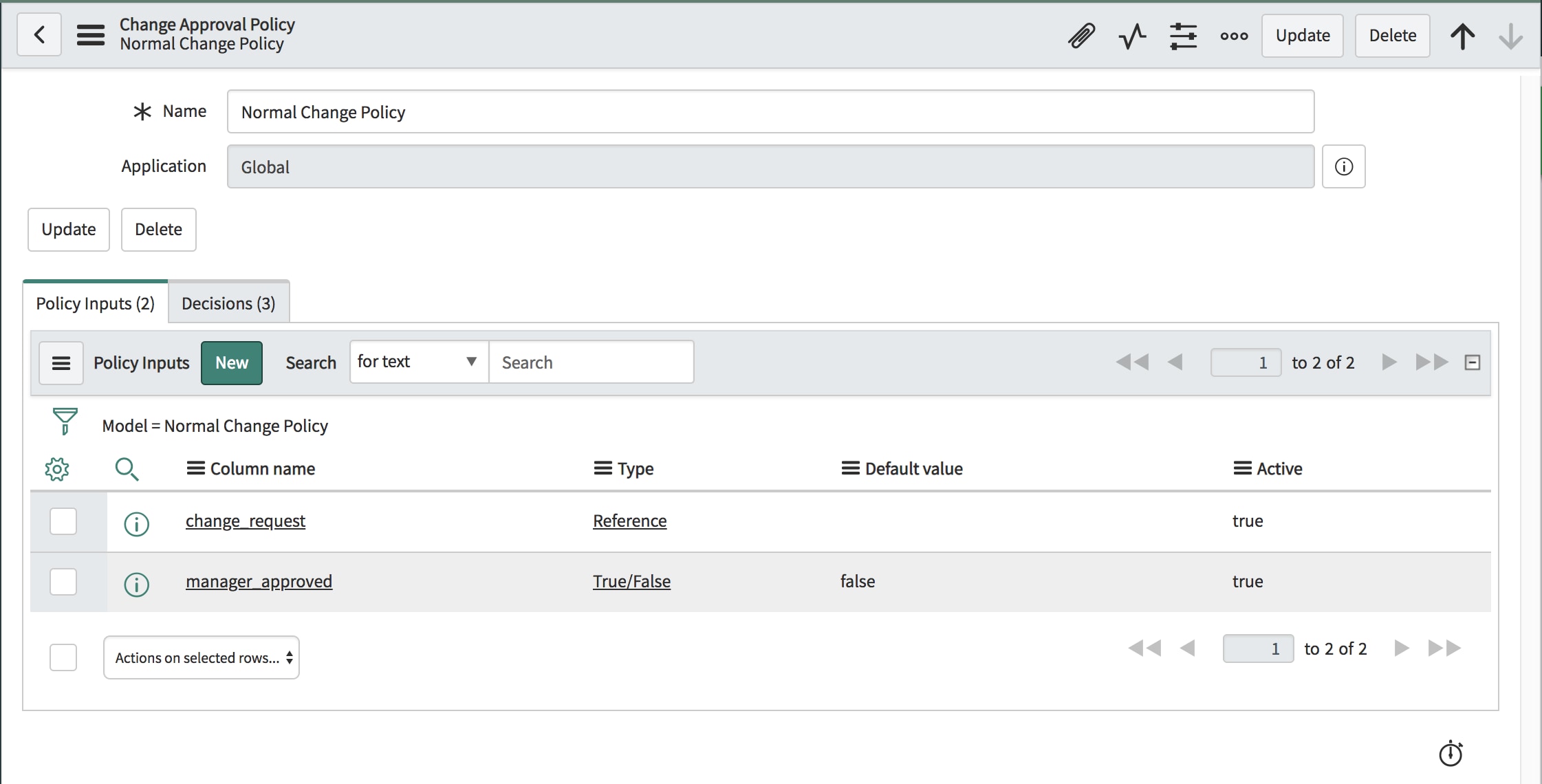
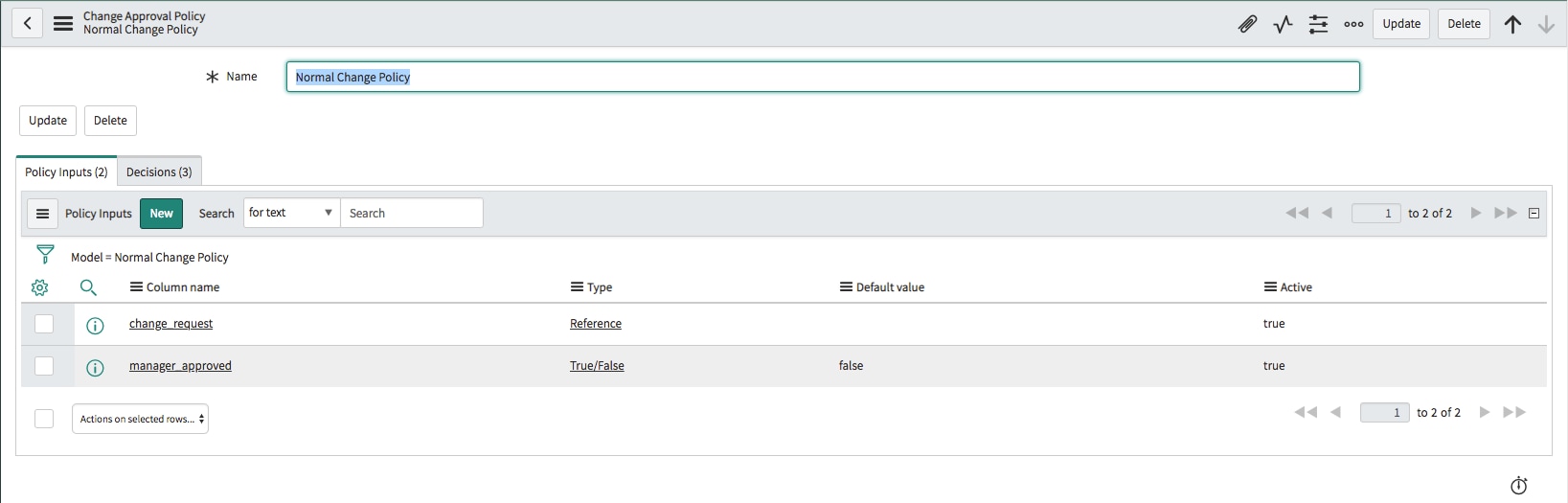
Using the Normal Change Policy as our example, we see two Policy Inputs have been defined in the base system. The first is the change_request input we referenced in Change Approval Policies and provides a reference to the current Change Request and anything the change_request table references. The manager_approved input shows how additional variable inputs can be introduced to your policy, this one in the form of a Boolean or true or false.
Our Normal Change Policy has three decisions that can apply and each specifies a condition that is based on the state of the Change Request. As an example, the “Assess Technical Approvals” decision applies when the state is Assess.

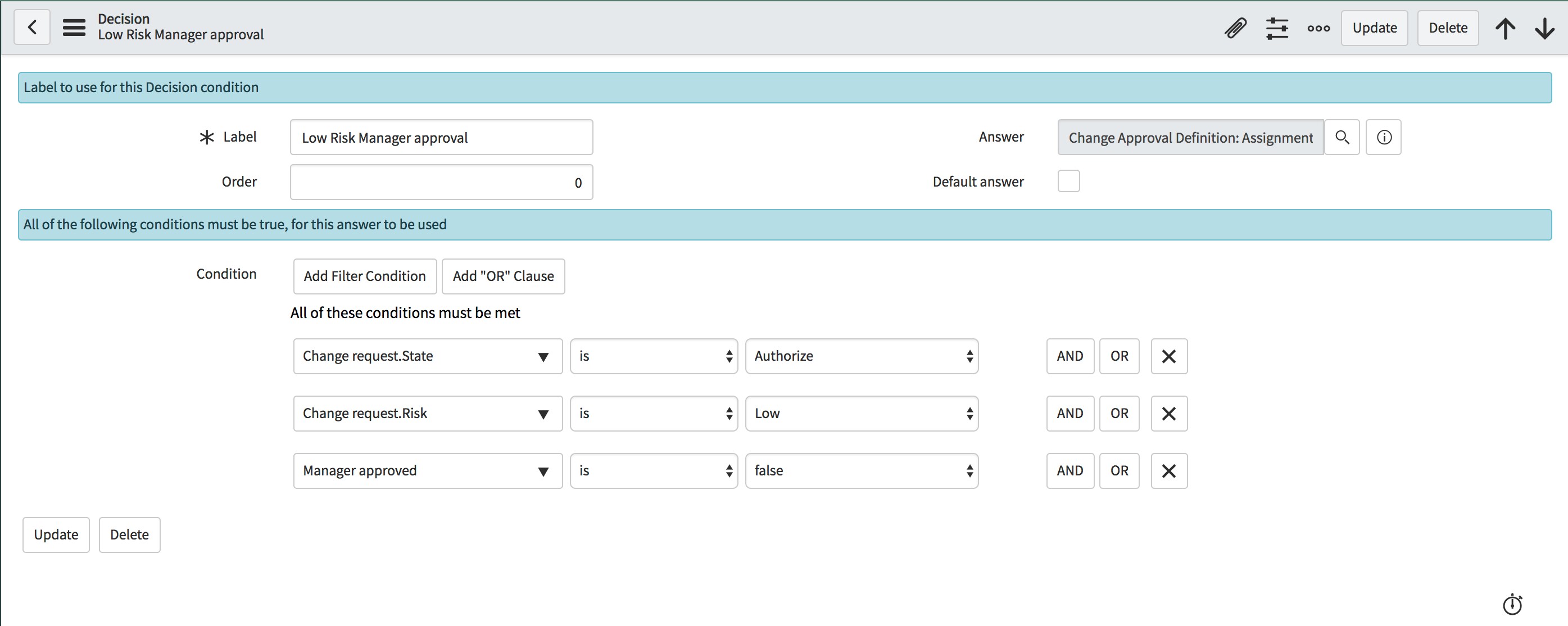
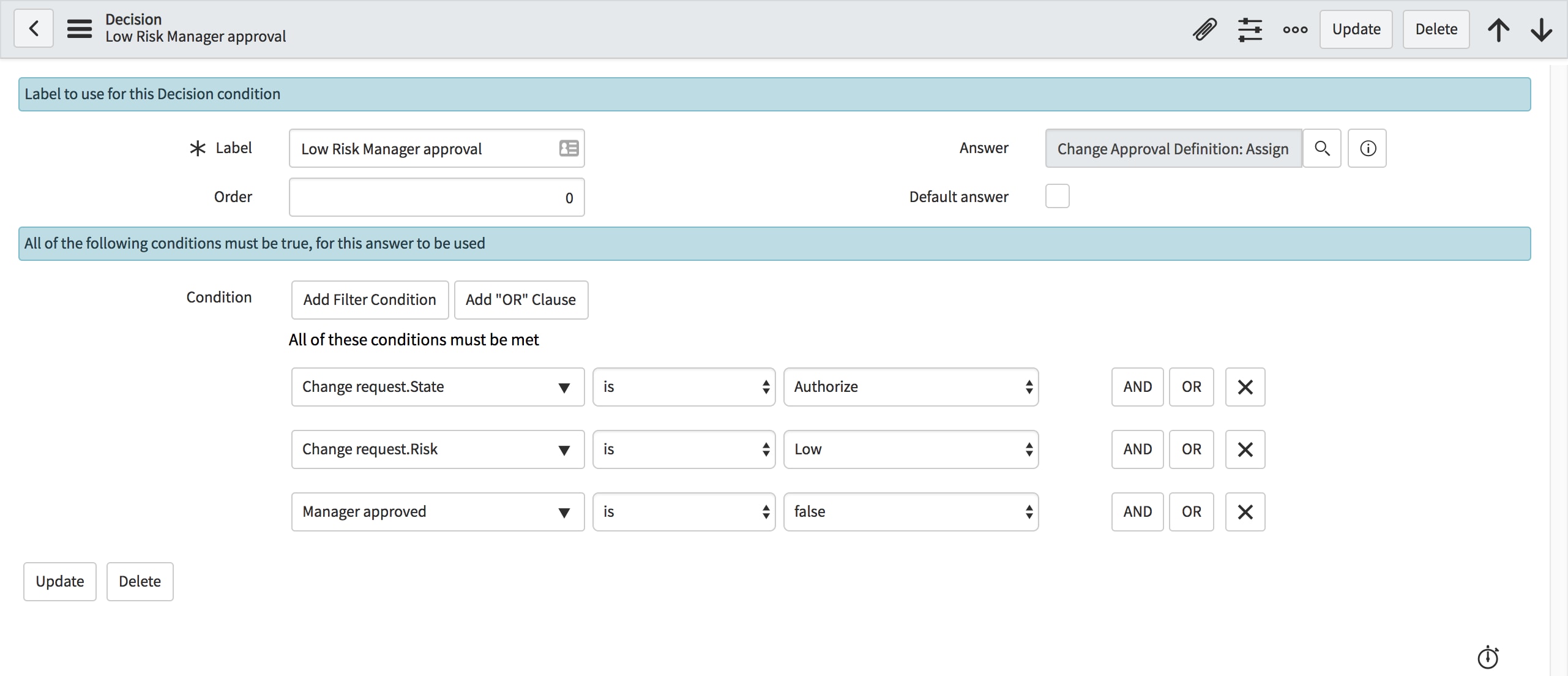
Looking at the “Low Risk Manager approval” decision, you can see an example with the Manager approved policy input; this is Boolean based, so the operators are limited to the operators relevant to a true/false. The manager_approved policy input and this decision help to enable a popular feature intended to reduce approval friction for low risk change activity we added in the Kingston release. This allows the assignment group manager to provide final authorization for a Normal change when the risk is low. If the manager provides approval to those changes in the Assess state, no further approval is needed.
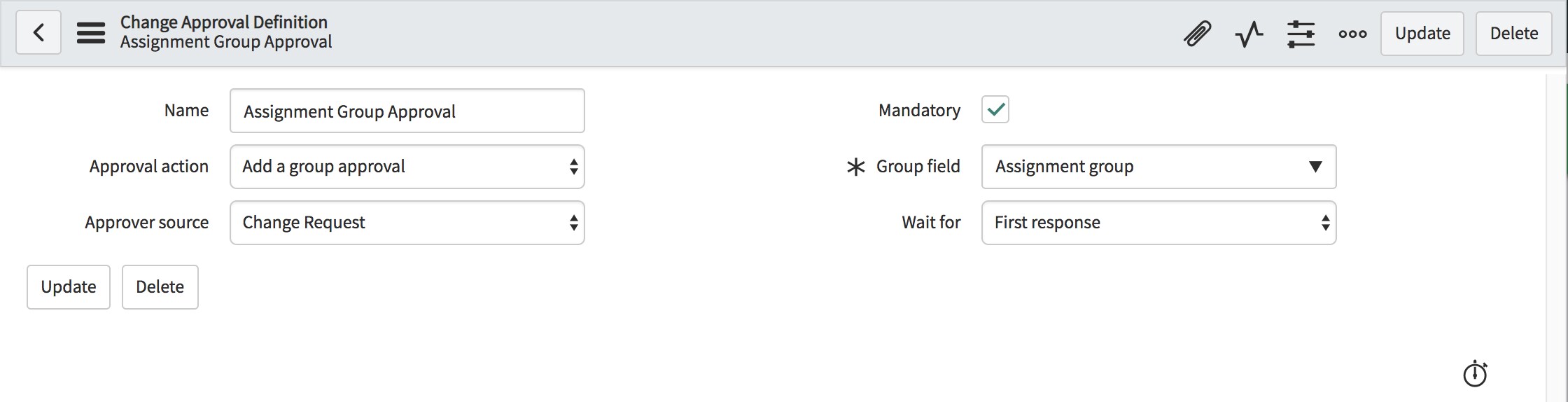
The other key aspect of Decisions is the associated Answer record (Change Approval Definition). This record tells the policy what to do in the event that the Decision’s condition matches. The Change Approval Definition states the action to take, source of the approver, and whether that approval is mandatory.
Approval actions can
- Approve (automatically as user $user_name)
- Reject (automatically as user $user_name)
- Generate User approval to user $user_name
- Generate Group approval to group $assignment_group
- Group approvals can be considered approved/rejected based on the first response OR all responses
In any of those four use cases, you retain full audit capability, as we’ll show later. Users or groups can be derived dynamically or defined statically.
Why may you want to approve something like a Normal change request automatically? Perhaps one of your DevOps teams has met criteria you’ve agreed to and defined for test suite coverage. Automatically approve and tie that back to their product owner who approved the work.
Why may you want to automatically reject? Perhaps an established quality threshold hasn’t been met.
The Approver source lets the definition know how to derive the approver when it attaches an approval. If the Change Request Approver source is specified, then a group or user field picker can be used to point to a column derived from a Change Request record, dynamically defining the user or group to generate approval for.
If the Approver source Approval Definition is selected, then a reference field displays allowing you to pick a specific group or user to trigger approval to.
Finally, the wait for field is available for group approvals only, it specifies whether the first approval is enough to pass the approval gate or if the entire group must respond.
The Mandatory field is used to require a response from the approval audience.
The workflow pictured above is an example of the workflow that supports the Normal change type and the Change Approval Policy activities have been highlighted to indicate how they are used to apply the Normal Change Policy at different points in the flow.
Both Change Approval Policy workflow activities have the Approval Policy field set to the Normal Change Policy and include a Policy Input field which allows additional policy inputs to be defined. The Policy Input field requires the answer object to be populated with any additional policy inputs you want to configure and here we define manager_approved Policy Input with script, allowing the assignment_group manager to approve low risk Normal change requests.
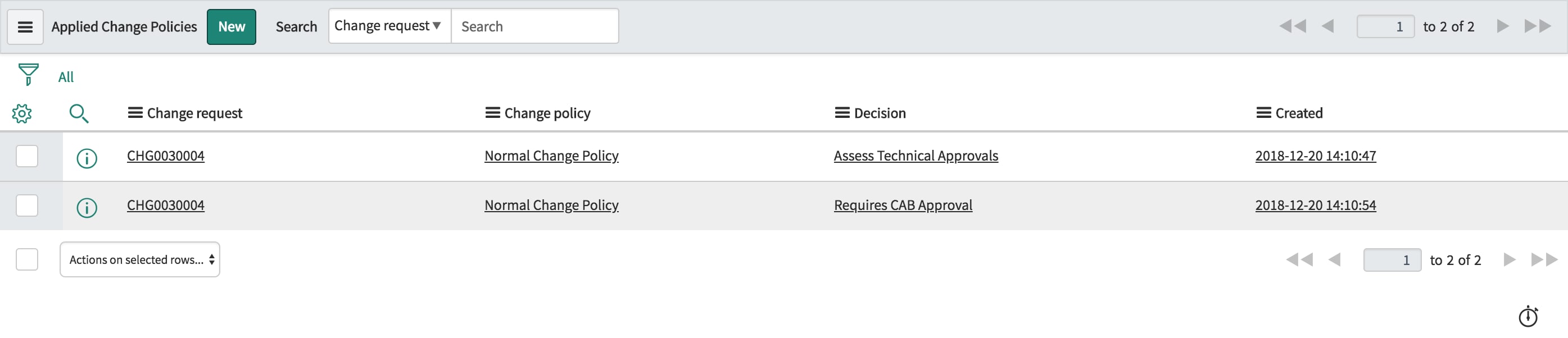
Now that we know what they are, the key components and content, and how the components interact, how does it manifest itself in the application during runtime? For ServiceNow veterans, it's going to seem every bit the same. The big change here is in how approval configuration occurs. When approval is requested in a change request, we still generate a standard platform approval record. When the approval gate is met according to the policy we transition to the next approval state. You still have the Approver related list to identify who approved or rejected a change, but we have also added a new related list that can be exposed called Applied Change Policies (table name = chg_policy_applied). This table acts as a log of the policies that have been applied to Change Requests. It will log the Change Request, change policy, Decision (matched outcome), and the date it occurred. It will prove useful period, but especially for any policy and decision that triggers an automatic approval or rejection.
How do you adopt Change Approval Policies?
Customers new to ServiceNow in the Madrid release will have workflows for the Normal and Emergency Change Requests types that use the Change Approval Policy activities, by default. You can create your own policies or tune the policies we supply to align to your approval requirements by adding or modifying additional Policy Inputs and Decisions. Don’t forget, the policies we provide in the base system replicate the same approval configuration prior releases generated using Workflow Group Approval Activities.
Upgrading to the Madrid release (Newer state models and types)
Instances upgrading to the Madrid release will have to introduce the Change Approval Policy activities to their Change Request workflows to make use of this feature.
The same policies will be seeded and available to use as is or modified to align to your business requirements, but won't be used until your workflows have been modified to reference the Change Approval Policy activities.
Upgrading to the Madrid release (Legacy state models and types)
If your instance started with a release older than Geneva, there is a chance you haven’t adopted the new Change Request types and states that were introduced in the Geneva release.
If you are still using the legacy state model and types, the Change Approval Policy foundation data needs to be reviewed and updated to reflect your change types and the state values valid for your instance. You will note our policies have been named to align to the change types we offer. We recommend you do the same. You will also need to modify your workflows to include the Change Approval Policy actions.
Ok so we know what they are and how to use them. But, wait - there's more. How about applying Change Approval Policies to your DevOps teams?
- 31,422 Views
10 Comments
You must be a registered user to add a comment. If you've already registered, sign in. Otherwise, register and sign in.