ServiceNow Administration Fundamentals>Lab 1.2.1: Grant and Verify Access to Applications

- Mark as New
- Bookmark
- Subscribe
- Mute
- Subscribe to RSS Feed
- Permalink
- Report Inappropriate Content
9 hours ago
Hi Team,
I am currently pursuing CSA Training and encountered an issue during my first lab exercise (Lab 1.2.1: Grant and Verify Access to Applications).
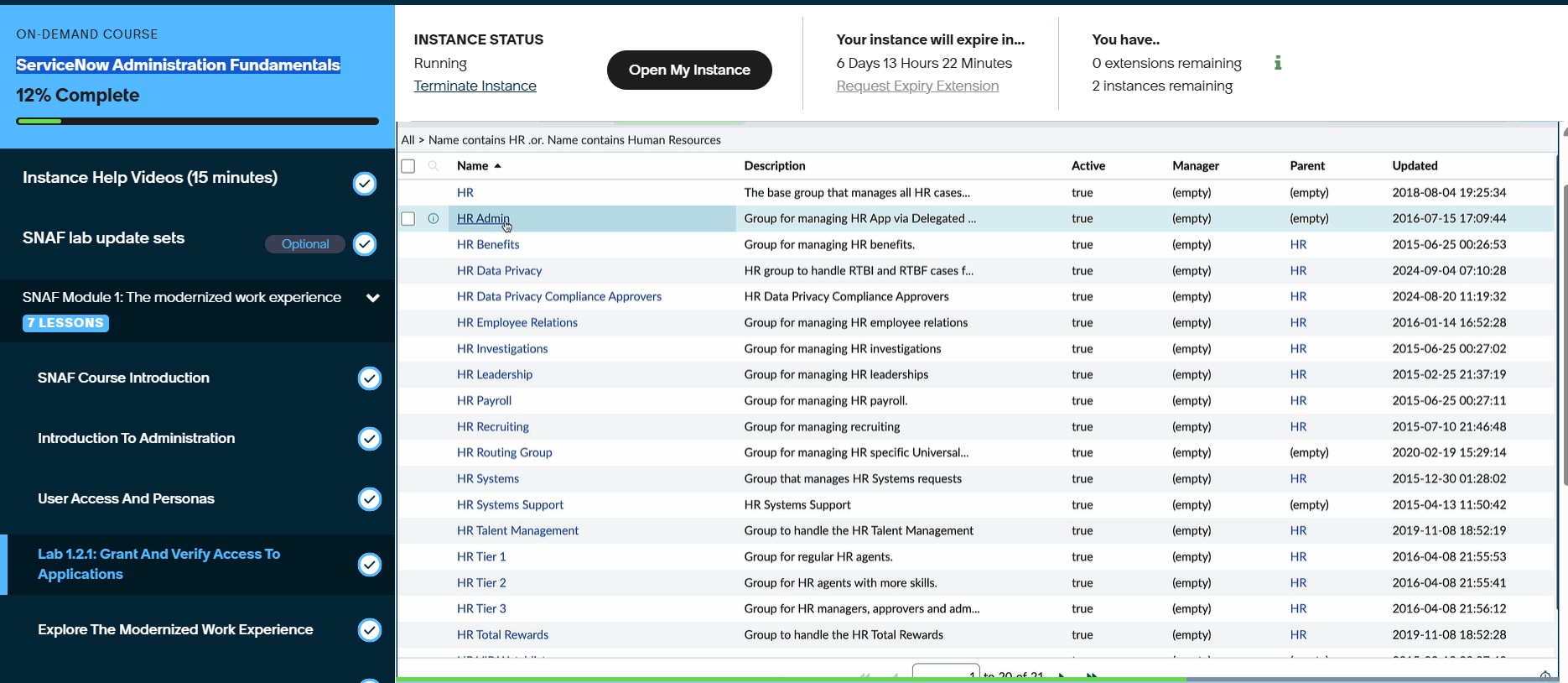
As shown in the video instructions, I cannot find “HR Groups” under the Favorites section. I added “Manage HR Groups” instead, assuming it was the same option; however, it does not provide the “HR Admin” option demonstrated in the video.
Could someone please guide me on how to access the correct option or resolve this issue?
I have attached screenshots for reference.
Regards,
Hardik


- Mark as New
- Bookmark
- Subscribe
- Mute
- Subscribe to RSS Feed
- Permalink
- Report Inappropriate Content
9 hours ago
Hii @HardikJ
Did you log in with the correct user to perform this activity? It could also be a data issue specific to some records in the instance.
- Mark as New
- Bookmark
- Subscribe
- Mute
- Subscribe to RSS Feed
- Permalink
- Report Inappropriate Content
9 hours ago
Hi @HardikJ ,
"Manage HR Groups" is not the same as the module shown in the video. Try this instead:
- Open User Administration > Groups, clear the Type filter, and search by Name for "HR Admin".
- If it's not found, confirm you're logged in as the admin user (not impersonating another user) and search again.
- If it's still missing, create a group named HR Admin, then continue with the lab steps.
Let us know if it works.

- Mark as New
- Bookmark
- Subscribe
- Mute
- Subscribe to RSS Feed
- Permalink
- Report Inappropriate Content
6 hours ago - last edited 6 hours ago
Hi @HardikJ
Follow ebook for the same . Link: https://servicenow.read.inkling.com/a/b/1bea4c8ce5ec4d54a00f8510610061c4/p/e5099dfe52d74b39a310f3f6c...
You need to create HR Groups favorite. Steps given below as per eBook ( also in group table , you can do filter and create favorite):
1. Navigate to Favorites > Users and Groups - Groups.
2. On the list header, select the Show/hide filter (funnel) icon to create a filter for groups containing HR or Human Resources.
Add the condition for Name | contains | HR
Select OR
Add the condition for Name |contains | Human Resources
Select Run
3. Use the List controls menu or right-click the list header to select Create Favorite.
4. Change the Name to HR Groups.
5. Select Done
