Use multiple ServiceNow instances on a single mobile device, to quickly change to different instances without the need to log out and log in. Also, you can automatically receive notifications from any of the instances
you're logged in to.
주:
Depending on the configuration by your administrator, you may only have access to a single
instance and therefore not have permission to change to other instances.
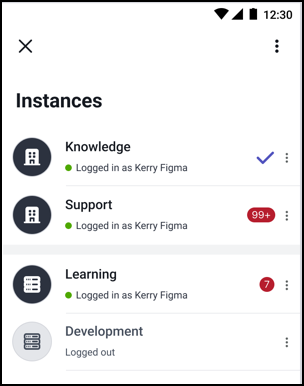
You can change ServiceNow instances in the following ways.
Tapping on the instances icon () in the header area of your mobile device.
Accessing the Instances screen from the Settings page and selecting a different instance to
work with.
Tapping on a notification banner displayed at the top of your mobile screen, which includes
a link. When you tap on the link, you're redirected to a different instance.
그림 1. Instances screen showing instances with the number of unread notifications
주:
The displayed number of unread notifications applies to notifications from instances
created in the Utah version and later.
Considerations when using multiple instances
Notifications - Notifications are only received from instances which you're currently
logged in to from your mobile device.
PIN code - If you need a PIN code to enter your mobile apps, changing instances doesn’t
need you to reenter a PIN code.
Offline behavior - You can't change instances while you’re offline. To work with multiple
instances, you must turn off the offline option.
Location tracking - Location tracking is available only on a single instance. Location
tracking is suspended if you move to another instance during an active session. However, if
you return to the initial instance and the defined tracking period didn't end, then the
location tracking automatically continues.
 ) in the header area of your mobile device.