bianca_vaccarin

ServiceNow Employee
Options
- Subscribe to RSS Feed
- Mark as New
- Mark as Read
- Bookmark
- Subscribe
- Printer Friendly Page
- Report Inappropriate Content
12-06-2016
10:33 AM
Sometimes, HTML just won't help you and you need to take the documentation "to go" in PDF format. If you are working offline, or have a lot to read and want to have it in a format that's easy to print, PDF can be helpful.
There are 3 ways to generate PDF on docs.servicenow.com—one of them new.
The product documentation content is updated frequently, so a PDF you download today might not be as current as what you'll find on the site next month. Check the PDF timestamp to help determine "content freshness" and bookmark your favorite topics online to find the latest information every time you visit docs.servicenow.com.
Option 1: Save the selected topic as PDF
Need to generate a PDF of just one topic? Found the reference table you just can't live without and want it in PDF format? Do the following:
- Go to the topic.
- Select Save as PDF>Save selected topic.
Option 2: Save the selected topic and all its subtopics
Need to generate a PDF for a set of topics? Found a group of topics that help you get a task done or teach you want you need to know and you want to refer to it while riding the train or eating breakfast? Do the following:
- Go to the first topic for the set of topics you want to generate as PDF.
- Select Save as PDF>Save selected topic and subtopics.
Note: The larger the set of topics the longer it will take to generate the PDF.
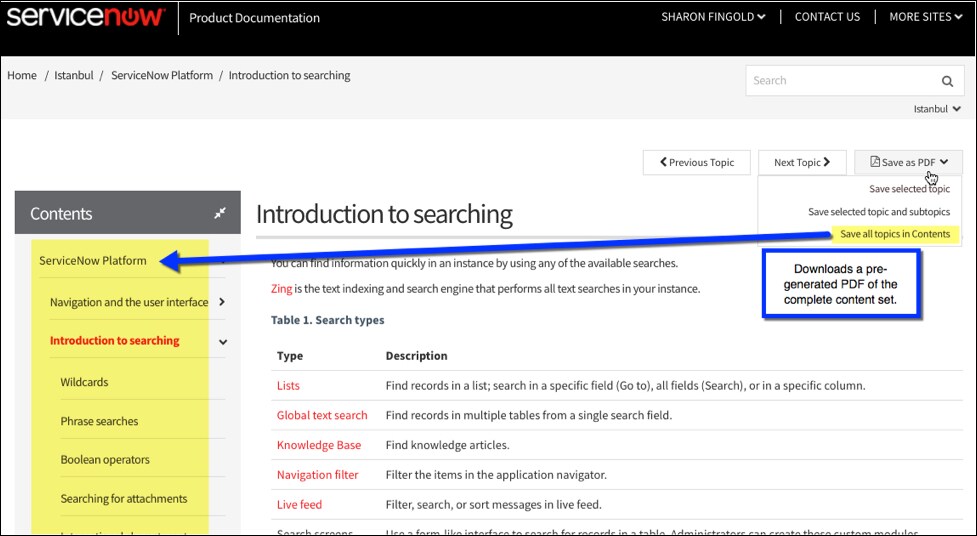
Option 3 (New): Save all topics in Contents
Want a PDF for ALL the topics in one of the content categories? Want to make sure you read EVERYTHING about ITSM or don't miss anything in the release notes? Maybe the pre-generated PDFs are the thing for you.
Generating PDFs for very large content sets can take minutes if you generate the PDFs on-demand. To save time, we now provide pre-generated PDFs for the content categories: Release Notes, ITSM, ITOM, Business Management, Application Development, Service Management, Security Operations, ServiceNow Platform, and Performance Analytics and Reporting.
To download the pre-generated PDFs, do the following:
- Navigate to the content area of interest. For example, Release Notes or Platform.
- Select Save as PDF>Save all topics in Contents. The pre-generated PDF will be downloaded for you quickly.
If you need to get some documentation to go, we hope one of these three options will suit your needs. But don't forget, the product documentation content is updated frequently. Check the PDF timestamp to help determine "content freshness" and bookmark your favorite topics online to find the latest information every time you visit docs.servicenow.com.
We have been listening to your feedback and evolving the docs. See how the documentation has changed since going live a year ago:
Improving search in the product documentation
New look, feel & functionality of docs.servicenow.com
New documentation site: a more Powerful Search
New documentation site: organized to help you find answers fast
New product documentation site: automation, feedback & flexibility
You must be a registered user to add a comment. If you've already registered, sign in. Otherwise, register and sign in.