Suzanne Smith

ServiceNow Employee
Options
- Subscribe to RSS Feed
- Mark as New
- Mark as Read
- Bookmark
- Subscribe
- Printer Friendly Page
- Report Inappropriate Content
11-12-2014
07:03 AM
Resource Management is a handy ServiceNow application for creating resource plans, requesting resources, and assigning people to tasks. What really makes resource management work is if all people (resources) that are available to do tasks have an accurate calendar. Resource managers cannot allocate tasks to the right person if they can't rely on the accuracy of individual user calendars.
All users that can work tasks should be assigned the resource_user role. With that role, users can follow these steps to maintain their calendar. Users need to add the times they are booked to their calendar.
- Navigate to Resource Management > Calendar > My Calendar.
The user's calendar opens in weekly view:
Users can switch to monthly view at any time by clicking the monthly iconto the left of their name.
- Do one of the following:
- On the weekly calendar, click an empty white cell
- On the monthly calendar, double-click on a date
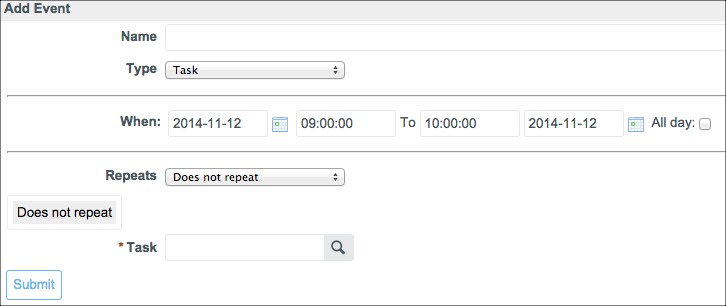
The Add Event form pops up.
- Select the correct event Type.
- Use the When field to set the date, start time, and end time for a one time event or use the Repeats option to set a daily, weekly, or monthly cadence.
- If you selected Task in the Type field, you must fill in the Task field by clicking the reference lookup icon and selecting a task.
- Click Submit.
When users add events to their calendar, a weekly calendar might look something like Karen Zombo's calendar for November 9-November 15:
This example shows all 5 available color-coded event types:
- Time off: pink
- Meeting: cyan
- Phone call: green
- Appointment: orange
- Task: blue
(These are the default colors. If these are not working for you, an administrator can change the colors.)
After users add events to their calendar, resource managers will see user availability from the resource console and the resource availability console. For example, if a resource manager has a resource plan and assigns a group to which Karen Zombo belongs to the resource plan, Karen's availability for the week of November 9th would appear in the resource console like this:
Unavailable time is shown in red and available time is shown in green. For example, Karen is taking a vacation day on November 10, so that day shows 8 hours of unavailable time. The resource manager can see that Karen has available work hours on the following days:
- November 11: 6 hours
- November 12: 7 hours
- November 13: 4 hours
- November 14: 4 hours
Here are some additional tips and tricks when using My Calendar:
- The My Calendar application uses time zones. It is important to manage time zones correctly if resource managers and users that work tasks are in different locations. For more information, see Using Time Zones and Using Time Zones in Resource Plans.
- Resource managers can add events to another user's calendar. If a resource manager adds an event to a user calendar, only the resource manager can modify the event. So, if the resource manager gives you a 2 hour task that you think will take longer to complete, you cannot change the allocated time yourself, but must contact the resource manager and negotiate for more time.
- Everyone does not work a 9:00am to 5:00pm schedule. For more information about default and custom schedules, see Using Resource Schedules.
- 19,841 Views
23 Comments
- « Previous
-
- 1
- 2
- 3
- Next »
You must be a registered user to add a comment. If you've already registered, sign in. Otherwise, register and sign in.