kim_purcell
Kilo Explorer
Options
- Subscribe to RSS Feed
- Mark as New
- Mark as Read
- Bookmark
- Subscribe
- Printer Friendly Page
- Report Inappropriate Content
09-11-2014
11:19 AM
If you can't seem to access labels in UI14, that's because labels have been changed to tags. Similar to labels, the tagging feature allows you to "tag" and categorize different forms that can be conveniently viewed all in one place from the Tagged Documents page.
To create tags in UI14:
- Click the edit tags icon at the top of the form.
- Click the Add tag field.
- Enter a new tag name and press Enter.
- Or, select an existing tag from the choice list.
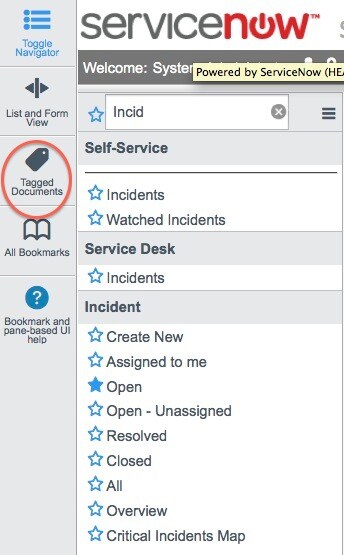
Your new tag now appears, along with a new Add Tag field, so you can assign another type of tag if you need it. To visit your tagged docs or edit your tags, just click on the Tagged Documents icon to the left of your application navigator:
You now have all of your tagged docs in one location:
(Note: Tags are available starting with the Eureka release.)
To see a full list of Eureka enhancements, see Eureka Enhancements.
For more information about tags, see Tagging Documents.
29 Comments
- « Previous
-
- 1
- 2
- 3
- Next »
You must be a registered user to add a comment. If you've already registered, sign in. Otherwise, register and sign in.