Suzanne Smith

ServiceNow Employee
Options
- Subscribe to RSS Feed
- Mark as New
- Mark as Read
- Bookmark
- Subscribe
- Printer Friendly Page
- Report Inappropriate Content
04-12-2016
11:10 AM
If you are using (or are interested in using) the Field Service Management application, adding geolocation functionality can kick your assignment efficiency into high gear.
The Field Service Management application enables you to organize and manage work tasks that are done on location. For example, if you have a centralized facilities department, but send agents out to remote offices to do tasks (upgrading security doors, changing light bulbs, fixing windows, you get the idea), the Field Service Management application can help you assign and track the work. If you activate the Geolocation plugin, you are adding the power of Google Maps to Field Service Management. Geolocation tracks agent location based on the latitude and longtitude coordinates of their mobile device or browser. Each time an agent updates a task record, their location is updated. You can match the work that needs to be done with the agent that is the closest, has the necessary skills, and has the required parts.
Obtaining a Geolocation Google Key
To use the Geolocation plugin, you'll need a Google Maps API for Business license. Make note of your Google Maps for Business private key and client ID. These two values enable you to automatically route and dispatch tasks. Add the values in the Google Maps system properties (System Properties > Google Maps).
Associating geolocation with an individual user
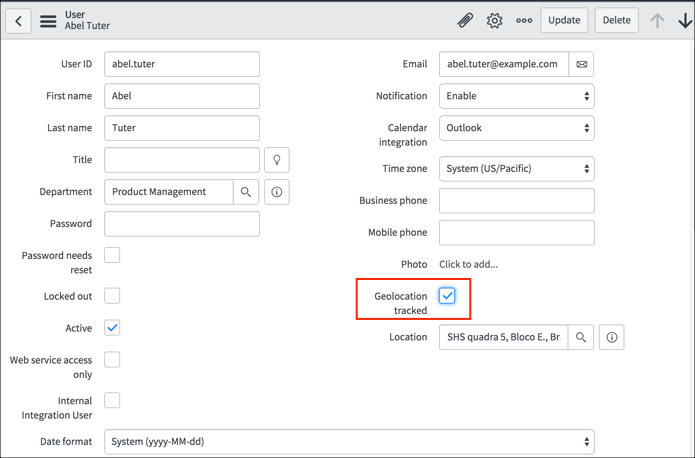
After activating the Geolocation plugin, a new field named Geolocation tracked is added to the User form. To enable tracking for a user simply select the option on their user record. For example, we selected the option for Abel Tuter:
Now, every time Abel opens or loads a record from the Task table or any table that extends the Task table, his latitude and longitude coordinates are recorded. A couple of items to note:
- Abel must have location services enabled in his browsers.
- The Geolocation property MInimum amount of time between updating the user's location updates Abel's location every 5 minutes even if he does not close or reload a record (the 5 minute default time interval can be changed in Geolocation > Administration > Geolocation Properties).
Viewing geolocation history
All geolocation tracking history for individual users is stored in the geo_history table. Navigate to Geolocation > Geolocation History to see the information. You have control over table data and can change Geolocation properties such as the distance an agent must move for it to be counted as a new location and the number of days to retain history data.
Additional Information about the Geolocation plugin
- The product documentation contains complete information about the Geolocation plugin.
- Our Techbytes podcast episode about Field Service Management contains some information about geolocation.
- Google offers a ton of information about Google Maps.
- Here is how you can activate Field Service Management
4 Comments
You must be a registered user to add a comment. If you've already registered, sign in. Otherwise, register and sign in.