Task : Extend Windows - OS Patterns

- Mark as New
- Bookmark
- Subscribe
- Mute
- Subscribe to RSS Feed
- Permalink
- Report Inappropriate Content
09-02-2026 12:03 AM
Hello
I need a solution for the task of discovery simulator
I am sharing the task scenario and verification details
SCENARIO: Cloud Dimensions has gained confidence in how easy it is to extend ServiceNow Discovery for applications. Next it would like to extend the Windows OS - Servers pattern to collect the processor name value from Windows Servers and write the value to the Description field. The processor name is an important attribute that Cloud Dimensions wants to report on to assist in future infrastructure planning. REQUIREMENT: As the Cloud Dimensions Discovery administrator, you are tasked with extending the base system Windows OS - Servers pattern to collect processor name from discovered Windows Servers and write the value back to the Description field. Use the following information to accomplish the task. From the Windows OS - Servers pattern:
- Create a new Extension Section called Windows OS Extension
Open the Windows OS Extension Section and do the following:
- Enable Debug Mode using your Windows MID Server IP Address (i.e. 10.x....) for the Host Name/IP
NOTE: Enabling Debug Mode can take a few minutes.
- Create the steps needed to collect the processor name and write it back to the Description field of a discovered Windows Server
Hint: One option to collect processor name is to use a WMI query from the "root/CIMV2" namespace, WIN32_Processor table, Name field. Review the steps you created in the iTunes pattern for additional guidance.
VERIFICATION: Before validating the task, perform the following:
- Save the pattern
NOTE: When creating or updating an extension section, the pattern only needs to be saved and not published.
- From the MID Server list, checkmark windows_mid and click Pattern Sync to Mid to synchronize the updated pattern with the MID Server
- Run discovery against your Windows MID Server
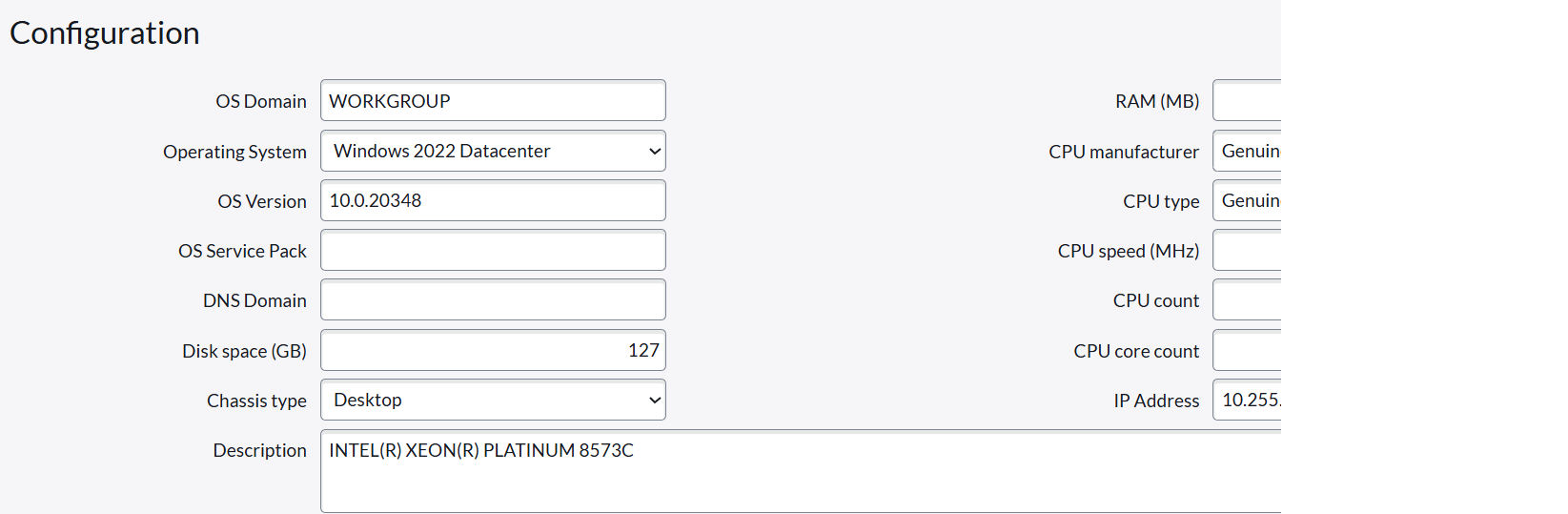
- Confirm the discovered Windows Server Description field is updated with the processor name as shown
Upon completion of this task, select the Validate Task button. If the validation fails, you will be presented with feedback text that indicates what could be failing, along with clickable links to the ServiceNow documentation site for more guidance.


- Mark as New
- Bookmark
- Subscribe
- Mute
- Subscribe to RSS Feed
- Permalink
- Report Inappropriate Content
09-02-2026 04:36 AM
Hello @mucharlarav,
Please refer to the link below:
Solved: How to solve : Discovery Fundamentals On Demand (C... - ServiceNow Community
If it is helpful, please mark it as helpful and accept the correct solution by referring to this solution in the future it will be helpful to them.
Thanks & Regards,
Abbas Shaik
- Mark as New
- Bookmark
- Subscribe
- Mute
- Subscribe to RSS Feed
- Permalink
- Report Inappropriate Content
09-29-2026 12:04 AM
I'd like to second this link: https://www.servicenow.com/community/training-and-certifications/how-to-solve-discovery-fundamentals...
Specifically, this:
From:
Zurli Tera Expert (Thank you!)
On 05-25-2025 06:20 PM
SOLUTION: Task Validated Successfully After Fixes
Hi everyone,
I was facing the same issue — the processor name was showing correctly in the Windows Server’s Description field, but the task still failed validation.
After fine-tuning a few details, I was finally able to pass the task successfully. Here's what worked:
Pattern Setup
Pattern: Windows OS - Servers
Extension Section Name: Windows OS Extension
Steps Inside the Extension Section
Step 1 – WMI Query
Operation: WMI Query
Namespace: root/CIMV2
Table: Win32_Processor
Fields: Name
Target Table: $cmdb_ci_win_server
Step 2 – Set Description
Operation: Set Parameter Value
Name: $cmdb_ci_win_server[1].short_description
Value: $cmdb_ci_win_server[1].Name
Final Checklist
Save the pattern (no need to publish)
Go to MID Servers, select windows_mid, and click Pattern Sync to MID
Run Discovery against IP 192.168.16.11 (not the MID Server)
Check that the Description field shows the processor name
Click Validate Task
Still not validating?
Use index [1], not [0]
Make sure you use short_description, not name
Sync the pattern before running discovery
Run discovery on the correct target
Hope this helps you all!
If it solves your issue too, please mark this reply as the Accepted Solution and click Helpful so others in the community can benefit.
Let me know if you'd like help checking your steps — happy to assist!
- Mark as New
- Bookmark
- Subscribe
- Mute
- Subscribe to RSS Feed
- Permalink
- Report Inappropriate Content
Friday