- Mark as New
- Bookmark
- Subscribe
- Mute
- Subscribe to RSS Feed
- Permalink
- Report Inappropriate Content
04-07-2026 06:05 AM - edited 04-07-2026 06:06 AM
Hello @all
I’m trying to update the following system properties:
glide.ui.html.editor.v4.toolbar.line1
glide.ui.html.editor.v4.toolbar.line2
glide.ui.html.editor.v4.valid.buttons
However, after adding the values, I’m not seeing any changes reflected in Knowledge Base articles.
I also tried updating dictionary attributes, but that approach only works for a single article. I need a solution that applies consistently across all articles.
Has anyone encountered this before or knows how to make these changes effective globally?
Any guidance would be appreciated.
Thank you!
Solved! Go to Solution.

- Mark as New
- Bookmark
- Subscribe
- Mute
- Subscribe to RSS Feed
- Permalink
- Report Inappropriate Content
04-08-2026 10:41 PM
HTMLSanitizerConfig is NOT for toolbar customization
This script include controls what HTML markup is allowed to persist when content is saved — it's a sanitization layer, not an editor configuration layer. Its job is to whitelist or blacklist specific HTML tags and attributes so they don't get stripped on save. For example, if you embed an <iframe> in an article and it disappears after saving, you'd whitelist it here.
It has no influence on which buttons appear in the TinyMCE toolbar. That's why your changes there had no effect on the editor UI.
When you would use HTMLSanitizerConfig:
- You add a toolbar button (like "Embed Media") via attributes, the button shows up, you insert content, but the HTML gets stripped on save — then you'd whitelist those tags here.
- A user pastes HTML with
styleorclassattributes and they're being removed — you'd whitelist those attributes inglobalAttributes.
So think of it as a two-layer system: the toolbar attributes control what the editor offers, and the sanitizer controls what the platform preserves.
Yes, updating dictionary attributes is the correct and supported approach
It's the standard way to customize the Knowledge editor toolbar globally. To summarize your action plan:
- Identify all
kb_knowledgechild tables usingsys_dictionary.do?sysparm_query=element=text^nameLIKEkb_knowledge^internal_type=html - Update the Attributes on each dictionary entry to include your toolbar config
- Flush cache via
cache.do
And then if you find that certain HTML elements you're inserting via those toolbar buttons are getting stripped on save — that's when you come back to HTMLSanitizerConfig and whitelist those elements.
- Mark as New
- Bookmark
- Subscribe
- Mute
- Subscribe to RSS Feed
- Permalink
- Report Inappropriate Content
04-07-2026 06:29 AM
Try these
- Navigate to System Definition > Dictionary and find the
htmlfield on thekb_knowledgetable (or whichever table the field is inherited from — check if it's onkb_knowledge_baseor a parent). - Open the dictionary entry and look at the Attributes field. If there's already a
toolbar=...ortinymce_toolbar=...attribute set there, that's what's overriding your system properties. - Update the attributes directly on the dictionary entry (not on the form layout or a single record). For example, you'd set something like:
toolbar=bold italic underline | bullist numlist | link image | codeThis applies to every record that uses that field, not just one article. - If no field-level attribute exists and system properties still aren't working, try adding the attribute
use_global_toolbar=trueto the dictionary entry to explicitly tell the field to respect the system properties.
- Mark as New
- Bookmark
- Subscribe
- Mute
- Subscribe to RSS Feed
- Permalink
- Report Inappropriate Content
04-08-2026 12:06 AM - edited 04-08-2026 12:29 AM
Hello @Naveen20 ,
Navigate to System Definition > Dictionary, in kb_knowledge,
this is the attributes 'editor.height=300,html_sanitize=false,serializer=com.glide.script.TranslatedTextXMLSerializer'
this will be applied for only single field, we have many articles, should be applied for all.
Thank you!
- Mark as New
- Bookmark
- Subscribe
- Mute
- Subscribe to RSS Feed
- Permalink
- Report Inappropriate Content
04-08-2026 08:48 AM
I can see the dictionary entry you're working with. Here's the key clarification — modifying the Attributes on this kb_knowledge.text dictionary entry actually does apply to all articles that use this table directly. The reason you might not be seeing it work for all articles is a different issue entirely.
The likely root cause: child/extended tables
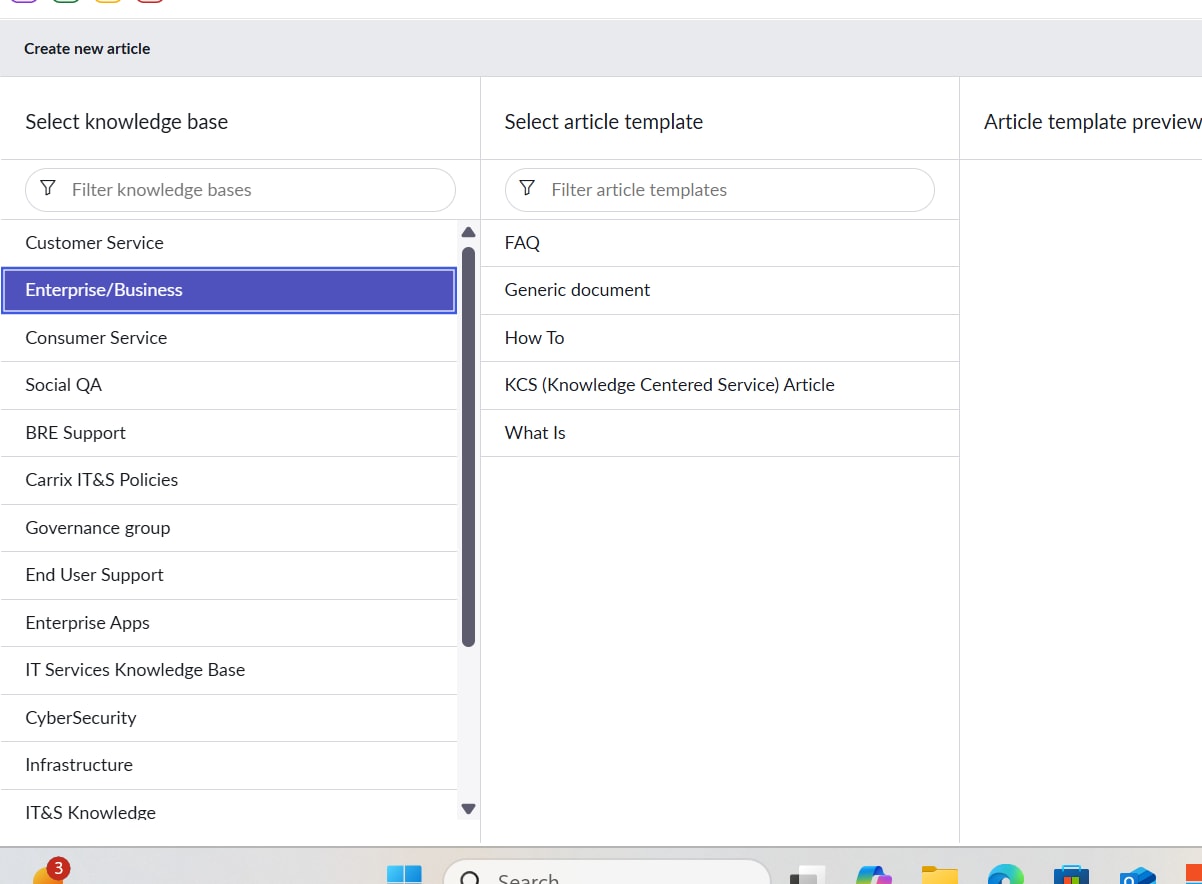
Looking at your first screenshot, you have multiple article templates (FAQ, Generic document, How To, KCS Article, What Is). In ServiceNow, each of these templates typically maps to a child table that extends kb_knowledge, for example:
kb_knowledge_how_tokb_knowledge_faqkb_knowledge_kcs- etc.
Each child table can have its own dictionary entry for the text field that overrides whatever you set on the parent kb_knowledge.text. So your change on kb_knowledge only applies to articles using templates that don't have their own override.
How to fix this globally:
-
Go to System Definition > Tables and look up
kb_knowledge. Check the Extensions related list to see all child tables. -
For each child table, navigate to its dictionary entries and check if the
text(Article body) field has its own dictionary entry with Attributes defined. You can quickly check this by going tosys_dictionary.do?sysparm_query=element=text^nameLIKEkb_knowledgein your browser. -
For every child table that has its own
textfield dictionary entry, you need to add your toolbar attributes there as well. For example, append your toolbar config to the existing attributes:editor.height=300,html_sanitize=false,serializer=com.glide.script.TranslatedTextXMLSerializer,toolbar=bold italic underline | bullist numlist | link image | code -
If a child table does not have its own dictionary entry for
text, it will inherit fromkb_knowledge— so your current change already covers those.
- Mark as New
- Bookmark
- Subscribe
- Mute
- Subscribe to RSS Feed
- Permalink
- Report Inappropriate Content
04-08-2026 09:48 PM
Hello @Naveen20 ,
I see that options to change attributes of every field,
but, instead of that can we update OOB script include 'HTMLSanitizerConfig', does it work
I have tried adding logic here but did not work for me.
will be okay, if i go through updating attributes?
Script include-
Description :
The HTML sanitizer works by checking the built-in white list for markup you always want to preserve. The sanitizer provides a Script Include you can use to modify the built-in white list. You can also add items to the black list, which overrides the white list.
Configuration Format: There are two JavaScript Objects, HTML_WHITELIST and HTML_BLACKLIST, which have the following format.
HTML_XXXXLIST : {
globalAttributes : {
attribute:[attribute-name1,...],
attributeValuePattern:{ attribute-name2:attribute-value-regex-pattern,...}
},
<html-element-name> : {
// Same as Above
},
- -
- -
}
globalAttributes: Note that this is not an element by itself. The attribute/attributeValuePattern under this are applicable globally for all HTML elements.
attribute: This is a comma-separated list of attributes.
attributeValuePattern: This is a dictionary of attribute to attribute-value-regex-pattern pairs. The attribute-value-regex-pattern is a regular expression which has to match the attribute value.
NOTE1: Please review built-in white list configuration before editing this Script Include.
NOTE2: 'class' is a JavaScript reserved word. If needed, use 'Class' (Uppercase C) instead.
Example:
HTML_WHITELIST : {
globalAttributes: {
attribute:["id", "name"],
attributeValuePattern:{Class:".*"}
},
img: {
attribute:["style", "align"],
attributeValuePattern:{src:".*jpeg"}
},
iframe:{},
}
Script -
Thank you!