- Post History
- Subscribe to RSS Feed
- Mark as New
- Mark as Read
- Bookmark
- Subscribe
- Printer Friendly Page
- Report Inappropriate Content
on 06-10-2021 08:20 AM

This can be achieved following these simple steps:
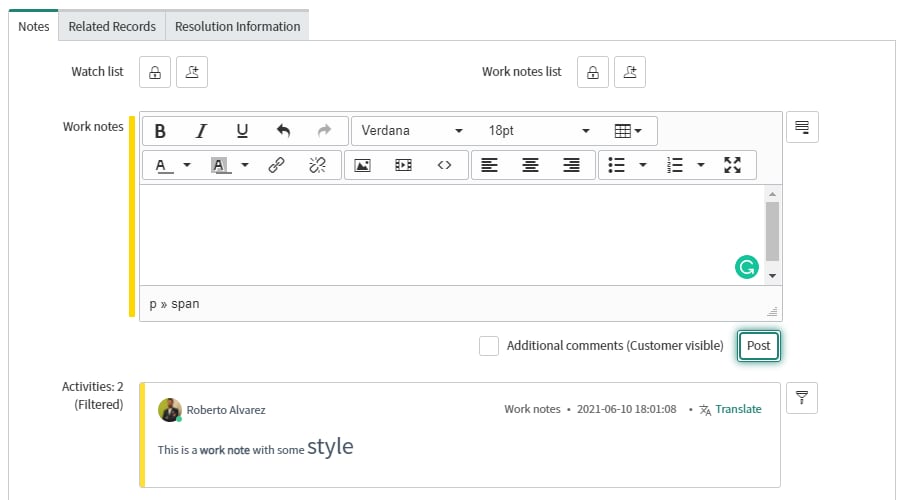
1- Convert the textarea of the journal field into a Tinymc rich editor, by calling the same function ServiceNow uses for this purpose.
You will need an onLoad Client Script on the table you have your journal field.
To convert the textarea just execute the following function
setupTinymceField(elementId, config);Where elementId, in the Incident form, can be one of these: "activity-stream-textarea", "activity-stream-work_notes-textarea", "activity-stream-comments-textarea"
And the standard config from ServiceNow for tinymc editors is:
{
    toolbar1: "bold,italic,underline,undo,redo,|,fontselect,fontsizeselect,table,|,forecolor,backcolor,link,unlink,|,image,media,code,|,alignleft,aligncenter,alignright,|,bullist,numlist,fullscreen",
    toolbar2: "",
    font_formats: "Andale Mono=andale mono,times;Arial=arial,helvetica,sans-serif;Arial Black=arial black,avant garde;Book Antiqua=book antiqua,palatino;Comic Sans MS=comic sans ms,sans-serif;Courier New=courier new,courier;Georgia=georgia,palatino;Helvetica=helvetica;Impact=impact,chicago;Journal=journal;Symbol=symbol;Tahoma=tahoma,arial,helvetica,sans-serif;Terminal=terminal,monaco;Times New Roman=times new roman,times;Trebuchet MS=trebuchet ms,geneva;Verdana=verdana,geneva;Webdings=webdings;Wingdings=wingdings,zapf dingbats;",
    remove_script_host: true,
    language: "en",
    relative_urls: true,
    convert_urls: false,
    remove_trailing_brs: true,
    enable_media_sites: "youtube.com,player.vimeo.com,vimeo.com",
    extended_valid_elements: ",sn-mention[class|table|sysid]",
    custom_elements: "~sn-mention",
    attachmentCanVie: true,
    attachmentCanPopup: true,
    plugins: "advlist anchor autolink charmap code colorpicker directionality emoticons fullscreen hr insertdatetime lists importcss nonbreaking noneditable pagebreak print searchreplace tabfocus table template textcolor textpattern visualblocks visualchars powerpaste snLink listitem_fix align_listitems a11y_fixes readonlynoborder data_uri_sanitize enable_iframe_media",
    powerpaste_word_import: "prompt",
    powerpaste_html_import: "clean",
    automatic_uploads: false,
    allow_script_urls: false
  }
But of course, you can change it as you wish or read it from the system directly instead of hardcode it here in the Client Script.
2- Move outside of the control the horizontal bar that is used as decoration to help users easily identify the journal field, i.e. the yellow bar that appears in the work notes.
If we don't do anything the bar will appear on top of the control, which is not a big deal, but better if we move it a bit to the left. We can do that in different ways. Personally, I have chosen to add the following lines to the same Client Script, right after the calls to the setupTinymceField function.
var journalDecorators = document.getElementsByClassName("sn-stream-input-decorator");
  Array.from(journalDecorators).forEach(function (el) {
    el.style.left = "-10px";
});
3- Add an event to the post button to clean the content of the editor once the message is posted.
If we want the control to behave as before, we will need to tell the Post button to clean the content of our Tinymc editor, as it already does with normal journal inputs. For that, in the same Client Script, we need to add an event listener to execute the following line, when we hit the button:
tinymce.get(elementId).setContent("");This is how I've done it.
window.onload = function () {
    document.getElementsByClassName("btn btn-default pull-right activity-submit")[0].addEventListener("click", function () {
      Array.from(journalFieldsIDs).forEach(function (el){
        tinymce.get(el).setContent("");
      })
    });
}
Please, notice that we can have several journal fields on our form. This way we are cleaning all of them when pressing the Post button.
This is the last thing we need to do in our Client Script.
4- Use an extra journal field to wrap the content of the original field between [code] tags, so that ServiceNow can render the HTML code instead of print it in the Activity stream.
Go to the dictionary definition of your journal field and just press Insert and stay to create a similar one.
Now create a Business Rule that gets executed before update and insert when the original journal field changes. Here an example:

Then you just add a similar line like this in the script field:
current.u_work_notes ="[code]"+current.work_notes+"[/code]";Here we are copying the content of the Tinymc editor, wrapped by [code] tags, to the journal field we have just created.
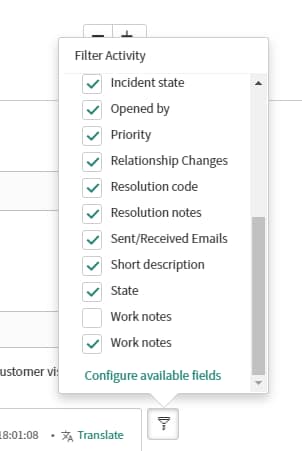
5- Deselect (do not remove) the default journal field from the Filter Activity and add+select your new journal field instead
For that, use the funnel button at the right of the Activity stream. Deselect the journal field and then at the bottom of the list click on "Configure available fields" to add to this list the journal field you have created before. Select it and we are done!

Unfortunately, I wasn't able to make it work yet without this extra field, but there may be a trick for this too. Please let me know if you find it!