수요 목록 뷰
모든 요구 홈페이지에는 요구 사항이 목록 뷰로 표시되고 요구 생성, 편집 및 익스포트를 위한 특정 UI 구성요소가 포함되어 있습니다.
작업
홈페이지에서 사용할 수 있는 작업이 이 테이블에 나열됩니다.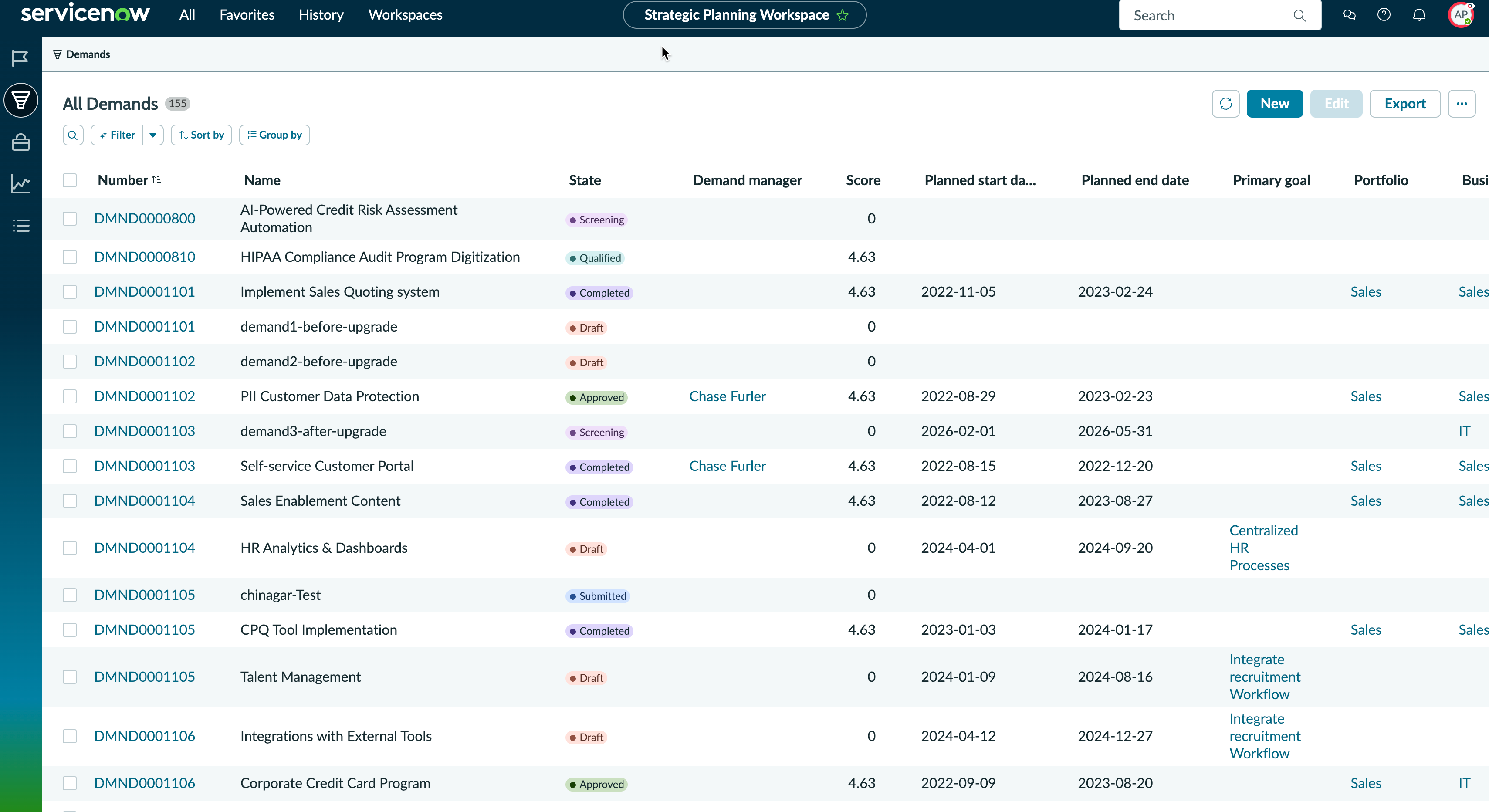
| 기능 | 설명 |
|---|---|
| 검색 | 이름으로 수요를 검색하는 옵션입니다. |
| 필터 | 목록에 필터를 적용하는 옵션입니다. 선택한 필터 기본 설정은 필터 기준에 유지됩니다. |
| 정렬 기준 | 선택한 필드를 기준으로 요구 목록을 오름차순 또는 내림차순으로 정렬하는 옵션입니다. |
| 그룹화 기준 | 더 나은 구성과 가시성을 위해 선택한 필드(상태, 스테이지)별로 수요를 그룹화하는 옵션입니다. |
| 새로 고침 | 목록을 다시 로드하는 옵션입니다. |
| 신규 | 요구를 생성하는 옵션입니다. |
| 편집 | 선택한 수요를 편집하는 옵션입니다. |
| 나에게 할당 | 로그인한 사용자에게 선택한 요구를 할당하는 옵션입니다. |
| 익스포트 | 요구 목록을 Excel 또는 CSV와 같은 외부 파일 형식으로 익스포트하는 옵션입니다. |
| 추가 작업 | 모든 수요 목록에서 사용 가능한 더 많은 기능을 보는 옵션입니다. |
| 개인화 필드 | 요구 목록에 표시되는 열을 사용자 지정하여 관련된 필드만 표시하는 옵션입니다. |
데이터 그리드
데이터 그리드에는 행의 요구 목록과 행에서 작업을 수행하는 다음 옵션이 표시됩니다.
| 옵션 | 설명 |
|---|---|
| 열 작업 |
헤더의 작업을 사용하여 수요를 열 필드별로 그룹화합니다. 컨텍스트 메뉴 아이콘( |
| 열 재정렬 |
그리드에서 선택한 위치로 열을 끌 수 있습니다. |
행 선택(  ) ) |
한 번에 여러 요구 행을 선택하려면 선택합니다. |
| 셀 작업 |
셀 컨텍스트 메뉴(컨 |
 을 보려면 마우스 장치로 열 헤더를 가리킵니다.