Filter results for Host Status
Filter your query results by Host Status. Verify whether devices were reachable when the query was executed.
시작하기 전에
Role required: admin
이 태스크 정보
In the Scan Results filtering types, the Host Status enables users to view scan results
based on whether the scanned host was Up or Down. This filter is derived from the Nmap XML status field inside the Raw scan output.
주:
This filter is based on raw scan output and does not depend on scan type. If a scan output does not contain a host
status state="up|down" field, it does not match the Host Status filter.Using the Host Status filter helps to quickly narrow results such as:
- shows only reachable devices (Up) to review open ports or services.
- shows only unreachable devices (Down) to troubleshoot network issues, firewall rules, wrong IPs, or powered-off devices.
Raw data is useful for debugging and verification because:
- Reason field: Raw data confirms why a host was marked Up/Down.
- Good for investigation: Raw data shows what the Nmap actually returned.
- Script validation: Raw data helps validate scripts when scan parsing or mapping doesn’t show expected information.
프로시저
-
In the Filter panel, select the plus icon.
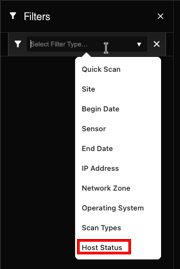
 The Select Filter Type field opens.
 -
Select from the pop-up choices one of the following.
주:Up/Down in this instance means the host status from the scan result (Nmap) for that IP during that scan run.
- Up means the target device responded, that is, the scanner was able to reach it and also got a response back.
- Down means the target device did not respond; this could mean it is offline, blocked by firewall, unreachable, or it did not respond.