- Post History
- Subscribe to RSS Feed
- Mark as New
- Mark as Read
- Bookmark
- Subscribe
- Printer Friendly Page
- Report Inappropriate Content
on 12-13-2021 08:28 AM - edited 4 weeks ago
The Service Graph Connector for AWS (SG-AWS) is designed to communicate directly with AWS APIs without requiring a MID Server. However, some customers may require AWS API traffic to be routed through a ServiceNow MID Server because of their network security, firewall, or proxy requirements.
The following configuration steps describe how to configure the Service Graph Connector for AWS to use a MID Server after the connector has been installed.
Important: These steps are applicable when AWS API communication must be routed through a MID Server. If direct communication between ServiceNow and AWS is permitted in your environment, a MID Server is not required for this purpose.
Network and Performance Considerations
Customers may experience slower data retrieval or API timeouts when AWS API endpoints are not appropriately allowlisted or when network traffic is routed through restrictive proxy/firewall configurations.
To help ensure reliable and timely data ingestion into the ServiceNow CMDB:
-
Ensure the required AWS API endpoints/URLs are allowlisted in the customer network and proxy/firewall configuration.
-
Verify that the MID Server can reach the required AWS API endpoints.
-
Ensure that DNS resolution and outbound HTTPS connectivity from the MID Server to AWS are working correctly.
-
Validate the connectivity before troubleshooting the connector or Flow Actions.
Assumptions
Before performing the configuration, verify the following:
-
A MID Server is already installed and operational.
-
The MID Server can reach the required AWS APIs over HTTPS.
-
The Service Graph Connector for AWS has already been installed and configured.
-
The required AWS credentials/roles have been configured according to the connector setup.
Required Components
-
Service Graph Connector for AWS
-
IntegrationHub / Flow Designer
-
Operational MID Server
-
Appropriate AWS credentials and/or STS role configuration
Configuration A: Using a MID Server with Static AWS Credentials
This configuration applies when the AWS API calls use static AWS credentials, such as an Access Key ID and Secret Access Key.
For these Flow Actions, the MID Server can be configured through the Connection Alias. Once the MID Server is configured on the Connection record, the applicable Flow Actions inherit the MID Server configuration and do not require individual MID Server configuration.
Configure the Connection Alias
-
Navigate to All → Connections & Credential Aliases.
-
Open the Connection Alias used by your Service Graph Connector for AWS configuration.
Example:
SG-AWS-CredentialAlias-Org -
Open the associated Connection record.
-
Enable Use MID Server.
-
Configure MID Selection:
-
Select a specific MID Server, or
-
Select a MID Server Cluster, or
-
Use the appropriate automatic MID Server selection option supported by your environment.
-
-
Save the Connection record.
The applicable Flow Actions will use the MID Server configuration defined on the Connection record. No individual MID Server configuration is required for each Flow Action.
Applicable Flow Actions
The following AWS REST API Flow Actions can use the MID Server configuration from the Connection Alias:
-
SG-AWS-STS-AssumeRole -
SG-AWS-EC2-DescribeInstanceTypes-Action -
SG-AWS-EC2-DescribeRegions -
SG-AWS-EC2-DescribeRegions-Dynamic -
SG-AWS-IAM -
SG-AWS-Organizations-ListAccountsForParent -
SG-AWS-Organizations-ListRoots -
SG-AWS-Organizations-ListAccounts -
SG-AWS-Organizations-ListOrganizationalUnitsForParent -
SG-AWS-Organizations-DescribeOrganization -
SG-AWS-Organizations-ListTagsForResource

Configuration B: Using a MID Server with Dynamic AWS Credentials / STS
This configuration applies to flows that use dynamic AWS credentials, such as credentials obtained through AWS STS AssumeRole.
In this configuration, the AWS request authentication and signing are handled through the MID Server. Additional MID Server configuration is therefore required.
Flow Actions which have rest step with these configurations are using dynamic credentials. For these flow actions, we need to perform below steps.

Step 1: Create a MID Server Application
-
Navigate to MID Server → Applications.
-
Create a new MID Server Application.
-
Provide an appropriate name.
-
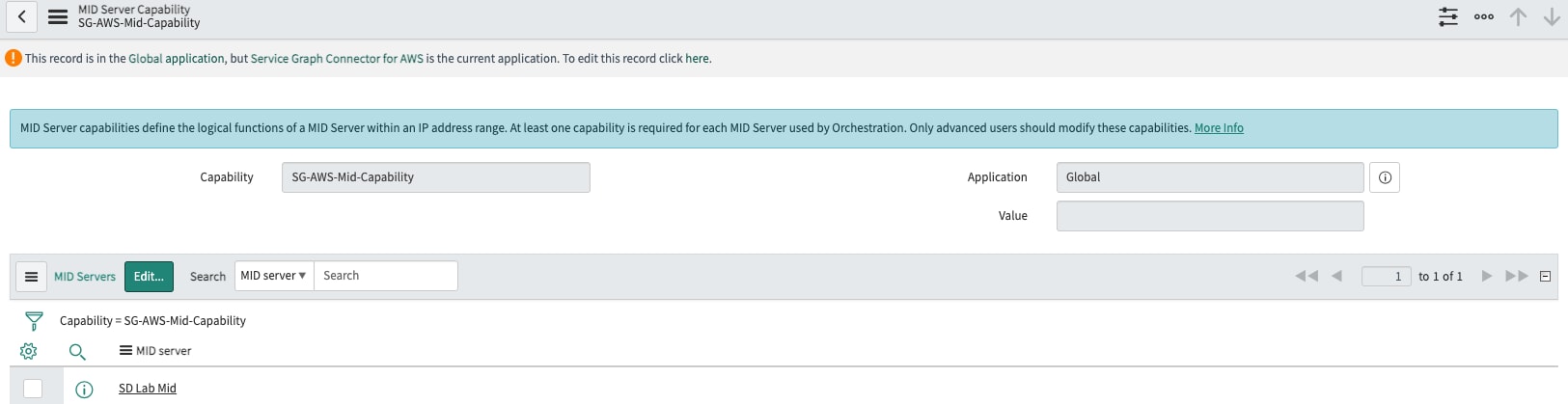
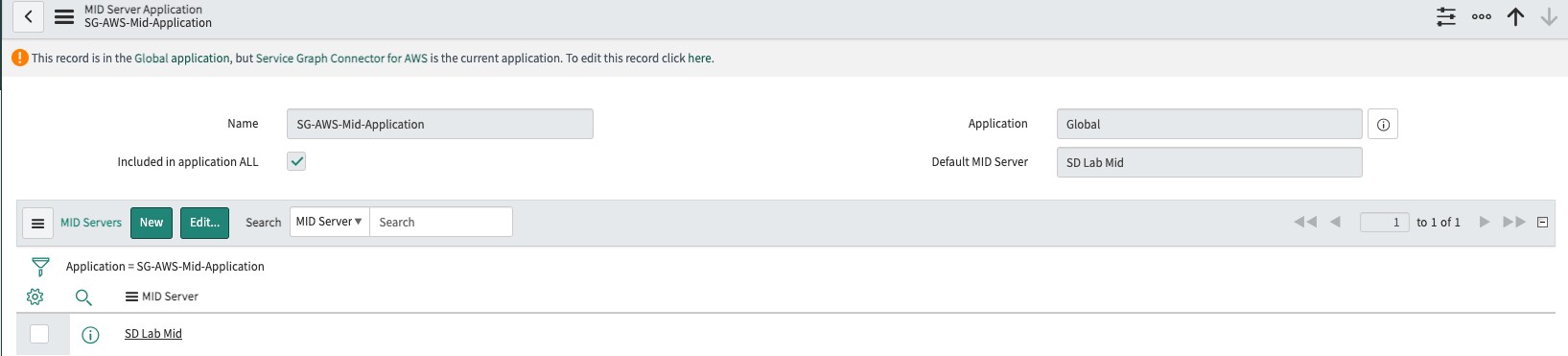
Select the MID Server that will be used for AWS API communication.
Note:
SD Lab Midis used in this example. Your environment may use a different MID Server name. Select the appropriate MID Server for your deployment. -
Save the MID Server Application.

Step 2: Create a MID Server Capability
-
Navigate to MID Server → Capabilities.
-
Create a new MID Server Capability.
-
Select the appropriate MID Server.
-
Configure the capability as required for the AWS integration.
-
Save the MID Server Capability.

Step 3: Configure the AWS Authentication Algorithm
-
Navigate to:
IntegrationHub → Connections & Credentials → Authentication Algorithms
-
Open:
SG-AWS Auth Algo
-
In MID Authentication Script, select:
RequestAuthAWSV4MIDSigner
-
Save the configuration.
This configuration enables AWS Signature Version 4 request signing to be performed through the MID Server for the applicable dynamic-credential Flow Actions.

Step 4: Configure the AWS Flow Actions
-
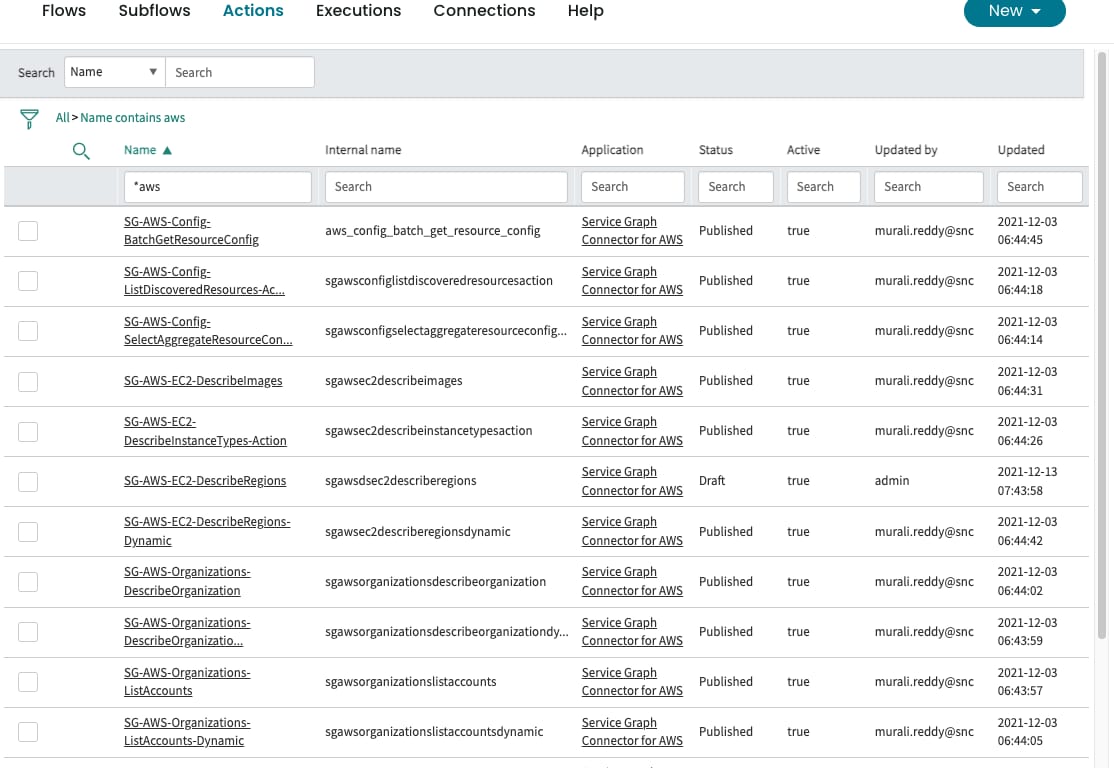
Navigate to Flow Designer → Actions.
-
Search for the SG-AWS Flow Actions.
-
Open the applicable Flow Action.
-
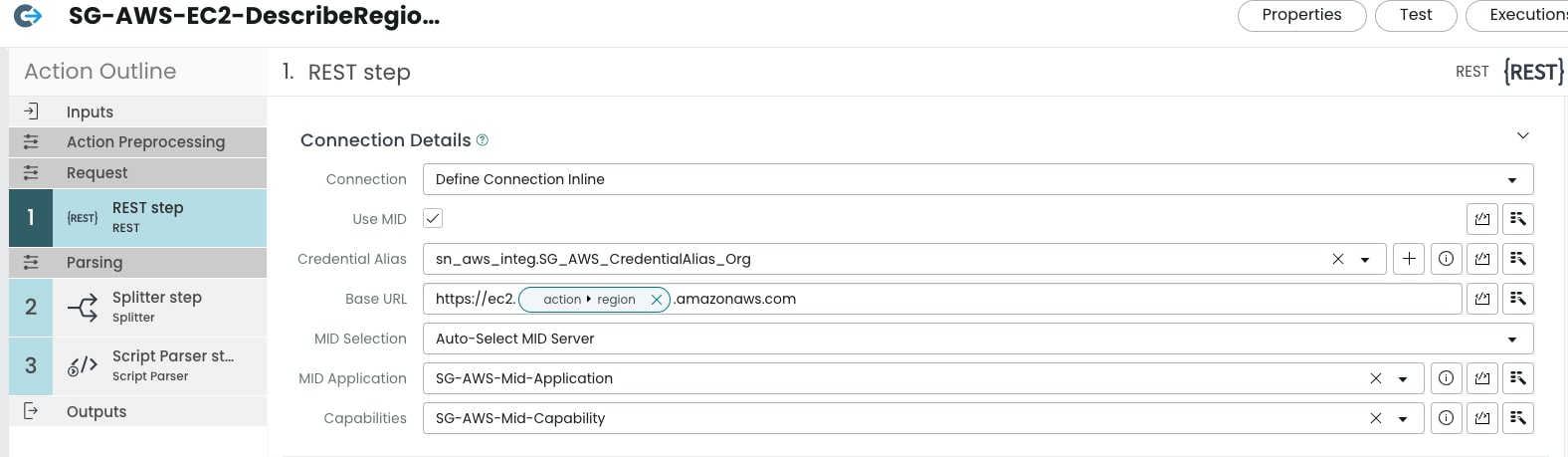
Enable Use MID.
-
Configure the following MID Server settings:
-
Use MID: Enabled
-
MID Selection: Select the appropriate MID Server or MID Server Cluster
-
MID Application: Select the MID Server Application created earlier
-
Capabilities: Select the applicable MID Server Capability
-
-
Repeat the configuration for each applicable AWS Flow Action.

6. Navigate to Flow Designer Actions and search for the SG-AWS Components.
- SG-AWS-Config-BatchGetAggregateResourceConfig
- SG-AWS-Config-BatchGetAggregateResourceConfigLargePayload
- SG-AWS-Config-BatchGetResourceConfig
- SG-AWS-Config-BatchGetResourceConfigLargePayload
- SG-AWS-Config-DescribeConfigurationAggregators
- SG-AWS-Config-ListDiscoveredResources-Action
- SG-AWS-Config-SelectAggregateResourceConfig-Action
- SG-AWS-Config-SelectResourceConfig-Action
- SG-AWS-EC2-DescribeRegions-Dynamic
- SG-AWS-Organizations-DescribeOrganization-Dynamic
- SG-AWS-Organizations-ListAccounts-Dynamic
- SG-AWS-Organizations-ListAccountsForParent-Dynamic
- SG-AWS-Organizations-ListOrganizationalUnitsForParent-Dynamic
- SG-AWS-Organizations-ListRoots-Dynamic
- SG-AWS-Organizations-ListTagsForResource-Dynamic
- SG-AWS-SSM-SendCommand
- SG-AWS-SSM-ListCommandInvocations
- SG-AWS-SM-ListInventoryEntries
- SG-AWS-SM-GetInventory
- SG-AWS-Services-Action
Important: Avoid Credential Alias Misconfiguration
Do not configure a Credential Alias on Flow Actions that are not intended to use the Credential Alias in this configuration.
If a Credential Alias is configured on an unsupported Flow Action, the AWS request may be signed using an incorrect authentication path. This can result in an error similar to:
InvalidSignatureException
For example:
The request signature we calculated does not match the signature you provided. Check your AWS Secret Access Key and signing method.
If this error occurs, verify that:
-
The Credential Alias is configured only on the applicable Flow Actions.
-
Use MID is enabled where required.
-
The correct MID Server/MID Server Cluster is selected.
-
The correct MID Server Application is selected.
-
The appropriate MID Server Capability is configured.
-
SG-AWS Auth Algo uses
RequestAuthAWSV4MIDSigner. -
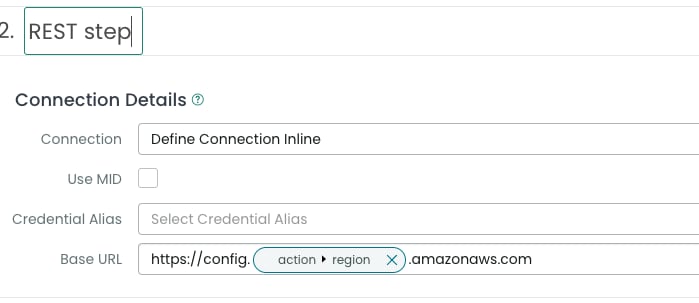
Connection (Define Connection Inline) and Base URL have not been modified.

Step 5: Validate the MID Server Configuration
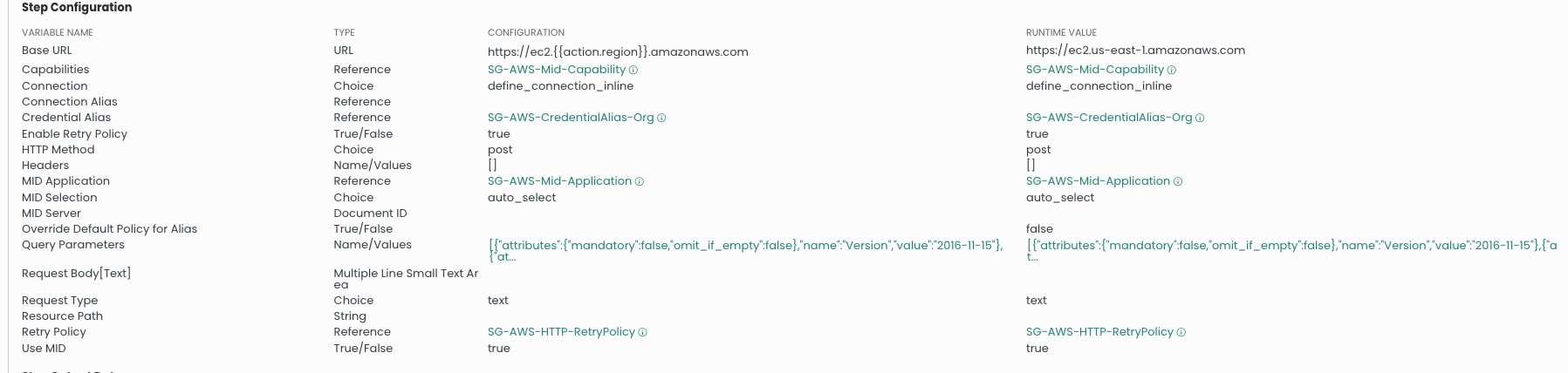
After completing the configuration, execute a representative AWS Flow Action and verify that the request is being routed through the configured MID Server.
For example, the test configuration should show the AWS API request using the configured SG-AWS MID Server Application.
Verify the following:
-
The Flow Action executes successfully.
-
The request is routed through the expected MID Server.
-
The AWS API returns a successful response.
-
No authentication or signature errors are reported.
-
AWS data is successfully retrieved into ServiceNow.
Please note that the Credential Alias should be present only for these Flow Actions.
| # | Flow Action Name | Internal Name |
| 1 | SG-AWS-Organizations-DescribeOrganization | sgawsorganizationsdescribeorganization |
| 2 | SG-AWS-EC2-DescribeRegions | sgawsdsec2describeregions |
| 3 | SG-AWS-STS-AssumeRole | sgawsstsassumerole |
| 4 | SG-AWS-EC2-DescribeInstanceTypes-Action | sgawsec2describeinstancetypesaction |
| 5 | SG-AWS-Organizations-ListAccounts | sgawsorganizationslistaccounts |
For other flow actions, the Credential Alias field should be empty. You need to set these values in flow action for using MID server.
- Use MID - Enabled
- MID Selection
- MID Application
- Capabilities.
Note: Do not change Connection (Define Connection Inline), Base URL.
If other flow actions is set with Credential Alias, you may get the following error message and integration will not work as expected.
InvalidSignatureException","message":"The request signature we calculated does not match the signature you provided. Check your AWS Secret Access Key and signing method. Consult the service documentation for details.
The below sample test shows, the API is using SG-AWS-Mid-Application.

Diagnostic and Troubleshooting
After completing the configuration, run the Diagnostic Tool available from the Service Graph Connector for AWS Guided Setup.
The Diagnostic Tool can be used to validate the connector configuration and identify connectivity or configuration issues.
If the diagnostic test fails, verify the following in order:
-
MID Server status is Up.
-
MID Server can reach the required AWS API endpoints.
-
Required AWS URLs are allowlisted.
-
Proxy/firewall rules allow outbound HTTPS traffic.
-
MID Server Application is correctly configured.
-
MID Server Capability is correctly configured.
-
SG-AWS Auth Algois configured withRequestAuthAWSV4MIDSigner. -
The correct Flow Actions have Use MID enabled.
-
Credential Alias is configured only on the applicable Flow Actions.
-
Connection (Define Connection Inline) and Base URL have not been modified.
For additional troubleshooting information, refer to the applicable Service Graph Connector for AWS diagnostic and troubleshooting documentation.
Service Graph Connector for AWS - Diagnostic Tool
https://community.servicenow.com/community?id=community_article&sys_id=668651e71bde4150c465ece6b04bc...
Related Links:
Service Graph Connector for AWS - Introduction
https://community.servicenow.com/community?id=community_article&sys_id=13aa801f1b1ec910c465ece6b04bc...
Service Graph Connector for AWS - Functional Spec and CI
https://community.servicenow.com/community?id=community_article&sys_id=64e2949f1b9ec910c465ece6b04bc...
- Mark as Read
- Mark as New
- Bookmark
- Permalink
- Report Inappropriate Content
Visit the ServiceNow Store website to view all the available apps and for information about submitting requests to the store. For cumulative release notes information for all released apps, see the ServiceNow Store version history release notes.
The integration uses AWS native technologies and AWS security best practices to enable cloud teams to connect the data within their ServiceNow workflow.
Supported versions
Supported ServiceNow versions:
Starting with Quebec.
Starting with Rome.
Use Cases
The following are examples on how you can use the Service Graph connector for different ServiceNow applications:
Visibility into cloud resources, relationships, and state in real time.
Deep discovery of Applications for ITAM/SAM outcomes.
Governance and Compliance outcome.
- Mark as Read
- Mark as New
- Bookmark
- Permalink
- Report Inappropriate Content
What specific security concerns can we solve with a MID server?
Also, if we use a MID server, do we need to allow communication from ServiceNow to the Mid server located on AWS (from Internet to LAN)? Or do you initiate communication from the MID server to ServiceNow like Agent-Less Discovery?
- Mark as Read
- Mark as New
- Bookmark
- Permalink
- Report Inappropriate Content
Hi Murali,
This article is from 2021, does the method support the current SGC-AWS capabilities ie. include the SSM and S3 bucket APIs? Also can the article be updated for SGC-GCP as well?
- Mark as Read
- Mark as New
- Bookmark
- Permalink
- Report Inappropriate Content
Hi @andrewrouch,
Yes, it works with the current capabilities for all Cloud SGCs. The MID server acts as a trust mechanism where API calls simply pass through and invoke the respective cloud APIs.
However, we have observed performance issues when a proxy is enabled on the MID server, as every call is intercepted, significantly slowing down the process. For low to medium account volumes, this should work fine. But with thousands of accounts and millions of CIs, enabling the proxy can extend processing time to several hours.
In fact, most financial customers have reviewed our security model and opted to remove the MID dependency. For example, one customer with thousands of accounts experienced over 6 hours of processing for a single resource type. After removing the MID dependency, the same operation was completed in just <1 hour — with the root cause traced back to the proxy server.
I hope this information helps.
Thanks,
Murali
- Mark as Read
- Mark as New
- Bookmark
- Permalink
- Report Inappropriate Content
Hello Murali,
On a recent ServiceNow case, Development responded with the following:
This has changed since the community articles were originally written, we no longer need to modify the OOB REST steps/flow actions to enable a MID server.
Since the app moved to the Connection & Credential Alias model, MID server selection is configured once, at the Connection level, not per REST step, So we do not need to follow step 6 and 7 from this article https://www.servicenow.com/community/cmdb-articles/servicegraph-aws-connector-using-mid-server/ta-p/...,
and use below steps to use mid
1. Upgrade to the latest version of 'Service Graph Connector for AWS' from the ServiceNow Store
- Go to All → Connections & Credential Aliases.
- Open the alias used by your setup - SG-AWS-CredentialAlias-Org or SG-AWS-CredentialAlias-Account (standalone account).
- Open its related Connection record (e.g. SG-AWS-Credentials-Org).
- Check Use MID Server option, then choose your MID Selection (specific MID, MID cluster, or auto-select) and pick the MID Server/Cluster
- Every AWS flow action/REST step that uses that alias picks up the MID setting automatically, no per-step edits needed
Please modify this article accordingly or remove as it's no longer necessary to modify each Flow action to use the mid server..