- Post History
- Subscribe to RSS Feed
- Mark as New
- Mark as Read
- Bookmark
- Subscribe
- Printer Friendly Page
- Report Inappropriate Content
on 01-25-2022 08:44 AM
With reference to
I think what Daniel describes in his article is a great way to insert a search field in your page, however, I think it can be made a bit simplier; also I’d like to show you how you can involve multiple tables to your search.
Note: I used the „incident” table, Daniel uses the „User” table.
Do set up the „Typeahead search” component, the „Look up Records” data source and the „Query string” client state parameter as he describes, but the search can be triggered without a client script.
1. Open the „Look up Records” data source and add „active = true” and „keywords are @state.query_string” filters

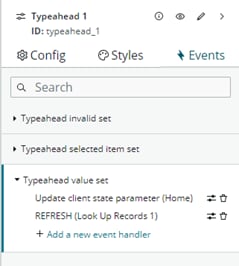
2.Go to the typeahead search component’s events -> Choose typeahead value set -> add „Update client state parameter” as per below
3.Still at the typeahead search component’s events -> typeahead value set -> add „REFRESH (Look Up Records 1)” after the „Update client state parameter”


This should give you the results from the table defined in the Look Up Records data source that corresponds to the words typed into the search field.
Using multiple resources
I wanted to use my typeahead search field as a general search field on the portal that searches in the Knowledge and Service Catalog tables.
Note: I understand that there’s a built-in option in the header, but it does not return any results for me and I could not find where I could customize it. Please contact me if you know how to do it 🙂
1. We will use the „Search Applications Configuration” (sys_search_context_config). There is a defult „Service Portal Default Search Application”, but you have to enable the AI Search otherwise it will not return any results. You can enable it by typing „AI Search Status” in the navigator.
However, I decided to use my own „Search Applications Configuration”, so I created a new one and called it „General Search Config”
I chose „Zing” as search engine

2. In the Application Search Sources I added the OOB „Knowledge” search source and created a new one that supposed to return results from the cat_item table.

3.Next step is to create an EVAM definition that will give you an option to select different tables as data sources. This is not supereasy and I mostly used this video to understand the logic of the procedure: https://www.youtube.com/watch?v=dWV5Exji6QU

4. Add whatever filters you see fit. I always added active = true but you can customize it, too.
5. Under the „General Search” EVAM definition add a View Config Bundle M2Ms – I used the OOB „Service Portal Search Bundle”
I strongly recommend you to use this one, otherwise you have to write your own EVAM View Configs and that can be tricky. With „Service Portal Search Bundle” we don’t need to worry about that.

6. Now that we are all good with that, let’s open the UI builder and create a client state parameter as described by Daniel’s article. I called mine query_string and left the initial value empty.

7. Add „Search EVAM Data Resource” and configure it
When to evaluate this data resource: only when invoked
Evam Config ID of Search Results: General Search – created in step 3
Search Context Config ID: General Search Config – created in step 1
Search Term: @state.query_string – created in step 6

Don’t worry if in the preview field you don’t see any items. This is because the query_string is empty. You can give it a try and either add value to the query_string or manually type in something as a search term. In this case the preview field should be populated correctly.
8. Add a container to your page and add a typeahead search field component into it. Configuring the “Items” field is really tricky. Mostly in this case, because we have data from the Catalog item and the Knowledge table too and the returned values are not streamlined.
The catalog item table returns the result in this structure:
{
      "template": "sn-search-result-evam-card",
      "propValues": {
        "imageURL": "",
        "textHeaderLabelOne": "Service Catalog",
        "textHeaderLabelTwo": "Support services",
        "title": "",
        "summary": "",
        "detailLabelOne": "€0.00",
        "ariaLabel": "",
        "imageType": "image",
        "icon": "pencil-page-outline",
        "clickAction": {
          "assignmentId": "",
          "name": "navigation",
          "label": "Navigation",
          "actionType": "uxf_client_action",
          "icon": "",
          "buttonType": "primary",
          "actionDispatch": "NAVIGATION",
          "actionPayload": {
            "table": "sc_cat_item",
            "sysId": "",
            "url": ""
          },
          "serverScript": ""
        },
        "model": {
          "sc_catalogs": "Service Catalog",
          "price": "€0.00",
          "picture": "",
          "category": "Support services",
          "short_description": "",
          "name": "",
          "ai_search_teaser_title": null,
          "ai_search_teaser_text": null,
          "document_index": "0.0",
          "sysId": "",
          "sys_id": "",
          "table": "sc_cat_item"
        }
      }
    },
And the knowledge in this format:
{
      "template": "sn-search-result-evam-card",
      "propValues": {
        "textHeaderLabelOne": "",
        "textHeaderLabelTwo": "",
        "textHeaderLabelThree": "",
        "title": "",
        "summary": "",
        "ariaLabel": "",
        "imageType": "icon",
        "icon": "document-outline",
        "clickAction": {
          "assignmentId": "",
          "name": "navigation",
          "label": "Navigation",
          "actionType": "uxf_client_action",
          "icon": "",
          "buttonType": "primary",
          "actionDispatch": "NAVIGATION",
          "actionPayload": {
            "table": "kb_knowledge",
            "sysId": "",
            "url": ""
          },
          "serverScript": ""
        },
        "model": {
          "number": "",
          "topic": "How To",
          "sys_updated_on": "",
          "short_description": "",
          "ai_search_teaser_title": null,
          "ai_search_teaser_text": null,
          "document_index": "0.0",
          "sysId": "",
          "sys_id": "",
          "table": "kb_knowledge"
        }
      }
    },
I was trying to use Daniel’s script, but since the returned structure is different (Knowledge returns number, Service Catalog returns name), I had to make some modifications as per below:
function evaluateProperty({api}) {
    const data = api.data.search_evam_data_resource_1.searchResultsTemplates.items;
  return data.map(function(e) {
  if (e.propValues.model.number) {
     return {
        id: e.propValues.model.sys_id,
        label: e.propValues.model.number,
        sublabel: e.propValues.model.short_description
      };
  } else {
    return {
        id: e.propValues.model.sys_id,
        label: e.propValues.model.name,
        sublabel: e.propValues.model.short_description
      };
  }
});
9. As a final step we just have to add two events to the typeahead value set.
Update client state parameter with the payload value as described above and the “Refresh Search EVAM Data Resource” event.

With that we’re good to search both the Knowledge and the Catalog item tables.
All comments are welcome.
- 7,799 Views


- Mark as Read
- Mark as New
- Bookmark
- Permalink
- Report Inappropriate Content
Hi
Awesome work, great my article helped and inspired you 😄
As for the first part, removing the script piece. Yes, this is possible and I tried with that as well. There is a potential culprit though. In your solution you bind two events to the same trigger action and unfortunately the sequence in which these two events get executed is not guaranteed. It could happen then the search data source will be refreshed before the client state parameter gots updated. For this reason I choose to make it a script.
- Mark as Read
- Mark as New
- Bookmark
- Permalink
- Report Inappropriate Content
Wow, I didn't know that. It has always worked for me so far, but I see that this can become a pitfall in real life production environment.
Thanks for this additional piece of information, I'll bear it in mind.

- Mark as Read
- Mark as New
- Bookmark
- Permalink
- Report Inappropriate Content
Hello, I m new in ServiceNow world and have a question.
Is it any simple way to do it with "Search input" and "Search results component"?