- Post History
- Subscribe to RSS Feed
- Mark as New
- Mark as Read
- Bookmark
- Subscribe
- Printer Friendly Page
- Report Inappropriate Content
on 05-29-2022 06:17 AM
What is a Test Matrix?
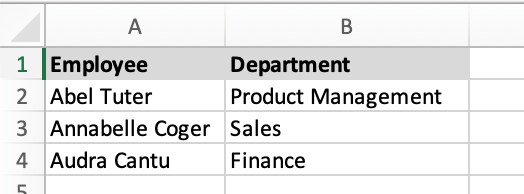
Often, when we are planning our testing strategy, we will use a tool such as Excel to design our tests. In this simple example, the Test Matrix is a spreadsheet, and we wish to repeat the same test for each row in the sheet. Here is our Test Matrix:

In ATF jargon, we refer to this as parameterized testing. Each row in the spreadsheet is a Test Run Data Set. We could manually enter this data into the Test Run Data Set table; but that might be a bit onerous. Test matrices can be large and dynamic. We would prefer to maintain the matrix externally, in our spreadsheet, and import it into ATF only when it changes or when we are ready to run the test.
Define Shared Parameters
To easily import the matrix into ATF, we will need to use Shared Parameters. The name is a bit misleading. "Shared" does not mean that the parameter values are shared across multiple tests. "Shared" means that the parameter DEFINITION is shared across ALL PARAMETERIZED TESTS. In other words, when you define a Shared Parameter, it means that the parameter will be available for ALL tests for which the box "Enable parameterized testing" is checked. You do not need to use the parameter for each of these tests, but it will be available.
There are two ways to define a new Shared Parameter. One is to click the "Add Shared Parameters" button. The other is to go to System Definition > Tables, open the Test Run Data Set [sys_atf_parameter_set] table, and click the "New" button under "Table Columns". I prefer the second method because it makes it clearer what is really happening; but both methods do the same thing.
For our example, we will add two columns to the Test Run Data Set table: a column named "Employee" [u_employee] which is a reference to sys_user, and a column named "Department" [u_department] which is a reference to cmn_department.
Create a Test
Next we will create a Test that utilizes the parameter sets. We will name our Test "Test Employee Department". Check the "Enable parameterized testing" box when creating the test. Our simple example will only have a single step: we will validate the sys_user record for our employee, to confirm that the Department matches the expected value from the Test Matrix.

Import the Test Matrix
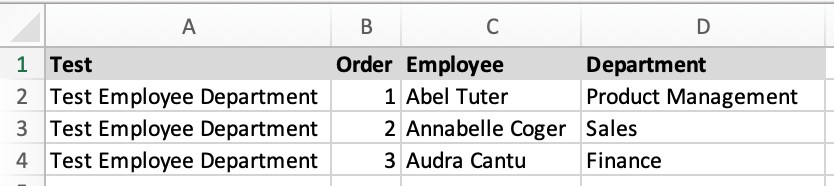
Before we can import the data from our spreadsheet, we will need two additional columns: Test and Order.

These two columns will serve as the coalesce fields when we import the sheet into sys_atf_parameter_set.
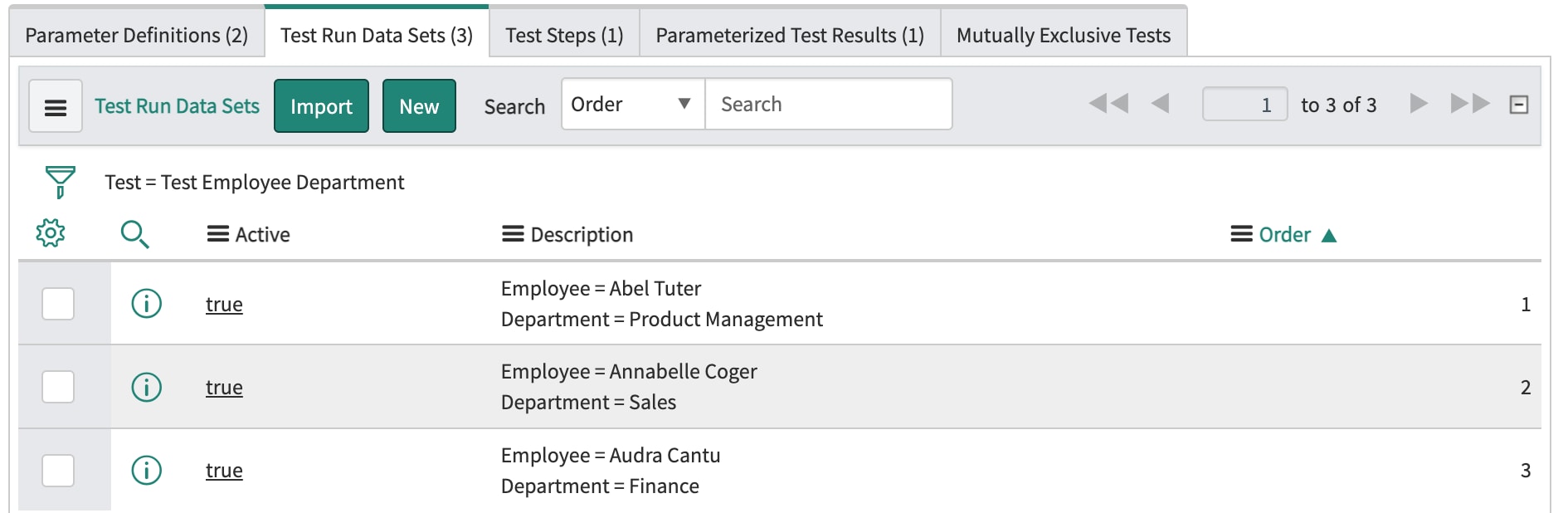
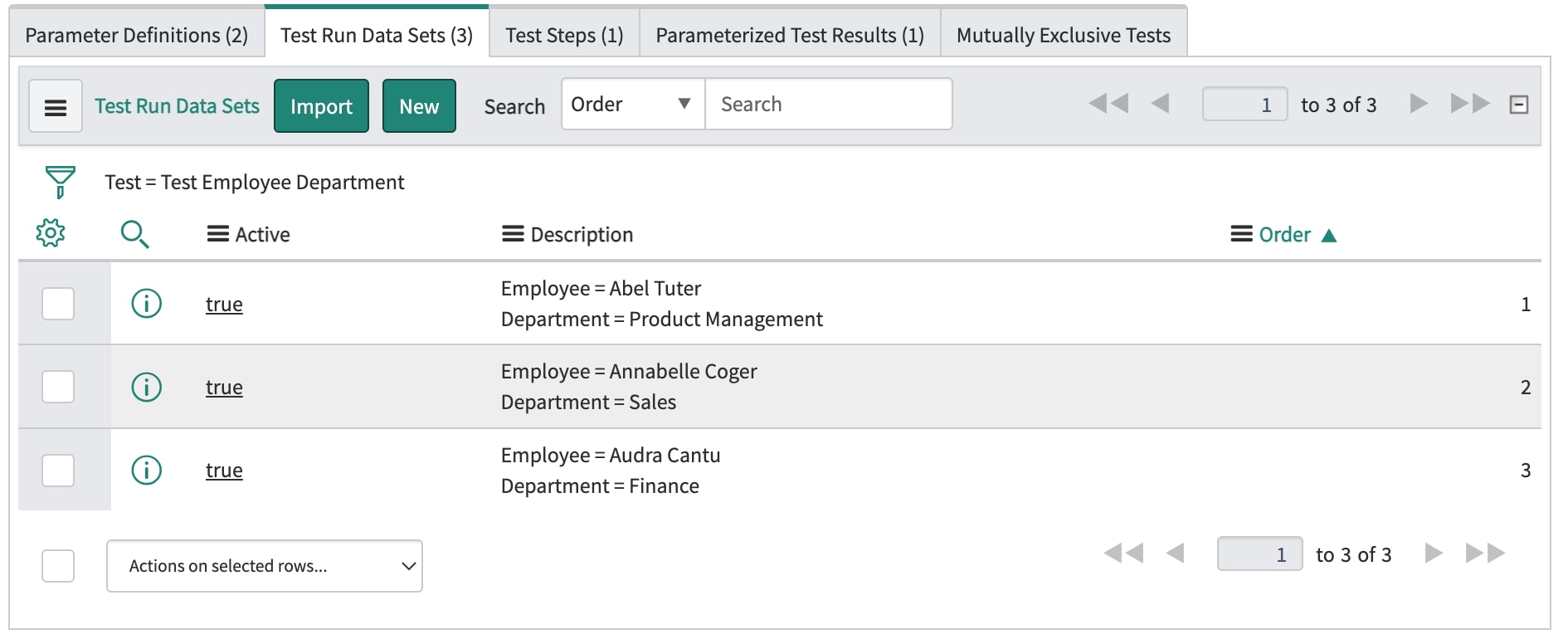
Now we can load the data from the spreadsheet. The Target table is "Test Run Data Set". Be sure to set Coalesce to "true" for u_test and u_order. Be sure to set Choice action to "Ignore" for u_employee and u_department. After running the transform, return to the Test. You will see on the "Test Run Data Sets" tab the data which you have imported.

Managing Change
We began this exercise with the assumption that our preference was to manage the test matrix externally using a tool such as Excel. Now, when the test matrix changes, we can simply delete all the Test Run Data Set rows for this Test, and re-import the spreadsheet.
- 2,495 Views