- Post History
- Subscribe to RSS Feed
- Mark as New
- Mark as Read
- Bookmark
- Subscribe
- Printer Friendly Page
- Report Inappropriate Content
on 01-11-2018 08:22 AM
Here is how I built our notifications using Business Rules, Events, Notifications, Templates and Notification Email Scripts.
In order to minimize the amount of things to administrate when it comes to notifications I made it a bit different. Hopefully parts of this can help someone else that want to change notifications or create their own.
Business Rules
What triggers my notifications are events in business rules. For me, rules on task for child tables there. This is an example from the BR that sends a notification to the end user.
When to run:
Condition: Notify is not Do not notify
Run on insert.
var relTable = current.getTableName();
var end_user = '';
if(relTable == 'incident'){
end_user = current.caller_id;
gs.eventQueue('enduser.newticket', current, end_user);
}
Events
All business rules trigger events. Very simple ones created under Events - Registry.
Notifications
For the above BR and event the notification is called "New ticket opened for me". "Send when" is Event is fired and the Event name is same as in BR.
As the business rule handles all conditions there is no need for additional conditions here.
Who will receive is "Event parm 1 contains recipient"
What it will contain is an email template called enduser_notification
Template
I use Litmus to find code for emails as html in mail clients is a beast all to itself. You find Litmus here: Litmus: Email Marketing, Email Design & Email Testing Tools
I then use Notification Email Scripts to adjust backgrounds, images and text, as the OOB scripts for text unfortunately alters the HTML in the notification.
Notification Email Scripts
I will provide examples of these scripts for background colours, text fields and approval buttons.
Background colour
Add this to your email html: <td align="center" bgcolor="${mail_script:background_colour}"> in a suitable location.
The script looks like this (this is only the incident part, add additional code for other task types and states):
var state = current.state;
var type = current.getTableName();
if(type == 'incident'){
if(state == '4' || state == '6')
template.print('#61f49f');
else
template.print('#a6bcfd');
}
Text fields
As stated above, I need to adjust this in order to make the code in the email work.
Add this to where you want information text (for example): ${mail_script:body_text}
The script looks like this (the notes variable here is the text you want added, in my case it was from Additional comments):
var code1 = '<pre style="white-space:pre-wrap;word-wrap:break-word;display:block; background-color: #f4f4f4; margin: 4px;">';
var code2 = '</pre>';
var num = current.number;
var newNotes = code1.concat(notes,code2);
template.print('<br><bold>'+num+' has a new comment:</bold><br>'+newNotes);
Approval buttons
This is a feature I took from SN Pro Tips and adjusted a bit.
At the end of an approval notification, add ${mail_script:approval_images}
The script looks like this:
var baseLink = gs.getProperty('glide.servlet.uri') + 'nav_to.do?uri=' + current.getTableName() +
'.do?sys_id=' + current.getValue('sys_id') + '%26sysparm_input=';
var approvalLink = baseLink + 'approved';
var rejectLink = baseLink + 'rejected';
var answer = '<a href="' + approvalLink + '"><img src="approved.png" width="50" height="50" alt="Approve approval request"/></a>
<a href="' + rejectLink + '"><img src="rejected.png" width="50" height="50" alt="Reject approval request"/></a>';
template.print(answer);
In order to make the approval buttons work, there needs to be additional things added to sysapproval_approver.do You can find that here:
https://snprotips.com/blog/2016/1/29/approve-or-reject-with-a-single-click
A huge thanks to SN Pro Tips for this one (it works great in mobile app as well).
I also have scripts for company logo and the subject lines, but the above is mostly a tip on how you can evolve notifications.
-- Anton Vettefyr
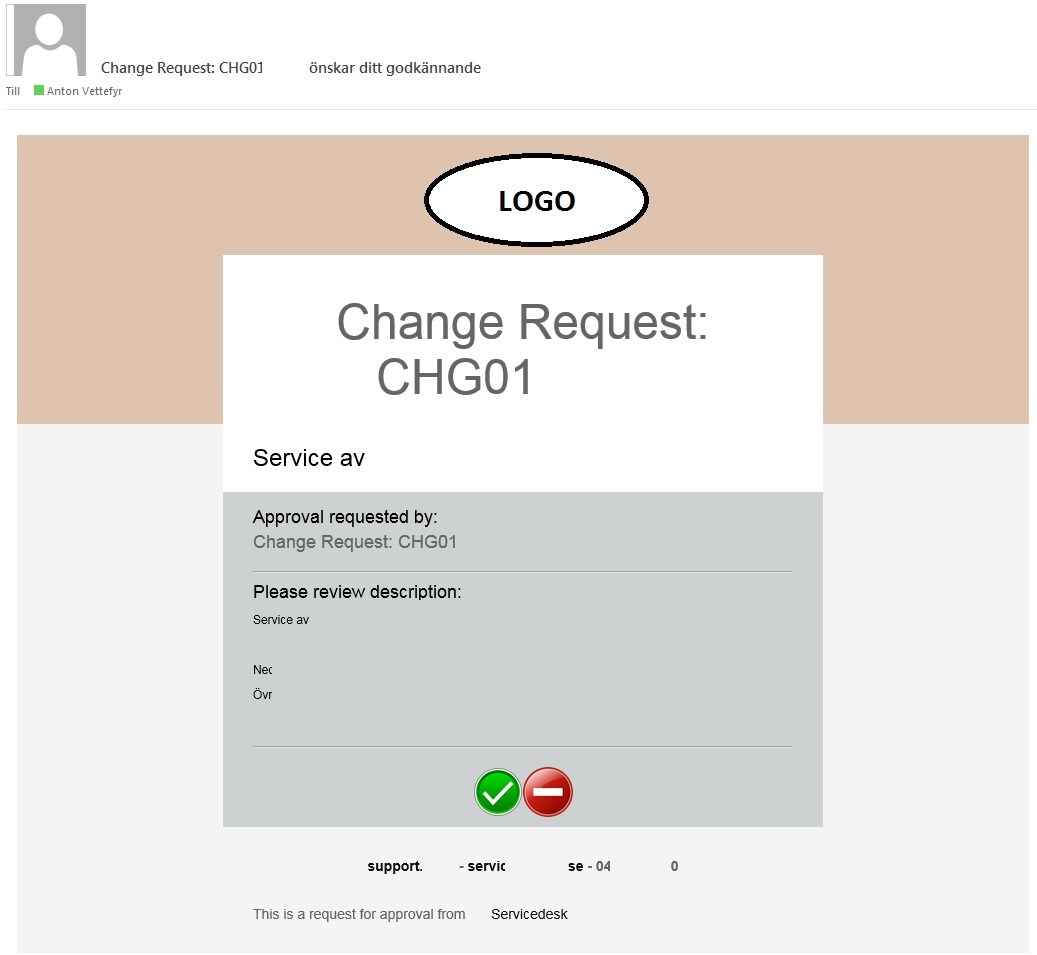
Example of our notification for approval request with a lot of removed information.

- 3,743 Views
- Mark as Read
- Mark as New
- Bookmark
- Permalink
- Report Inappropriate Content
Another approach would be to continue to leverage the OOTB functionality.
Introduce a configuration so that it can grown on demand without having to change code. The config may be anything, script include, sys propery, ui message, table, from rest...
var NotificationMessageConfig = {
    incident: {
       state: {
           4: "sys_ui_message_incident_state_4",
           6: "sys_ui_message_incident_state_6"
       }
    },

    sc_task: {
       state: {
           1: "sys_ui_message_sc_task_state_1",
           3: "sys_ui_message_sc_task_state_3"
       }
    },

    defaultApproval: "sys_ui_message_default_approval",
    ...

}
The email script would then be
var msg = NotificationMessageConfig[current.source_table][current.sysapproval.state];

If( msg ) {

  template.print( gs.getMessage(msg) );
}  else {
   template.print( gs.getMessage(NotificationMessageConfig.defaultApproval) );

}
Lastly the sys ui message would become
<pre style="white-space:pre-wrap;word-wrap:break-word;display:block; background-color: #f4f4f4; margin: 4px;">

${sysapproval.number} has new comment ${Sysapproval.comments}

<a href="${URI_REF}&approved"><img src="approved.png" width="50" height="50" alt="Approve approval request"/></a>
<a href="${URI_REF}&rejected"><img src="rejected.png" width="50" height="50" alt="Reject approval request"/></a>
</pre>
The configuration enables addition of new approval messages on the fly, bypassing the need to change code, and separates concerns cleanly. To change the look and feel of the email notification change the sys_ui_message. Email context can then be delegated to a notification admin.
The email notification script can ultimately just be
NotificationFactory.getMessage( current );

or

NotificationFactory.getMessage()

if implicitly ussing current