- Post History
- Subscribe to RSS Feed
- Mark as New
- Mark as Read
- Bookmark
- Subscribe
- Printer Friendly Page
- Report Inappropriate Content
on 08-09-2019 01:23 PM
If you're using Agile Development, you may have run across this new "wrinkle" on the Scrum release form. According to HI, beginning with Madrid Patch 2 a View Rule was delivered to force the form to open in Scrum view, with no option to change views, for all users every time. This was apparently in response to a Case submitted that was rolled up into Problem PRB1309629 (see table below). Immediately after that problem is another that describes (in part) the conundrum that left those of us who have need for more than one view of Scrum release in.

This workaround will work in perpetuity, but it will create a skipped record when you upgrade in the future. I recommend adding a comment in the Description field to let whoever is handling that skp NOT to revert it to base if it is still unconditionally sending everyone to Scrum view. You can do this directly with list edit, or you can add the Description field to the form and enter it there.
Workaround Steps:
- Navigate to Agile Development -> Releases
- Choose any Scrum release from the list and click on the number to open it.
- Confirm that the table listed is Scrum releases (rm_release_scrum)
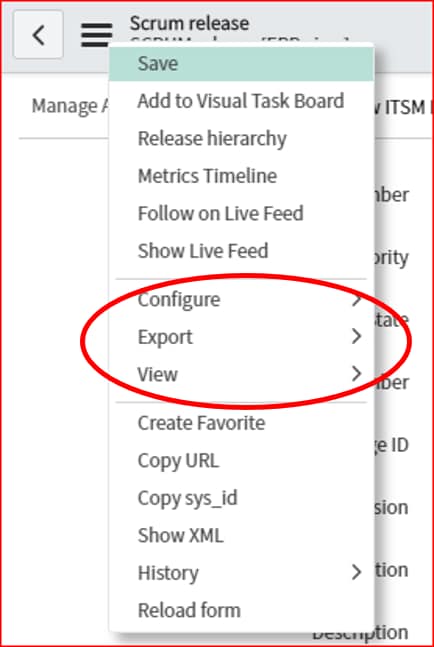
- Click the Context Menu icon (pancakes/hamburger) at the top left of the form.
- If the item “Views >” is displayed as an option in the list, you do not have the problem and can stop here. Otherwise, proceed as below

- Click “Configure” and select “All” from the submenu
- Click on the “View Rules” tab
- Locate the “Release” view rule
- (Optional) Click the name of the rule to open the record
- Confirm that the rule contains the following:
Match conditions: All
Table: Scrum release (rm_release_scrum)
View: Scrum d) Active: True - Set the “Active” field to “false”
From the form, uncheck the check box
From the list view double-click the “true” in the “Active” column, and select “False” from the drop down, then click the green check mark to confirm the change. - To confirm the fix, repeat steps 1-5. You should see the “Views >” option in the context menu.
Alternatively you can go directly to the rule and edit it there
- Navigate to System UI -> View Rules
- Search for rm_release_scrum in the Table column
- Locate the rule named "Release"
- (Optional) Open the rule by clicking on the name
- Confirm that the rule contains the following:
Match conditions: All
Table: Scrum release (rm_release_scrum)
View: Scrum d) Active: True - Set the “Active” field to “false”
From the form, uncheck the check box
From the list view double-click the “true” in the “Active” column, and select “False” from the drop down, then click the green check mark to confirm the change.
Edit in list view

Edit in form view

When you have completed either of these methods, you should be able to change the view on any Scrum release record.

- 675 Views