- Post History
- Subscribe to RSS Feed
- Mark as New
- Mark as Read
- Bookmark
- Subscribe
- Printer Friendly Page
- Report Inappropriate Content
on 09-10-2021 08:55 AM
Inputing a file as a function
Problem statement: Need to be able to use the content of a file as input in a function.
I recently worked on an instance where we had to use the content of a file to populate a table in ServiceNow. This was unfortunately not an Excel or CSV file, so using update sets was out of the question.
It would be possible (and a good solution) to create a REST endpoint where a client could upload the file, but the instance could not be reached by the client, meaning that the only viable functional solution was to have a user upload the file directly to ServiceNow.
The solution
Step 1: Create an UI action
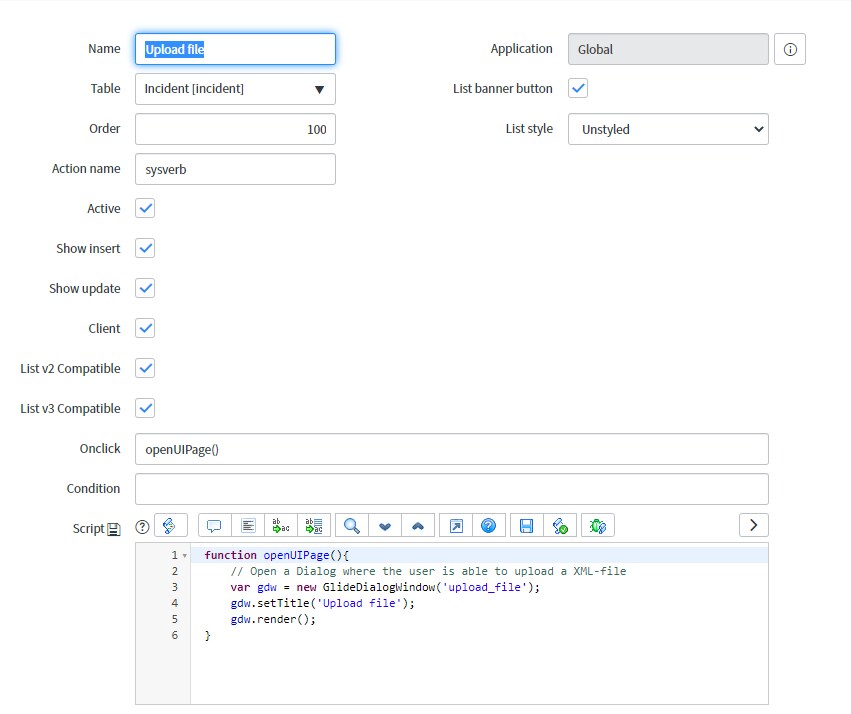
The UI Action needs to be client=true and action_name=sysverb. In this example the button is a list banner button, but it could be any button.
The script needs to open a UI Page. This example shows how you can use GlideDialogWindow to open a UI Page.

Onclick: openUpdateUIPage()
Script:
function openUIPage(){
var gdw = new GlideDialogWindow('upload_file');
gdw.setTitle('Upload file');
gdw.render();
}
Step 2: Create an UI page
The UI page name needs to be the same as the input in the GlideDialogWindow constructor. In this case: "upload_file".
The example below shows how to create a file input where a user can select a file, and a button to trigger the upload to the server. The input tag uses the accept attribute to only allow the correct file format.
The client script uses FileReader to read the content of the file, and GlideAjax to process the file content.
HTML:
<?xml version="1.0" encoding="utf-8" ?>
<j:jelly trim="false" xmlns:j="jelly:core" xmlns:g="glide" xmlns:j2="null" xmlns:g2="null">
<a id="a"></a>
<p id="description">Downloading...</p>
</j:jelly>
Client script:
function submit() {
// Get file that was uploaded
var selectedFile = document.getElementById('file').files[0];
// Trigger file upload
if (selectedFile) fileUpload(selectedFile);
}
// Callback function for Ajax
function getResponse(response) {
// Get result
var answer = response.responseXML.documentElement.getAttribute("answer");
// Do something with the result here
// Reload page
if (answer) location.reload();
}
function fileUpload(file) {
var reader = new FileReader();
// Create an event listener to trigger Ajax funciton after file is read
reader.onload = function(evt) {
var ga = new GlideAjax('global.TableUpdater');
ga.addParam('sysparm_name', 'fileUpload'); ga.addParam('sysparm_data', evt.target.result); ga.getXML(getResponse);
};
// Read file
reader.readAsText(file);
}
 Step 3: Create the Script include
In order to process the input I created a client callable Script include. For the example to work it must have a function called "uploadFile" that can and needs to return something.
Script:
var TableUpdater = Class.create();
TableUpdater.prototype = Object.extendsObject(AbstractAjaxProcessor, {
uploadFile: function () {
var sysparm_data = this.getParameter('sysparm_data');
// Do something with the data
return true;
},
type: 'TableUpdater'
});

Result
An UI Action that, when clicked, allows a user to select a file and upload it to a Script include. I have attached an update set (Upload File Example.xml), that you can import into your own instance and play around with.

Taking it to the next level
Now, this approach is working nicely, but what if I wanted a reusable UI page, so that I don't have to create a new UI Page every time I want to do something different with the file that's uploaded. We would ideally have some way of either receiving the file content back to the UI action or at the very least be able to tell the UI page what to do with the data. Since GlideDialogWindow doesn't return anything, nor has a callback function, the first option is unavailable to us. What we can do instead is inject some code into the UI page.
Step 1: Change the UI action
What we want to is to create a way for the UI action to inject code to the UI page. To do this, we will use GlideDialogWindow's setPreference-method.
Script:
function openUIPage(){
// Open a Dialog where the user is able to upload a XML-file
var gdw = new GlideDialogWindow('upload_file');
gdw.setTitle('Upload file');
gdw.setPreference('validExtensions', 'application/xml');
gdw.setPreference('f', "var ga = new GlideAjax('global.TableUpdater');"
+ "ga.addParam('sysparm_name', 'uploadFile');"
+ "ga.addParam('sysparm_data', evt.target.result);"
+ "ga.getXML(callback);");
gdw.render();
}
Here we are passing 2 values: "validExtensions" and "f". "ValidExtensions" allows the UI Action to configure the accepted file extension(s) and "f" is the meat of the function to run once the file content is read.
Step 2: Change the UI page
In the UI page we now need to read these values in, then pass the "f" to the client script. We will use jelly and the g:evaluate tag to read the values passed from the UI Action, then bind the value of "f" to a hidden tag, which we will read from the client script:
HTML:
<?xml version="1.0" encoding="utf-8" ?>
<j:jelly trim="false" xmlns:j="jelly:core" xmlns:g="glide" xmlns:j2="null" xmlns:g2="null">
<g2:evaluate var="jvar_f" expression="RP.getWindowProperties().get('f')"></g2:evaluate>
<g2:evaluate var="jvar_ext" expression="RP.getWindowProperties().get('validExtensions')"></g2:evaluate>
<input type="file" id="file" accept="$[jvar_ext]"></input>
<button type="button" class="btn btn-primary" id="submit" onclick="submit()">Submit</button>
<p id="f" value="$[jvar_f]" hidden="true">$[jvar_f]</p>
</j:jelly>
Client script:
var f = gel('f').getAttribute('value');
function submit() {
// Get file that was uploaded
var selectedFile = document.getElementById('file').files[0];
// Trigger file upload
if (selectedFile) fileUpload(selectedFile);
}
// Callback function for Ajax
function getResponse(response) {
// Show feedback from file upload to end user.
var answer = response.responseXML.documentElement.getAttribute("answer");
// Reload web page
if (answer) location.reload();
// Handle errors
else console.error("Upload failed");
}
function fileUpload(file) {
var reader = new FileReader();
// Create an event listener to trigger Ajax funciton after file is read
reader.onload = function(evt) {
var func = new Function('evt', 'callback', f);
func(evt, getResponse);
};
// Read file
reader.readAsText(file);
}
We want to save the value of "f" to the client script as early as possible so that no one can inject unwanted code by just manipulating the p-tag where it's saved. We also want to avoid using the eval-function, so insted we user the Function class to construct the function. Note that we are passing 2 variables: "evt" and "callback". "evt" is the event-object from the onload function, and the callback is the function to call after the f-function has executed. When injecting the code, it's important to not change these variables in the UI action.
Result
Identical user experience, but now with a configurable and reusable UI page. I have attached an update set with the code as: "Upload File Example - with injection.xml"
Outputing a dowloadable file from a function
Problem statement: The end user want to be able to export records from a ServiceNow instance, in a specific format.
The customer wanted to be able to synchronize system properties and static values across multiple applications, and decided upon a specific file format. ServiceNow was chosen to be the master, and should be able to distribute this master data. Since some of the systems can't communicate directly with each other there needs to be a way for an end user to generate this master data through the ServiceNow GUI, and export it to all the other applications.
The solution was to create the file on the fly, and make it downloadable with help from URL.createObjectURL(). We need to be able to bind the output of URL.createObjectURL() to a href attribute in an a-tag. We can do this quite easily through in the portal by user a widget, but in this example I will shooe you how it's possible to do it in the UI16 GUI by creating a GlideDialogWindow.
The solution
Step 1: Create UI action
The UI action needs to be client=true. In this example the button is a list banner button, but it could be any button.
The script needs to open a UI Page. This example shows how you can use GlideDialogWindow to open a UI Page.
Onclick: openDownloadUIPage()
Script:
function openDownloadUIPage() {
var gdw = new GlideDialogWindow('download_file');
gdw.setTitle('Download File');
gdw.render();
}

Step 2: Create UI page
The UI page name needs to be the same as the input in the GlideDialogWindow constructor. In this case: "download_file".
The example below shows how to call a GlideAjax-function, then use the output of that function to create a Blob and make it downloadable through an a-tag with URL.createObjectURL().
HTML:
<?xml version="1.0" encoding="utf-8" ?>
<j:jelly trim="false" xmlns:j="jelly:core" xmlns:g="glide" xmlns:j2="null" xmlns:g2="null">
<a id="a"></a>
<p id="description">Downloading...</p>
</j:jelly>
Client script:
function callback (response) {
var answer = response.responseXML.documentElement.getAttribute("answer");
if (!answer) {
// In case function fails
gel('description').innerHTML = "Something went wrong";
return;
}
// Parse to JSON object
answer = JSON.parse(answer);
var fileName = answer.fileName; // eks: demo.txt
var mimeType = answer.mimeType; // eks: text/plain
var blob = new Blob([answer.fileContent], {type: mimeType});
var objectURL = URL.createObjectURL(blob);
// Update a-tag
var a = gel('a');
a.setAttribute('href', objectURL);
a.setAttribute('download', fileName);
a.innerHTML="Click to download";
// Hide p-tag
gel('description').setAttribute('hidden', true);
}
function download() {
var ga = new GlideAjax('global.TableDownloader');
ga.addParam('sysparm_name', 'downloadFile');
ga.getXML(callback);
}
download(); // Trigger download

Step 3: Create the Script include
In order to generate the file content, I created a client callable Script include. For the example to work it must have a function called "downloadFile". This function return the file content, mime type of the file and the file name.
Script:
var TableDownloader = Class.create();
TableDownloader.prototype = Object.extendsObject(AbstractAjaxProcessor, {
downloadFile: function () {
// Create the file content
var fileContent = "hello world!";
var returnObj = {
fileName: "demo.txt", // Set the file name
mimeType: "text/plain", // Set mime type
fileContent: fileContent
};
return JSON.stringify(returnObj);
},
type: 'TableDownloader'
});

Result
An UI Action that, when clicked, creates a file that a user can download. I have attached an update set (Download File Example.xml), that you can import into your own instance and play around with.

- 4,891 Views