

drjohnchun
Tera Guru
Options
- Subscribe to RSS Feed
- Mark as New
- Mark as Read
- Bookmark
- Subscribe
- Printer Friendly Page
- Report Inappropriate Content
12-15-2016
10:26 AM
Last time, we ran a demo test called "Basic UI Test" and created a Service Catalog Task record. We also saw that, by design, the record was permanently deleted after the test was completed, with the Automated Test Framework (ATF) "automatically taking care of rolling back changes after testing". Before going further with more tests, I'd like to take a deeper look at the various building blocks of ATF both on the surface and behind the scenes; this will give us the lay of the land and help us what to look for later as we create and run more tests.

APPLICATION MODULES
As noted in Part 1, the Navigator provides the following modules for the atf_test_admin role under the Automated Test Framework application menu:
Below is a quick rundown of what you get for each module:
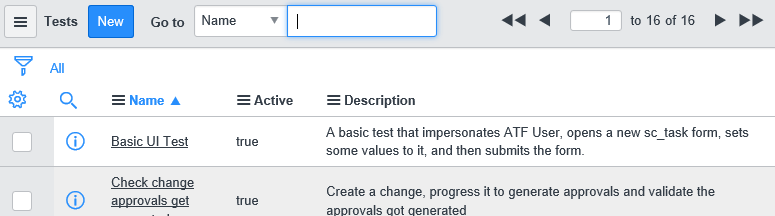
Tests
This module shows list of Tests. Tests include both UI and server tests.
Suites
This module shows list of Test Suites. Test Suites are made up of one or more Tests and/or Test Suites.
Test Results
This module shows list of Test Results. There may be multiple Test Results for a Test.
Suite Results
This module shows list of Test Suite Results. There may be multiple Test Suite Results for a Test Suite.
Run > Client Test Runner
This module opens Clint Test Runner window. This window, labeled as UI Test Runner, may also be opened from the Run Test dialog box. Without this window opened, UI tests won't run.
Run > Test Run Queue
This module shows list of Tests that are Waiting or Running. When running a Test Suite, this lists all Tests that are part of the Test Suite and its child Test Suites, if any. This list doesn't show the execution order, limiting its usefulness. NOTE: Tests can't be scheduled to run at a later time.
Occasionally, when I click on this module while Tests are running, I get the message "Security constraints prevent access to requested page" as shown in the screenshot below:
Run > Suite Run Queue
This module shows list of Test Suites that have Started or are Running. As in Test Run Queue, this list doesn't show the execution order. NOTE: Test Suites can't be scheduled to run at a later time
Administration > Properties
This module shows property settings. As noted in Part 1, these settings are unchecked by default and the first checkbox must be checked to be able to run tests.
Administration > Step Configurations
This module shows list of Test Step Configurations. These are used to build Test Steps. ATF comes with several predefined Test Step Configs and new ones can also be created. Test Steps can only be created from an existing Test Step Config.
Administration > Step Environments
This module shows list of Test Step Environments. These are used in Test Step Configurations and there are two predefined environments: UI and Server. NOTE: this doesn't allow selecting a server instance, for example QA, DEV, etc.
Administration > Test Templates
This module shows list of Test Templates. These are used to build Test Steps in a Test. One Test Template comes with the demo data. A Test Template contains a list of Test Step Configurations in a Glide List.
Administration > Step Configuration Categories
This module shows list of Test Step Configuration Categories. These are used in the Add Test Step dialog box to filter Test Step Configurations when building Test Steps. There are two predefined categories: Form and Server.
TEST HIERARCHY
Using Test Suites, multiple Tests can be bundled. A Test Suite may contain Tests and/or other Test Suites. A Test may belong to more than one Test Suite, as shown in the below hierarchy, whereas a Test Suite may belong to only one parent Test Suite:
When Test Suite A is executed, here's what happens (within the same level in the hierarchy diagram, assume Tests on the left have lower Execution Order, so executed first):
- Test 1 runs and finishes
- Test 2 runs and finishes
- Test Suite B starts
- Test 3 runs and finishes
- Test 2 doesn't run again, since it already ran in Test Suite A
- Test Suite B finishes
- Test Suite A finishes
The test sequence is shown in the Run Test Suite dialog box while the Test Suite is running. When a Test Suite has both Tests and Test Suites, like Test Suite A above, the Tests are always executed first before Test Suites.
While ATF allows a Test to be used in multiple Test Suites, care must be exercised when there are dependencies. In the above example, Test 2 was used twice, first under Test Suite A and second time under Test Suite B. We noticed that Test 2 didn't run again under Test Suite B because it already ran under Test Suite A. If Test 2 had dependency on Test 3 in Test Suite B (e.g., using an output value from Test 3), it may not run correctly.
TABLE RELATIONSHIPS
I used GQL Pad to inspect the database and put together the below ERD (Entity Relationship Diagram) showing the various tables used by ATF and their relationships. This, in conjunction with the module descriptions and test hierarchy above, provides an insight into the inner connections in ATF. For clarity, instead of showing all fields, only the reference fields are shown here to highlight the various relationships. We'll reference this later when we discuss how test records are connected and investigate any issues.
I noticed that not all tables had data after loading the demo data; we'll see how and if they're being used as we run more tests later. The Test Suite Test [sys_atf_test_suite_test] table is a many-to-many (m2m) join table that connects between Test Suites and Tests, as shown earlier in Test Hierarchy. Test Template [sys_atf_test_template] has a Glide List for Test Step Configs and is not explicitly related to any tables.
Next time, we'll resume running more Tests as well as creating new ones.
Please feel free to connect, follow, post feedback / questions / comments, share, like, bookmark, endorse.
John Chun, PhD PMP 
|  |
Labels:
- 31,635 Views
19 Comments
You must be a registered user to add a comment. If you've already registered, sign in. Otherwise, register and sign in.