kim_purcell
Kilo Explorer
Options
- Subscribe to RSS Feed
- Mark as New
- Mark as Read
- Bookmark
- Subscribe
- Printer Friendly Page
- Report Inappropriate Content
10-15-2015
12:57 PM
ServiceNow's mobile UI gives you convenient remote access to your instances with some standard functionality that lets you perform common tasks while on the go. We support two types of smartphone interfaces:
- Smartphone interface — This is active by default on new instances starting with the Dublin release. (For existing instances that are upgraded to Dublin or later, admin can activate the smartphone interface.)
- Legacy mobile UI - These are devices, browsers, and features supported in versions prior to the Dublin release. For more information, see Configuring the Legacy Mobile UI.
In addition, administrators can define what users can access on smartphones through the smartphone interface. For example, users can be given access to specific application menus and modules, default home page favorites, UI policies, and online help.
In the Incident module, for example, the + button appears on the top-right corner of the screen in a list on the mobile UI. Pressing this button creates a new record in the list.
In some cases, you may want to restrict certain users from creating new incident (or other types of records) from the mobile UI but still allow them to create new records from the desktop UI.
The "+" on the mobile UI essentially means, "create a new record from the type of the list you are in". Because this button is hard-coded in the UI and not one of the UI actions, you're not able to create conditions directly on the button. Instead, you'll need to create an ACL to restrict the mobile UI.
To control the + button and create an ACL to restrict the mobile UI:
- If needed, elevate privileges to the security_admin role.
- Navigate to System Security > Access Control (ACL).
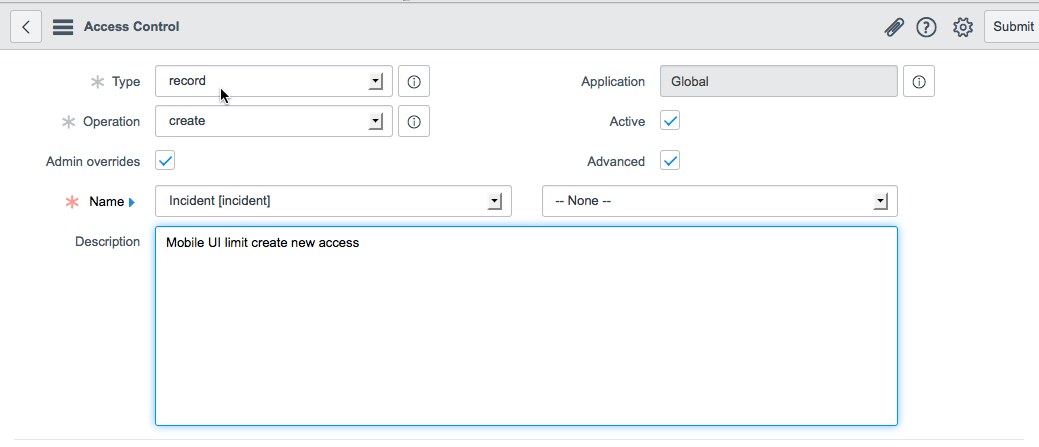
- Create an access control using the following information:
- Type: Record
- Operation: Create
- Name: Use the name of the table you want to restrict, for example, Incident.
- Active: Checked
- Advanced: Checked
- Enter the following code in the Script field: GlideTransaction.get().getPageName() != "angular";
- Click Submit.
The script in step 4 obtains the name of the page and checks to see if it's "angular" (name of the page in the mobile UI). When it checks the name, one of the following occurs:
- If it's not angular, then it's not mobile, and the ACL passes.
- If it's angular, then it's in mobile, and the ACL restricts access so the + button does not appear.
Note: While this does function, it is not an official solution. The name used for the mobile page may change in future versions. If this fix is implemented, be sure to test after upgrades to ensure you are seeing the expected behavior.
Looking for more tips and solutions for mobile UI?
We have an entire resource page for this! See Mobile User Interface Resources for more information.
9 Comments
You must be a registered user to add a comment. If you've already registered, sign in. Otherwise, register and sign in.