sabell2012

Mega Sage
Options
- Subscribe to RSS Feed
- Mark as New
- Mark as Read
- Bookmark
- Subscribe
- Printer Friendly Page
- Report Inappropriate Content
11-19-2015
11:22 AM
Have you ever made modifications to your instance only to realize that those mods were being placed into the Default update set and not into the one you thought the changes were supposed to go to? Has it caused you to beat your fists on your keyboard until the keys fly off and you spend an hour searching around all the books and clutter on your office floor retrieving them? Has it caused you to seek out a psychoanalyst? Well! Help is here!
To begin with you could move your changes using the normal method of simply editing up the Customer Change record and specifying the update set you want to be in. While this is great for one or two updates; it is totally untenable for more than that. I have zero desire to spend an afternoon moving all those records!
However, there is a way of mass moving change records, but you have to know where to look, and what you are about.
Lab 1.1: Moving Customer Update Records
1. Navigate to System Update Sets -> Local Update Sets and click the New button on the Update Sets List View.
2. Name it something arbitrary. This is for demonstration purposes only. Do not make it your current update set.
3. Make sure that your current update set is Default - Global.
4. Go make some modifications - easiest would be to modify a Form or List View. Do two or three of these so as to show them up in the List View of Default. I modified the list views to add the Due Date to the Incident, Change, and Problem list views.
5. Go to the Global Default Update Set.
6. Verify the changes are listed there. I want to emphasize that you cannot move them through the Customer Updates List View in the Update Set. You would have to do it one at a time from this location.
7. Right-Click on the Customer Updates List View column header to bring up the context menu. Click on Dictionary.
8. This will show the name of the table we want to go to: sys_update_xml
9. From the Navigation Filter type: sys_update_xml.list to bring up the Customer Updates table. This will display the Customer Updates List View.
10. If the Comments, Updated, and Updated By fields are missing then personalize the List View to add them. Order the list by Updated date descending.
11. Note that your modifications for Default are listed. Filter for the Default Update Set only; to get rid of the clutter.
12. Mass modify the comment field for those records you want to move to your new Update Set. Something like: Update Set Demonstration
13. Now mass modify the Update Set field and change it to your new Update Set.
14. Go to Update Sets and edit up your new one. Verify that the records were indeed moved to your new Update Set.
There you have it! That is the simple recovery. Now for the one that proves to be a bit more troublesome!
Lab 1.2: Dealing With Duplicate Records
If a change already exists in the update set you are moving to; the one you are moving may be overridden. Keep your wits about you and you won't have a problem, but it is good to review things after you do your move. The best way to keep out of trouble is to use the Comment field method I mentioned here and in my previous article.
Steps:
1. Make sure you are still on the Default Update Set.
2. Go make another change to the same List or Form View that you did earlier. This makes a "duplicate" change to the same element that is already in your new update set, but was recorded in the Default Update Set.
3. Return to sys_update_xml.list. Make sure you are ordered by Updated descending.
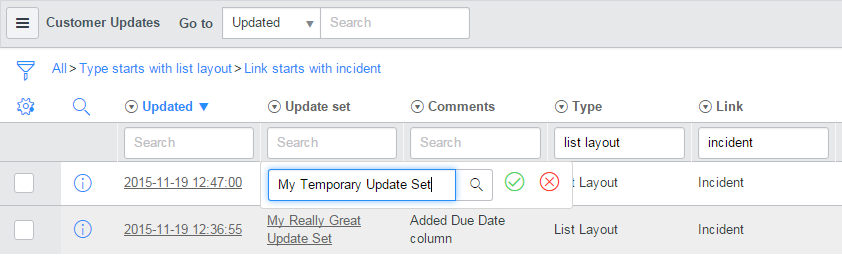
4. Note the values in the Type and Link columns for your most recent change. Filter the list view on that Type and Link.
5. You should now see two records at the top. One for your most recent change with the Update Set value of Default, and another older entry that appears to be the same change, but with the Update Set value of your new update set.
6. So now you can see the issue. I usually set things up so I am looking at both Default and my new update set entries at the same time. It helps. Especially with the comment fields filled in. So what to do? As you know I really HATE deleting records, and prefer to hang onto them if at all possible. You just never know if you are going to need that deleted information back, and once deleted it is gone forever. So decision time. I know that the latest modification is the one I want in my update set, but the now duplicated older record could cause a problem. Since the sys_ids are different ServiceNow will let you move the record to your new update set, but that won't do! You don't want both of them executing when you move your update set to another instance! So a couple of possibilities:
1) Delete the older record, and move the new record to your update set. Not my favorite.
2) Export the older record to your hard-drive, delete it, and move the new record to your update set. Well, it does preserve a backup, but still not optimal.
3) Create a new, temporary update set and merge all of your new changes with your new update set; letting ServiceNow sort out the change order. This is my preference even though it can be a bit tedious if there are several of these.
So, let's go with number 3.
The process:
1. Create a new temporary update set.
2. From sys_update_xml move the duplicate records from Default to your temporary update set.
3. Go to your "temporary" update set, and merge it with the "new" update set to create yet another "even newer" update set! Hey! You are the one that created the mess in the first place! 🙂
And then:
The merged updates set. Note that the record without the comment is the newer one so replaced the original:
NOTE: This is just a demonstration. If this had really been a single record I probably would have gone with option 2.
4. Delete or Inactivate your the two update sets ("new" and "temporary"). You will now be moving forward with the "merged" update set. Make it current, and you are good to go.
Recap
1. Remember to double-check your update set, and make sure it is not Default when making changes.
2. That failing and you end up with records in the Default that you wanted in your other update set you now have a method for moving them.
3. If you have it happen a second time, shame on you, and you find you have duplicates then you have a method for recovering from that mess as well, and hopefully you learned your lesson!
Oh, and why do I know how to do all of this? Because number 3 keeps happening to me! 🙂
Steven Bell
If you find this article helps you, don't forget to log in and "like" it!
I would also like to encourage you to become a member of our blog!
- 5,039 Views
You must be a registered user to add a comment. If you've already registered, sign in. Otherwise, register and sign in.