- Mark as New
- Bookmark
- Subscribe
- Mute
- Subscribe to RSS Feed
- Permalink
- Report Inappropriate Content
09-24-2026 06:04 AM - edited 09-24-2026 06:05 AM
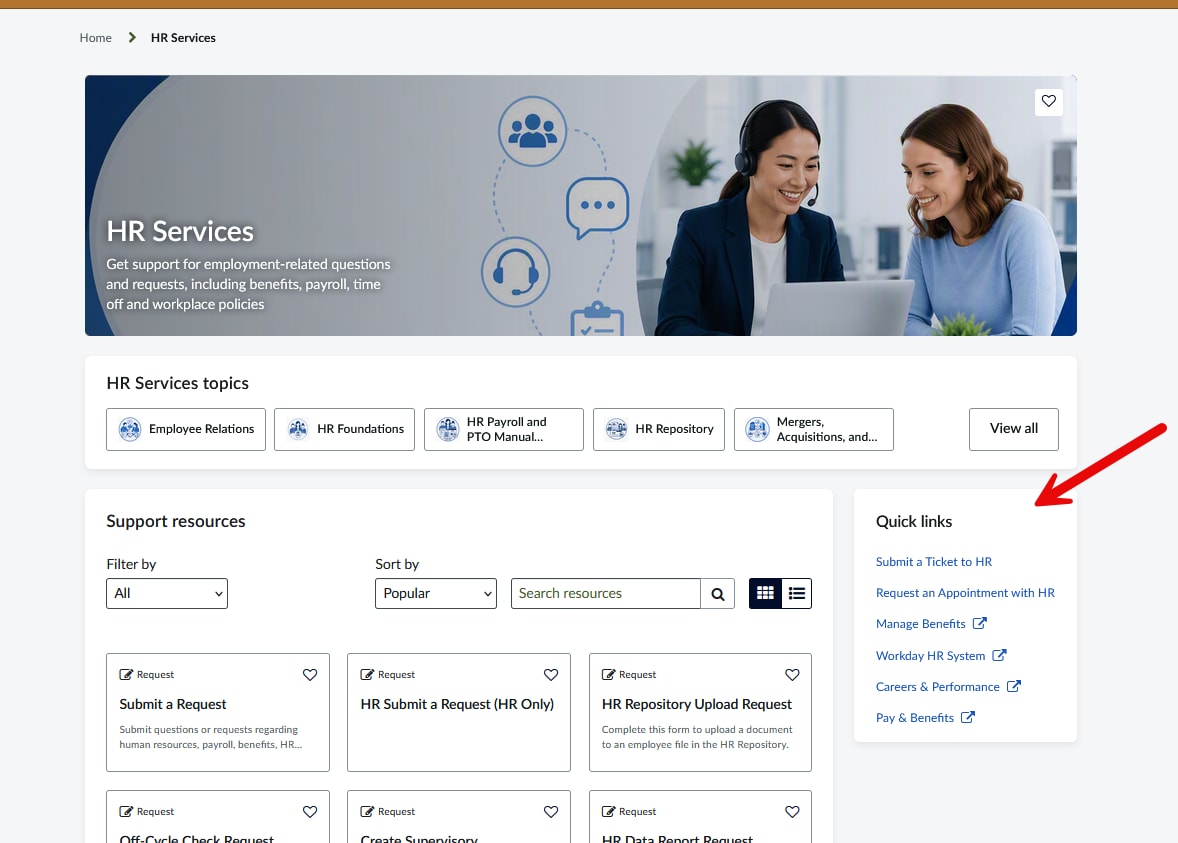
Currently today we are not making use fully for Employee Center. Each of the Different units with Quick Links want them more prominent with an ICON. I have icons attached to each of them but they are not showing. Any idea on how to get these to show up with the ICON? TIA - See Attachment - Sorry but this is all new to me and I am clueless.

Solved! Go to Solution.
- Mark as New
- Bookmark
- Subscribe
- Mute
- Subscribe to RSS Feed
- Permalink
- Report Inappropriate Content
09-25-2026 12:03 AM
Hi @wpeterson ,
Below are the steps to clone the OOTB Quick Links widget and customize it to display icons.
1.Navigate to sp_widget.list and search for the widget with the following name: Quick Links on Topic Page
2.Switch scope to Employee Center and Click on clone widget button.

3.Update the following fields in the cloned widget:
Name = Quick Links on Topic Page (Icons)
ID = quick_links_on_topic_page_icons
HTML = use the following
<div ng-class="data.isMobileApp ? 'link-container-mobile': 'link-container'"
     ng-if="data.json_data && data.json_data.length > 0 && (!data.isMobileApp || hasNonGuidedQuickLinks())">
  <div ng-bind-html="widgetTitleHtml"></div>
  <div class="all-link-container">

    <!-- DESKTOP VIEW -->
    <a class="quick-link"
       ng-style="item.type == 'guided_help' && {'cursor': 'pointer'}"
       ng-if="!data.isMobileApp"
       ng-repeat="item in data.json_data"
       ng-href="{{item.url}}"
       ng-click="clicked(item, $event)"
       data-toggle="tooltip"
       data-container="body"
       aria-labelledby="{{data.instanceId}}-item-{{$index}}"
       id="{{data.instanceId}}-item-{{$index}}"
       title="{{item.title}}"
       ng-attr-target="{{item.target}}">
      <div class="content">
        <div class="icon-wrap">
          <div class="quick-link-icon"
               role="img"
               aria-hidden="true"
               ng-style="{'background-image': 'url(' + (item.icon || defaultIcon) + ')'}"></div>
        </div>
        <div class="content-container">
          <span class="card-title">{{item.title}}</span>
          <div class="icon-container" ng-if="(item.target == '_blank')">
            <i class="fa fa-external-link"></i>
          </div>
        </div>
      </div>
      <span class="sr-only"
            id="{{data.instanceId}}-ext-link-{{$index}}"
            ng-if="(item.target == '_blank')">${, opens in a new window}
      </span>
    </a>

    <!-- MESP VIEW -->
    <a class="quick-link"
       ng-if="data.isMobileApp && item.type != 'guided_help'"
       ng-repeat="item in data.json_data"
       ng-href="{{item.url}}{{item.target == '_blank' ? '' : '&view=mobile'}}"
       data-toggle="tooltip"
       data-container="body"
       aria-labelledby="{{data.instanceId}}-item-{{$index}}"
       id="{{data.instanceId}}-item-{{$index}}"
       title="{{item.title}}"
       ng-attr-target="{{item.target}}">
      <div class="content">
        <div class="icon-wrap">
          <div class="quick-link-icon"
               role="img"
               aria-hidden="true"
               ng-style="{'background-image': 'url(' + (item.icon || defaultIcon) + ')'}"></div>
        </div>
        <div class="content-container container-mobile">
          <span class="view-mobile card-title">{{item.title}}</span>
          <div class="icon-container" ng-if="(item.target == '_blank')">
            <i class="fa fa-external-link"></i>
          </div>
        </div>
      </div>
      <div class="line"></div>
      <span class="sr-only"
            id="{{data.instanceId}}-ext-link-{{$index}}"
            ng-if="(item.target == '_blank')">${, opens in a new window}
      </span>
    </a>
  </div>
</div>
- CSS = Use the following
$background-primary: #ffffff !default;
$sp-panel-box-shadow: 0 4px 8px 0 rgba(23, 40, 52, 0.08) !default;
$icon-size: 56px;
$rm: 2px;
$link-hover-color: #354ECA !default;
$link-color: #3C59E7 !default;
$sp-space--xl: 24px !default;
$sp-space--lg: 16px !default;
$sp-space--md: 12px !default;
$sp-space--sm: 8px !default;
$divider: #F6F7F7 !default;

.title {
  min-width: 200px;
  padding-bottom: $sp-space--xl;
  word-wrap: break-word;
}

.all-link-container {
  background-color: $background-primary;
  display: flex;
  flex-wrap: wrap;
  gap: $sp-space--md;
}

.link-container {
  margin: 24px 15px;
  background-color: $background-primary;
  border: 1px solid $background-primary;
  border-radius: $border-radius-large;
  box-shadow: $sp-panel-box-shadow;
  min-width: 200px;
  padding: $sp-space--xl;

  .all-link-container { flex-direction: row; }

  .quick-link {
    display: flex;
    flex-direction: column;
    align-items: center;
    text-align: center;
    width: 110px;
    border-radius: $border-radius-large;
    padding: $sp-space--sm;
    transition: background-color 0.15s ease, box-shadow 0.15s ease;
  }

  .quick-link:hover {
    background-color: #F7F8FC;
    box-shadow: 0 2px 6px rgba(23,40,52,0.08);
    text-decoration: none;
  }

  .quick-link:focus > div {
    box-shadow: 0 0 0 0.2rem $brand-primary;
    border-radius: $border-radius-large;
  }
  .quick-link:focus { box-shadow: none; }
}

.link-container-mobile {
  padding: $sp-space--lg;
  border-bottom: 12px solid $divider;
  box-sizing: border-box;

  .title { font-weight: bold; font-size: 20px !important; padding-bottom: 0; margin: 0; }

  .quick-link {
    display: flex;
    flex-direction: row;
    align-items: center;
    padding: $sp-space--lg 0;
  }
}

.content {
  display: flex;
  flex-direction: column;
  align-items: center;
  width: 100%;
}

.link-container-mobile .content {
  flex-direction: row;
  align-items: center;
}

.icon-wrap {
  display: flex;
  justify-content: center;
  margin-bottom: $sp-space--sm;
}

.link-container-mobile .icon-wrap {
  margin-bottom: 0;
  margin-right: $sp-space--md;
}

.quick-link-icon {
  width: $icon-size;
  height: $icon-size;
  border-radius: 50%;
  background-color: #F0F2FA;
  background-size: 60%;
  background-position: center;
  background-repeat: no-repeat;
  box-shadow: inset 0 0 0 1px rgba(23,40,52,0.06);
}

.content-container {
  display: flex;
  align-items: center;
  flex-direction: column;
  max-width: 130px;
  word-break: break-word;
  text-align: center;

  .card-title {
    display: inline-block;
    color: $link-color;
    font-weight: 500;
    font-size: 14px;
    line-height: 1.3;
    white-space: normal;
  }

  .quick-link:hover .card-title { color: $link-hover-color; }
}

.link-container-mobile .content-container {
  flex-direction: row;
  max-width: 100%;
  text-align: left;

  .card-title { font-size: 16px; }
}

.icon-container {
  display: flex;
  padding-top: 4px;
  justify-content: center;
}

.line {
  width: 100%;
  border: none;
  border-bottom: 1px solid #EAEAEA;
}

@media (max-width: 768px) {
  .link-container { margin-top: 0; padding: $sp-space--lg; }
}
Add the following line at the top of the client script controller, after var c = this;
This provides a fallback icon when a Quick Link does not have an icon configured.
$scope.defaultIcon = "topic_default_icon.png"; // or your own uploaded placeholder 
4.Now replace this widget with OOTB widget on emp_taxonomy_topic page.

You can further update the HTML and CSS based on your requirements.
- Mark as New
- Bookmark
- Subscribe
- Mute
- Subscribe to RSS Feed
- Permalink
- Report Inappropriate Content
09-24-2026 07:03 AM
Hi @wpeterson ,
The icons added to the quick links are displayed in the Quick Links widget.

Here the icon is displayed above Password Reset quick link

- Mark as New
- Bookmark
- Subscribe
- Mute
- Subscribe to RSS Feed
- Permalink
- Report Inappropriate Content
09-24-2026 07:11 AM
It's the Icon that won't display see my quick links side menu - the regular Quick Links displays the images like your above but it's that Icon image that doesn't display on the side. They want them more 'Prominent' to stand out when you go into each individual area. TIA


- Mark as New
- Bookmark
- Subscribe
- Mute
- Subscribe to RSS Feed
- Permalink
- Report Inappropriate Content
09-24-2026 07:22 AM
Hi @wpeterson ,
You need to clone the Quick Links on Topic Page widget, as the OOTB widget does not display the icons.
Then, replace the OOTB widget with your custom widget on the emp_taxonomy_topic page.
- Mark as New
- Bookmark
- Subscribe
- Mute
- Subscribe to RSS Feed
- Permalink
- Report Inappropriate Content
09-24-2026 07:25 AM
Then is there a simple way to have it pull the icon or is it a bunch of scripting? Thanks