Sending Emails to a ServiceNow PDI (Updated Approach)

- Mark as New
- Bookmark
- Subscribe
- Mute
- Subscribe to RSS Feed
- Permalink
- Report Inappropriate Content
04-08-2026 02:44 AM
If you find this content helpful please upvote, thank you
Note:
Earlier, Personal Developer Instances (PDIs) came with built-in SMTP and POP/IMAP configurations. You could send emails using the instance email address (e.g., instance@servicenowdevelopers.com or devxxx.service-now.com).
However, as per recent ServiceNow changes, both inbound and outbound email capabilities are restricted in PDIs by default. https://developer.servicenow.com/blog.do?p=/post/sending-emails-from-pdis/
If you navigate to System Mailbox → Administration → Email Accounts, you’ll notice that no accounts are configured.
If you're looking to configure outbound emails, refer to the related post (https://www.servicenow.com/community/developer-forum/sending-emails-from-servicenow-pdi-to-a-persona...).
In this post, we’ll focus on receiving emails (inbound) into your PDI.
Step 1: Create a Dedicated Email Account
Since POP/IMAP is not preconfigured, create a new email account (e.g., Gmail) exclusively for your PDI.
- This email will act as your ServiceNow instance email address.
- Go to Gmail Settings → Forwarding and POP/IMAP
- Enable POP (refer to Screenshot 1)
Step 2: Enable Email Receiving in PDI
- Navigate to: System Properties → Email Properties
- Enable Email Receiving (refer to Screenshot 2)
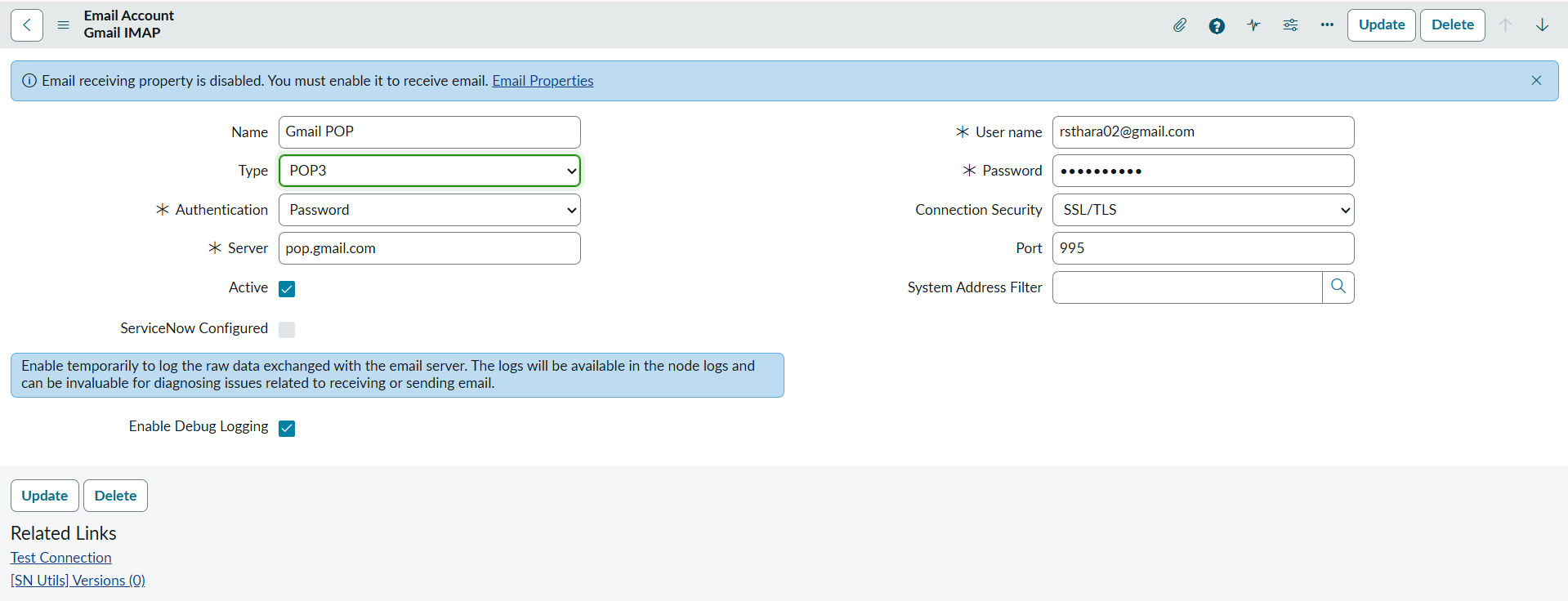
Step 3: Configure Email Account in ServiceNow
- Go to: System Mailbox → Administration → Email Accounts
- Create a new record and fill in the required details (refer to Screenshot 3)
Important:
- Do not use your Gmail password
- Instead, generate and use an App Password
(Refer to the https://www.servicenow.com/community/developer-forum/sending-emails-from-servicenow-pdi-to-a-persona... for steps on generating an App Password)
- Click Test Connection and verify it shows Successful
If the connection fails:
- Switch protocol to IMAP
- Update server, port, and security settings accordingly (refer to Screenshot 4)
Step 4: Test the Setup
- Send an email to the configured email address
- Verify that it is received in your PDI
- Test your Inbound Email Actions
In this approach, we’re essentially replicating the earlier instance email functionality by using a dedicated Gmail account. Previously, PDIs had a built-in instance email address, but since that has been removed, this setup acts as a workaround to achieve the same behavior.
If you’d like me to cover any specific topics, feel free to mention them in the replies 👍
- 2,983 Views