
- Mark as New
- Bookmark
- Subscribe
- Mute
- Subscribe to RSS Feed
- Permalink
- Report Inappropriate Content
3 weeks ago
We are trying to add a button similar to "Skip" to the Playbook, such as "Continue" or "Complete".
I was able to locate the existing Skip button. However, when I used Insert and Stay, the record remained read-only, so I wasn't able to use that approach.
As a workaround, I manually created a new button, but it is not appearing on the form (see attached screenshot).
I have watched several videos and reviewed multiple documents, but I have not been able to determine what I am missing.
Has anyone implemented (Custom or OOB) a similar Playbook action before or can provide some guidance on how to make the button visible and functional?

Thanks,
G
Solved! Go to Solution.

- Mark as New
- Bookmark
- Subscribe
- Mute
- Subscribe to RSS Feed
- Permalink
- Report Inappropriate Content
2 weeks ago
Hello @GB14
Thanks for the screenshots, they helped. Your checklist was the key. I added a Checklist Task to my test playbook and got exactly what you’re seeing: my button showed on the Instruction card but not on the checklist card.
The Reason is : checklist cards are backed by a Private Task record (vtb_task), not Flow Data. Your “Continue” action has Table = Flow Data [sys_flow_data], so it never matches a checklist card. My earlier test only used an Instruction card, which is Flow Data, so I missed this. Sorry about that.
What worked for checklist cards (it’s how the OOB skip_activity is set up):
- Create a new action with the same settings as before, but:
- Table: Global [global]
- Client Conditions: Activity State is In Progress (instead of a Record Condition)
- In the playbook experience’s Action Mapping, add a row for it with Activity Definition = Checklist Task
- Refresh the workspace
With that, the button showed on my checklist card, the click ran, and it hid once the step was skipped.
Your other question: I added the Instructional activity from the Add activity picker by searching “Instruction”. If you don’t see it, try ticking “Include all automation assets” at the bottom of the picker.
One Important note: I only tested the click with a log line. I haven’t checked what record the server script gets when Table = Global, so for real Continue/Complete logic you may need to look up the task yourself. The OOB Skip uses a Client Action instead, which may be the easier route.
[Screenshot1: checklist card with the new button]
[Screenshot2: skipped checklist card, button hidden]
Please mark Helpful / Accept as Solution if this works for you.
Regards,
Raghavendra G
- Mark as New
- Bookmark
- Subscribe
- Mute
- Subscribe to RSS Feed
- Permalink
- Report Inappropriate Content
3 weeks ago - last edited 3 weeks ago
Hello @GB14
I tried this on my PDI with SIR Workspace and simple playbook, and ran into the similar issue you faced. the new button i created saved fine but never showed up on the card. Here's what was missing and how i got working.
Why Insert and Stay didn’t work
The OOB Skip button is protected, so it’s read-only. You can’t copy it. You have to create a new one.
What was missing
Creating the button isn’t enough. It also has to be linked to the playbook experience. Without that link, it never shows on the card, even if it’s active.
Steps that Worked For me:
1. Create the button in sys_declarative_action_assignment:
- Table: Flow Data [sys_flow_data]
- Implemented as: Server Script
- Action Model: Playbook Card
2. Link it to the playbook experience. Open the experience your workspace uses (for me it was Global Playbook Experience) > Action Mapping tab > New > pick your button. If you leave Activity Definition empty, the button shows on all cards. If you set it, the button only shows on that card type. This is the step that made the button appear.
3.Add a Record Condition so it hides once the step is done, e.g. State is not one of Complete, Skipped, Error, Cancelled. Without this, the button stays on the card even after the step is finished.
4.Add your logic in the Server Script. I only tested with a log line to confirm the click works. For real Continue/Complete behavior, the OOB Skip action is a good reference for how it updates the step.
Please find screenshots for your Reference:
[Screenshot 1: card without the button]
[Screenshot 2&3: card with the new button]
[Screenshot 4: finished card, button hidden]
Please mark Helpful/Solution Accepted, if my reply helps.
Regards
Raghavendra G
- Mark as New
- Bookmark
- Subscribe
- Mute
- Subscribe to RSS Feed
- Permalink
- Report Inappropriate Content
2 weeks ago
Hello @RaghavendraGund
Thank you so much for taking the time to look into this.
I tried the same approach and even followed some of the out-of-the-box Complete activity, but I still haven't had any success. Performed cache.do as well
I have attached a few screenshots in case they provide any additional clues or help identify what I might be missing.
One other question: how did you create the Instructional Playbook activity?
In our environment, I only see private Task and Automated Task activity types.
Also, we are using the checklist in the playbook, does it matter?
Assignment action:

Mapped to Playbook experience:


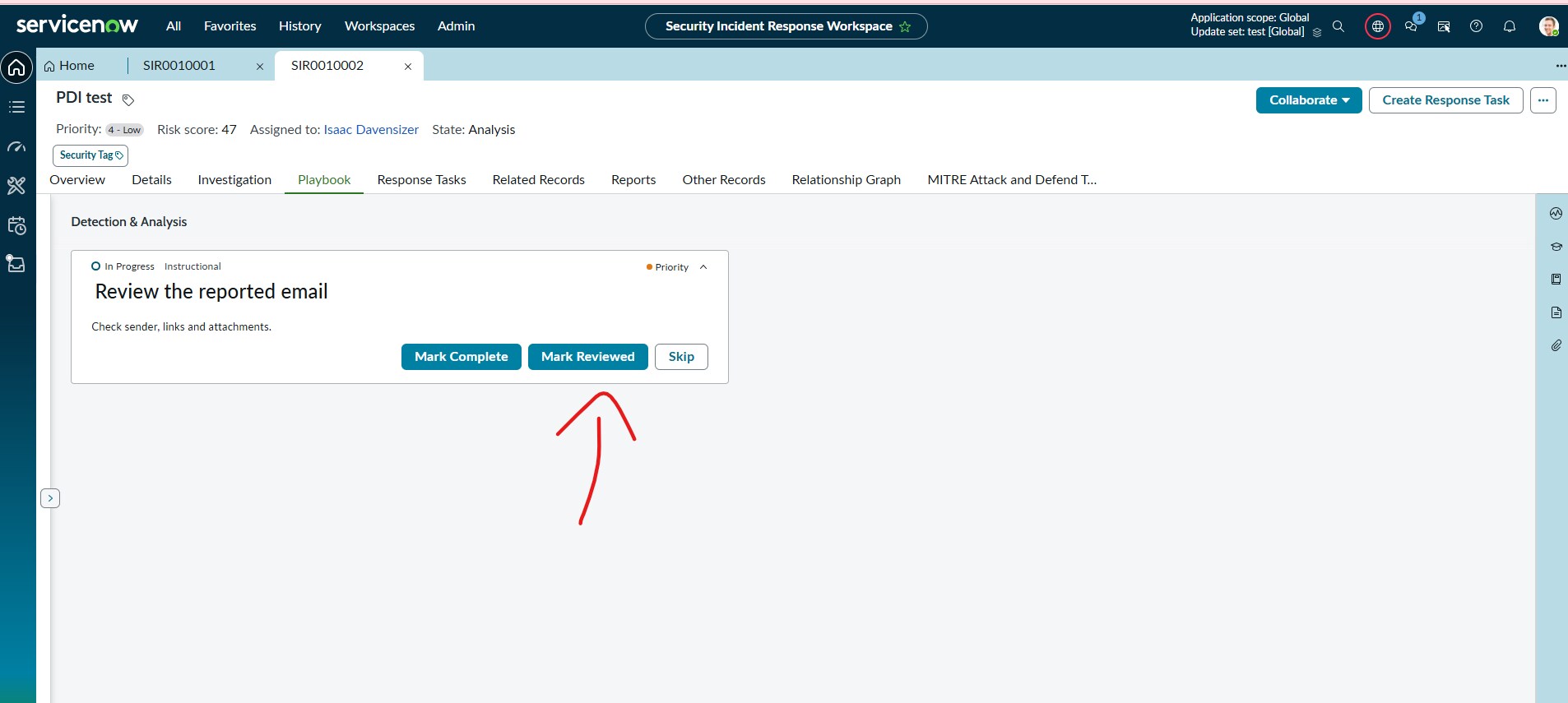
I tried to copy from the OOB "Complete" activity and your instructions but its not appearing.
Thank you again for your help.
G
- Mark as New
- Bookmark
- Subscribe
- Mute
- Subscribe to RSS Feed
- Permalink
- Report Inappropriate Content
2 weeks ago
Hello @GB14
Thanks for the screenshots, they helped. Your checklist was the key. I added a Checklist Task to my test playbook and got exactly what you’re seeing: my button showed on the Instruction card but not on the checklist card.
The Reason is : checklist cards are backed by a Private Task record (vtb_task), not Flow Data. Your “Continue” action has Table = Flow Data [sys_flow_data], so it never matches a checklist card. My earlier test only used an Instruction card, which is Flow Data, so I missed this. Sorry about that.
What worked for checklist cards (it’s how the OOB skip_activity is set up):
- Create a new action with the same settings as before, but:
- Table: Global [global]
- Client Conditions: Activity State is In Progress (instead of a Record Condition)
- In the playbook experience’s Action Mapping, add a row for it with Activity Definition = Checklist Task
- Refresh the workspace
With that, the button showed on my checklist card, the click ran, and it hid once the step was skipped.
Your other question: I added the Instructional activity from the Add activity picker by searching “Instruction”. If you don’t see it, try ticking “Include all automation assets” at the bottom of the picker.
One Important note: I only tested the click with a log line. I haven’t checked what record the server script gets when Table = Global, so for real Continue/Complete logic you may need to look up the task yourself. The OOB Skip uses a Client Action instead, which may be the easier route.
[Screenshot1: checklist card with the new button]
[Screenshot2: skipped checklist card, button hidden]
Please mark Helpful / Accept as Solution if this works for you.
Regards,
Raghavendra G
- Mark as New
- Bookmark
- Subscribe
- Mute
- Subscribe to RSS Feed
- Permalink
- Report Inappropriate Content
a week ago
Thank you, that was very helpful!
I am almost finished with the configuration, the button is appearing now. The server script worked as expected, and the Playbook task (PTSK) completed itself successfully. However, in the SIR Workspace, the Playbook task is still showing as In Progress.
Am I missing an additional step or configuration?
