- Mark as New
- Bookmark
- Subscribe
- Mute
- Subscribe to RSS Feed
- Permalink
- Report Inappropriate Content
09-30-2025 12:32 PM
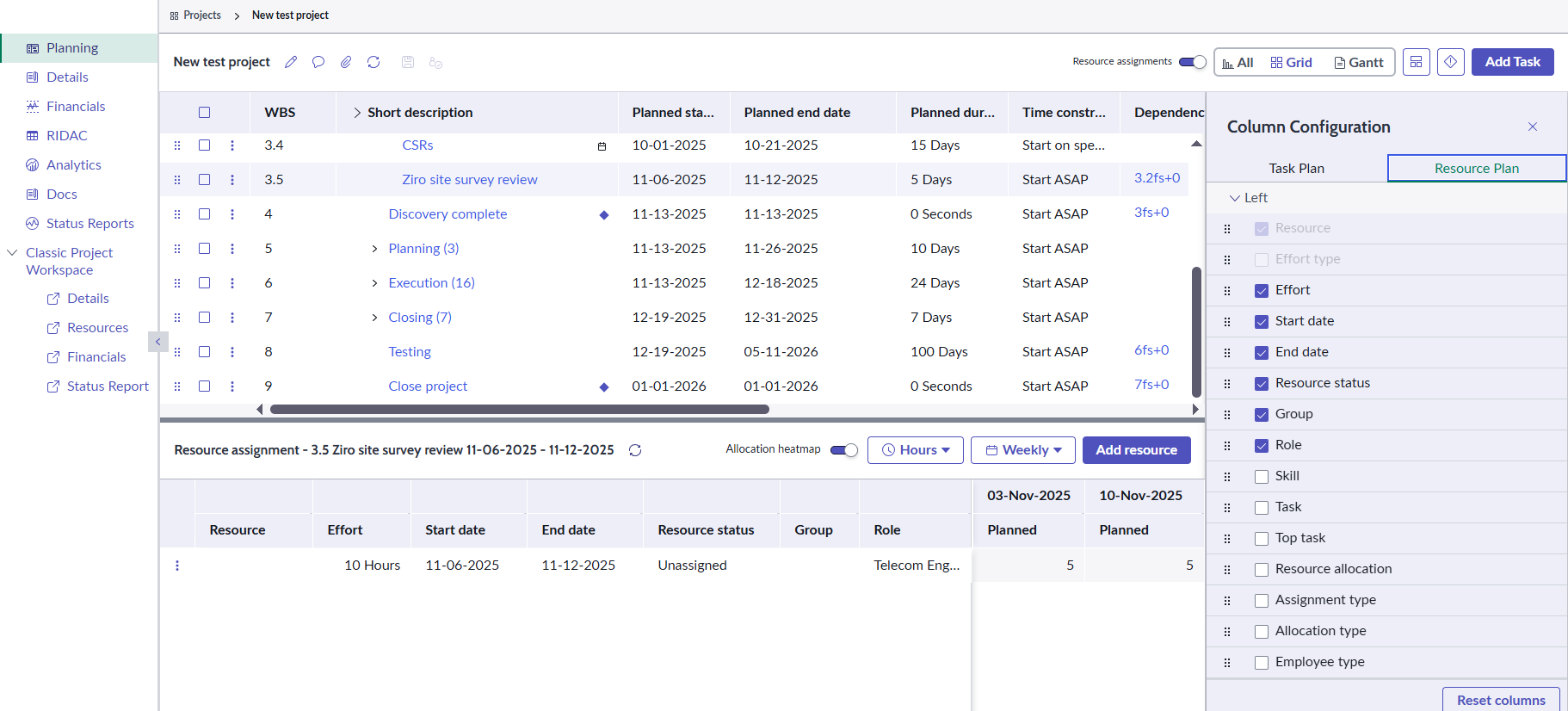
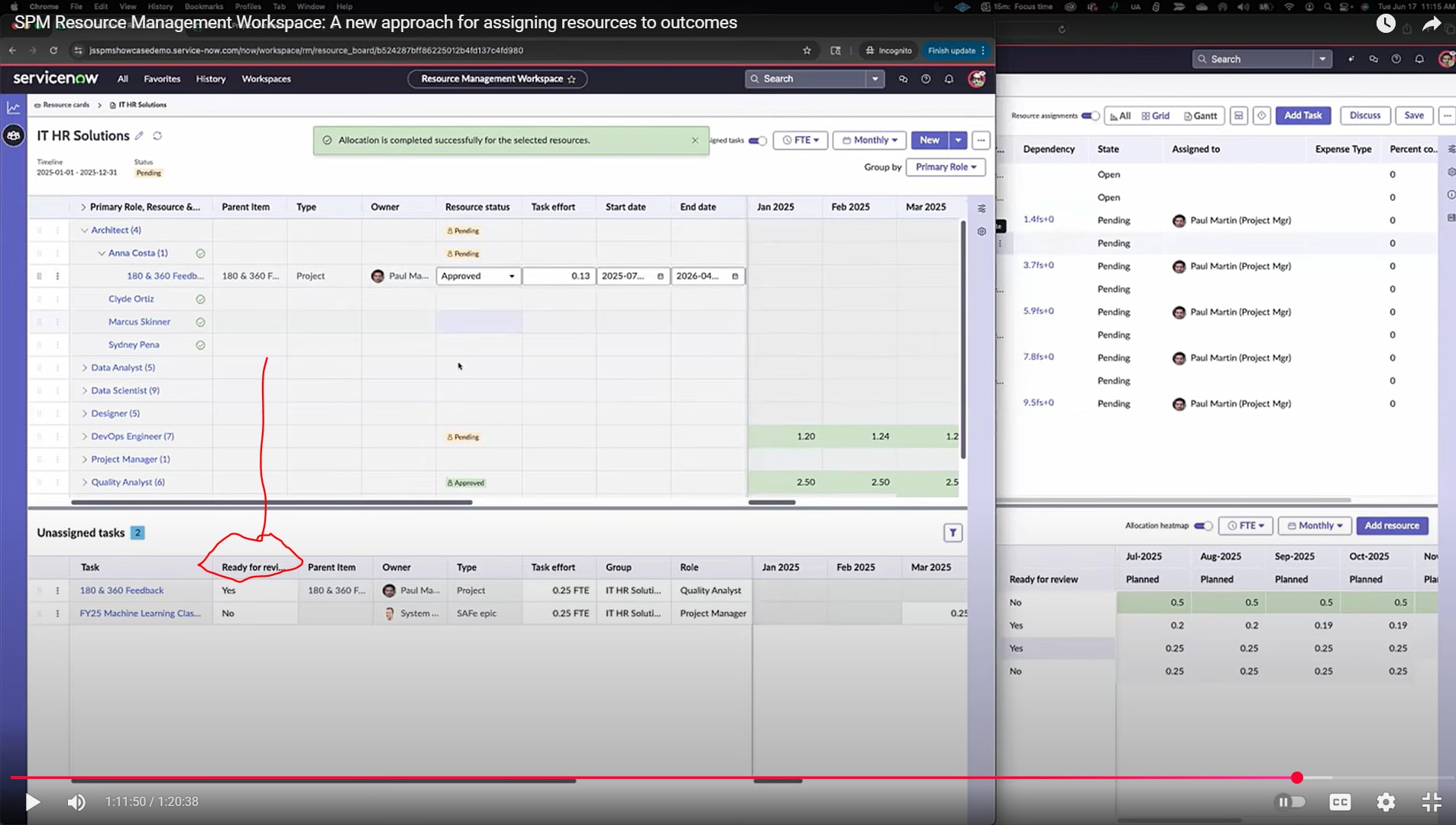
In the training video, SPM Resource Management Workspace: A new approach for assigning resources to outcomes, the presenter is showing how to create a Resource Assignment and the "Ready For Review" column is showing for the PM to indicate that the assignment can be reviewed by the Resource Manager. I do not see this column as an option to turn on. In addition, it is not available in the Resource Management Workspace. How do I enable this?
Solved! Go to Solution.

- Mark as New
- Bookmark
- Subscribe
- Mute
- Subscribe to RSS Feed
- Permalink
- Report Inappropriate Content
10-01-2025 03:38 AM
Hello @StephenPMO,
That “Ready for review” field is a field on the Resource Assignment table, but it only shows up if you add it to the relevant view.
Steps:
1. Navigate to Resource Assignment [sn_plng_att_core_resource_assignment] table.
2. Switch the list view to the one tied to the workspace you’re working with:
Project Workspace > use the project_workspace view.
Resource Management Workspace > use the resource_assignment view.
3. Click on Personalize List Column and in the available fields list, search for Ready for review and move it to the “Selected” list and save.

4.Refresh the workspace > the column should now appear in the assignment grids.


Thanks & Regards,
Muhammad Iftikhar
If my response helped, please mark it as the accepted solution so others can benefit as well.
Muhammad Iftikhar
If my response helped, please mark it as the accepted solution so others can benefit as well.
- Mark as New
- Bookmark
- Subscribe
- Mute
- Subscribe to RSS Feed
- Permalink
- Report Inappropriate Content
10-01-2025 03:38 AM
Hello @StephenPMO,
That “Ready for review” field is a field on the Resource Assignment table, but it only shows up if you add it to the relevant view.
Steps:
1. Navigate to Resource Assignment [sn_plng_att_core_resource_assignment] table.
2. Switch the list view to the one tied to the workspace you’re working with:
Project Workspace > use the project_workspace view.
Resource Management Workspace > use the resource_assignment view.
3. Click on Personalize List Column and in the available fields list, search for Ready for review and move it to the “Selected” list and save.
4.Refresh the workspace > the column should now appear in the assignment grids.
Thanks & Regards,
Muhammad Iftikhar
If my response helped, please mark it as the accepted solution so others can benefit as well.
Muhammad Iftikhar
If my response helped, please mark it as the accepted solution so others can benefit as well.