
- Post History
- Subscribe to RSS Feed
- Mark as New
- Mark as Read
- Bookmark
- Subscribe
- Printer Friendly Page
- Report Inappropriate Content
01-28-2026 02:36 PM - edited 01-28-2026 02:38 PM
Unlocking Dynamic Development: How AI Agent Subflow Tools Transform ServiceNow Configuration
Welcome to another technical deep-dive from the AI Center of Excellence (CoE) team at ServiceNow. Our mission is to accelerate your AI adoption by sharing practical patterns and capabilities that make development faster, more flexible, and more accessible to a broader range of builders.
If you've worked with ServiceNow subflows, you know the traditional pattern: hardcoded inputs, explicit field mappings, custom scripts to pass values between components. It works, but it's rigid and time-consuming. What if I told you there's a fundamentally different approach available right now in AI Agent Studio—one that lets you pass input values through plain-language prompts instead of scripting?
What you'll gain from this article:
- A step-by-step guide to creating AI Agents that dynamically pass values to subflows
- Understanding of how semantic data mapping powered by LLMs eliminates traditional hardcoding
- A reusable pattern that accelerates development across numerous use cases
- Practical screenshots and configuration examples you can reference while building
Whether you're building your first AI Agent or looking to streamline existing workflows, this technique will change how you approach ServiceNow development. Let's dive in.
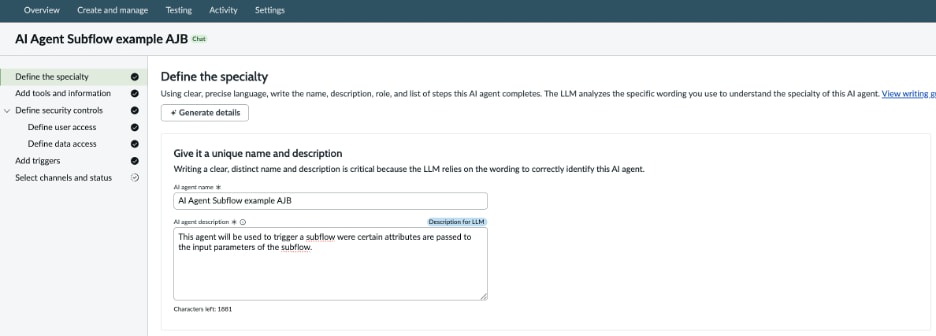
Create a simple AI Agent
1. Navigate to AI Agent Studio > Create and manage > AI agents > New
2. The concept below is purely an example; however, this concept can be reused across numerous use cases.


3. Press ‘Save and continue’
4. Select Add tool > Script

5. The key requirement for enabling a Subflow tool with input values is a simple Script tool that retrieves the Incident details. There are several out-of-box examples available that can be reused. For this example, I reused the out-of-box Script tool called “Fetch Incident Details” by doing the following:

6. After selecting the Script tool called ‘Fetch incident details’ it will automatically populate certain fields like Name, Tool description, Script inputs, etc.
7. I made a few changes to Name, Tool description and the Script.

8. For the script changes, I simply commented out lines 6 and 7 so the query would return all records.

9. After implementing this Script tool, you now have access to all key Incident values. Using proper prompting, you can specify which values should be passed to the next tool.
10. The next tool we will create is a Subflow tool. (Add tool > Subflow). This Subflow tool accepts the following input values: Incident Short Description, Incident Sys ID, and Incident Number

11. I want to draw your attention to this key concept: no values are hardcoded. Instead, the Tool Description uses prompting to specify which values should be passed to the Subflow inputs. Additionally, the Subflow tool inputs do not need to match the field names or variables from the Script tool. The semantic data mapping powered by the LLM is able to correctly infer the intended mappings and execute them accordingly as long as your prompting is adequate.

13. At this point, we have completed the process of gathering the Incident data using the Script tool and passing the inputs to the Subflow via the Subflow tool.
14. We will now press ‘Save and Continue’
15. As this is an example we will just breeze through the rest of the tabs. By adding a few things and pressing Save and continue.


No triggers are needed as this is just an example

I also did not add anything below because this is just an example

16. Press ‘Save and Test’
17. Add text to the ‘Task’ field. For example: Review this incident <Incident number from your instance>

18. Press ‘Continue to Test Chat Response’
19. In this example you will see that it correctly maps the Inputs to the ‘Tool - AI Agent subflow to receive incident input data’

20. You can further validate this by noting that, in my example Subflow, I added an Action Log that prints the input values as info logs.


The Bottom Line: Simpler, Faster, More Flexible
What we've just walked through represents a fundamental shift in how ServiceNow development can work. By leveraging the AI Agent Subflow tool with plain-language prompting and semantic data mapping, you've eliminated the traditional overhead of explicit input mapping and custom scripting. This pattern doesn't just save time—it makes complex integrations and use cases accessible to a wider range of builders.
Your action steps this week:
- Try the pattern: Follow the guide with your own Incident example. Start simple—prove the concept works in your instance.
- Share your results: Comment below with what worked, what surprised you, or where you hit roadblocks. Our AI CoE team monitors these discussions and your feedback helps us create better content.
- Explore variations: Once you've mastered passing Incident values, experiment with other ServiceNow tables—Request, Change, Problem, or custom tables. The pattern scales.
Need deeper guidance? Contact your ServiceNow account team or explore ServiceNow Impact services for hands-on support with AI Agent development.
The AI Agent capabilities in ServiceNow are evolving rapidly, and dynamic semantic mapping is just one example of how the platform is reducing complexity while expanding what's possible. The organizations that master these patterns now will accelerate their AI adoption and unlock capabilities their competitors are still scripting manually.
Start building. Start experimenting. And let us know what you create.
P.S. Insights shared here are my own and do not reflect those of my team, employer, partners, or customers.
Resources:
- 3,233 Views