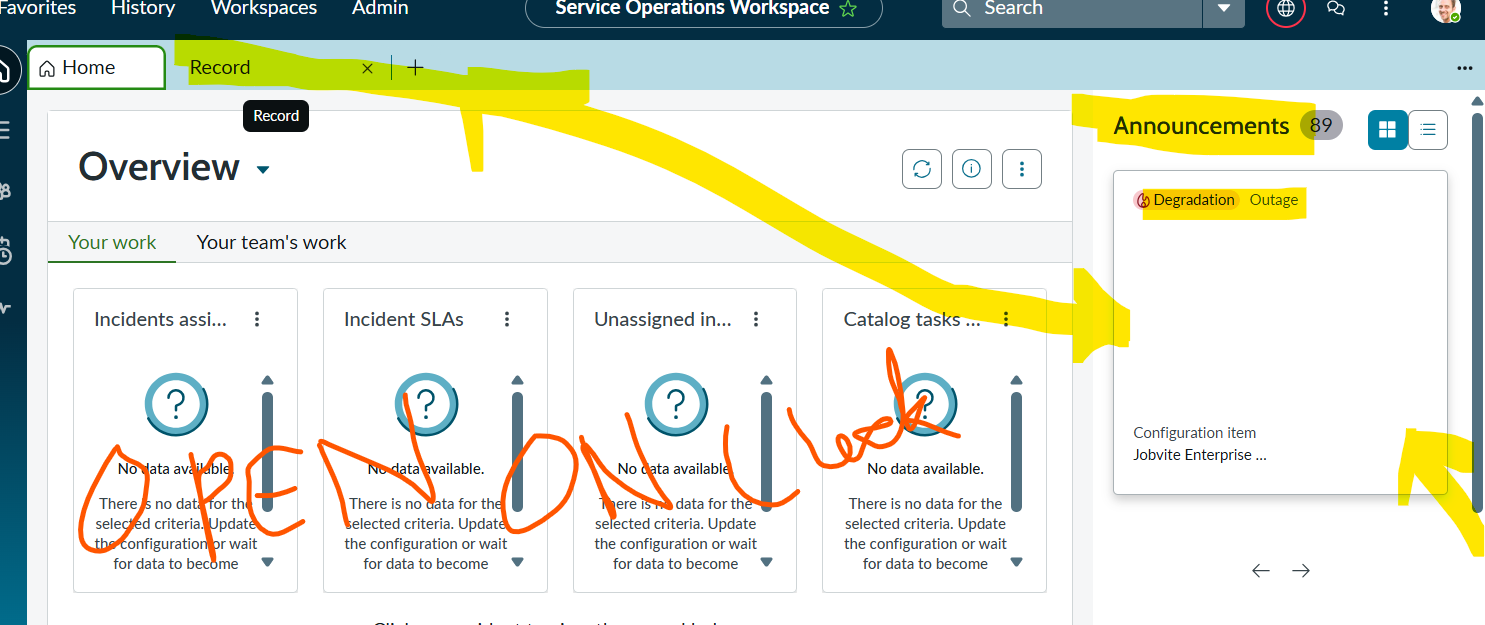
Under service operation workspace added incident but not able to open record on grid view on click.

Options
- Mark as New
- Bookmark
- Subscribe
- Mute
- Subscribe to RSS Feed
- Permalink
- Report Inappropriate Content
04-17-2026 03:38 AM - edited 04-17-2026 03:58 AM
Under service operation workspace added incident table under announcement but not able to open record on grid view on click. When clicking on block nothing is happening .But the oob outage showing when clicked is opening the record.
Please find the below screenshots .Let me know incase any more clearity needed .
2 REPLIES 2
Options
- Mark as New
- Bookmark
- Subscribe
- Mute
- Subscribe to RSS Feed
- Permalink
- Report Inappropriate Content
04-17-2026 03:50 AM

Options
- Mark as New
- Bookmark
- Subscribe
- Mute
- Subscribe to RSS Feed
- Permalink
- Report Inappropriate Content
04-20-2026 08:14 AM
Hi @Mohni
Refer: Configure the Announcements section on the landing page
Procedure
- Navigate to All > Service Operations Workspace Admin Center > Overview.
- On the Overview tab, from the Initial Setup section, select the Configure the landing page option.
- On the Landing Page form, under Tier 1 or Tier 2 sections, select Configure next to the Announcements option.The SOW - Announcements EVAM definition is displayed. For information on EVAM definition, see Create an EVAM definition.
- Navigate to All > Entity View Action Mapper (EVAM) > EVAM Definitions.
- To edit the data source of an announcement, navigate to the EVAM Datasource M2Ms related list and edit the required data source.For information on data source, see Define a datasource.
- To create an announcement for an additional table, add a data source for that table.For information on data source, see Define a data source. For information on defining a data source, see Define a datasource.
- Optional: To source custom announcements into the Announcements section, create an additional banner announcement configuration for the Banner Announcement [sys_ux_banner_announcement] table by performing the following steps.
- Create a banner announcement configuration and the corresponding banner announcements.For information on creating a banner announcement configuration, see Next Experience banner announcements.
- Associate the banner announcement configuration with the sn_sow.banner_announcements_config_id property.
- Navigate to sys_properties.list
- Select the sn_sow.banner_announcements_config_id property.
- On the System Property form, specify the sys_id of the banner configuration as the property value.
- Create a banner announcement configuration and the corresponding banner announcements.
- To configure how an announcement should be displayed for a data source, edit an EVAM view configuration and template by performing these steps.
- Navigate to the EVAM View Config Bundle M2Ms related list and select the required configuration bundle.
- On the EVAM View Config Bundle form, navigate to the EVAM View Configs related list and select a configuration for the required data source.
- On the EVAM View Config form, open the template from the View Template field.
- On the View Template form, edit the Template field.For information on editing a template, see Define an EVAM view template.
- Select Update.
Please Accept the solution if it assisted you with your question & Mark this response as Helpful.
Regards
Tanushree Maiti
ServiceNow Technical Architect
LinkedIn: https://www.linkedin.com/in/tanushreemaiti
Regards
Tanushree Maiti
ServiceNow Technical Architect
LinkedIn: https://www.linkedin.com/in/tanushreemaiti