- Post History
- Subscribe to RSS Feed
- Mark as New
- Mark as Read
- Bookmark
- Subscribe
- Printer Friendly Page
- Report Inappropriate Content
on 07-22-2020 02:06 PM
Hi Developers,
This is the second article in the series for integrating ServiceNow with Google Calendar to schedule a meeting.
You need to follow the steps mentioned in the first article to continue with this post.
Step 1) Navigate to System Web Services > Outbound > REST Message and click 'New'

Step 2) Give it a unique name

Step 3) Copy and paste the below URL in the filed 'Endpoint'
https://www.googleapis.com/calendar/v3

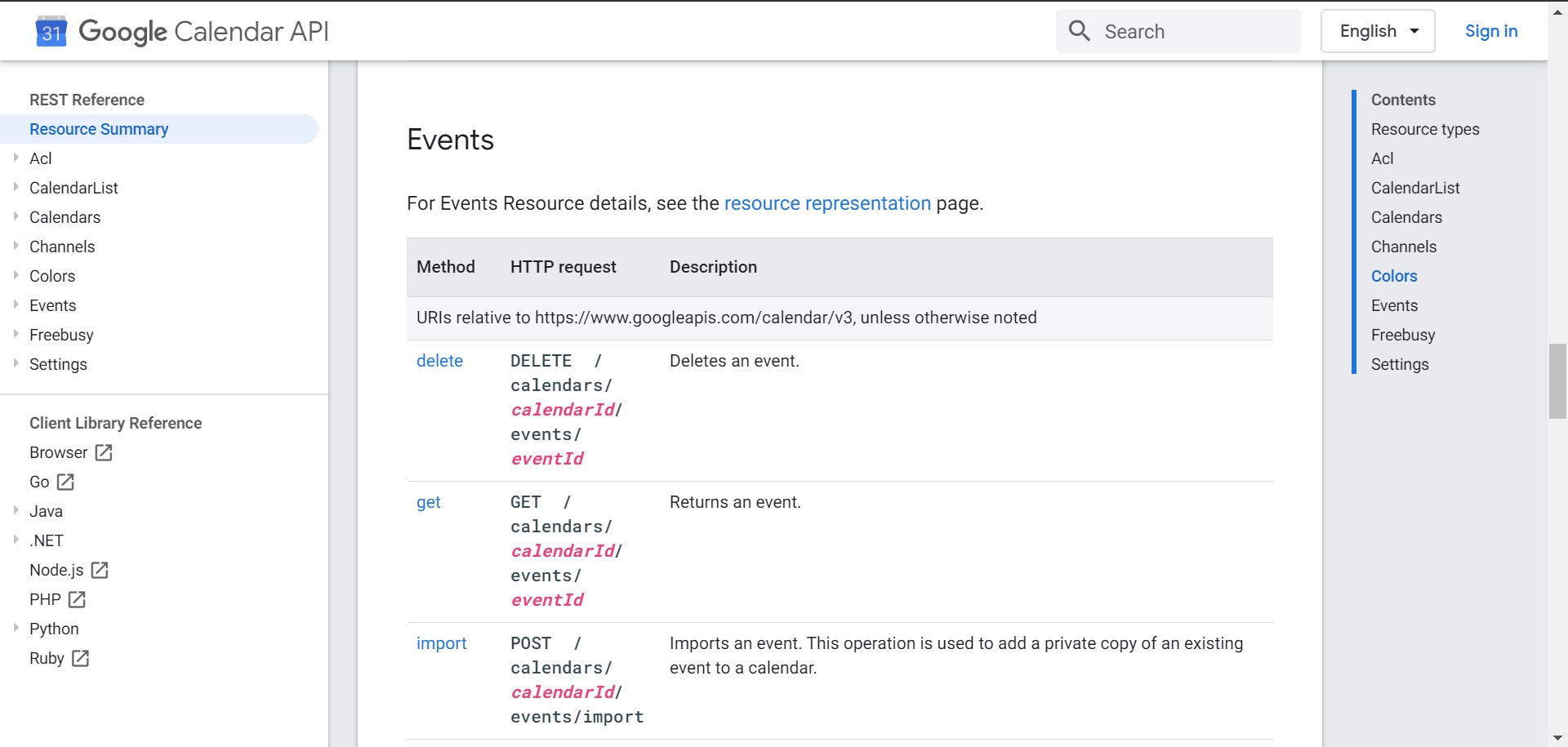
This information is available on Google Calendar API reference

Step 4) Select the Authentication Type as 'OAuth 2.0'

Step 5) Select the '

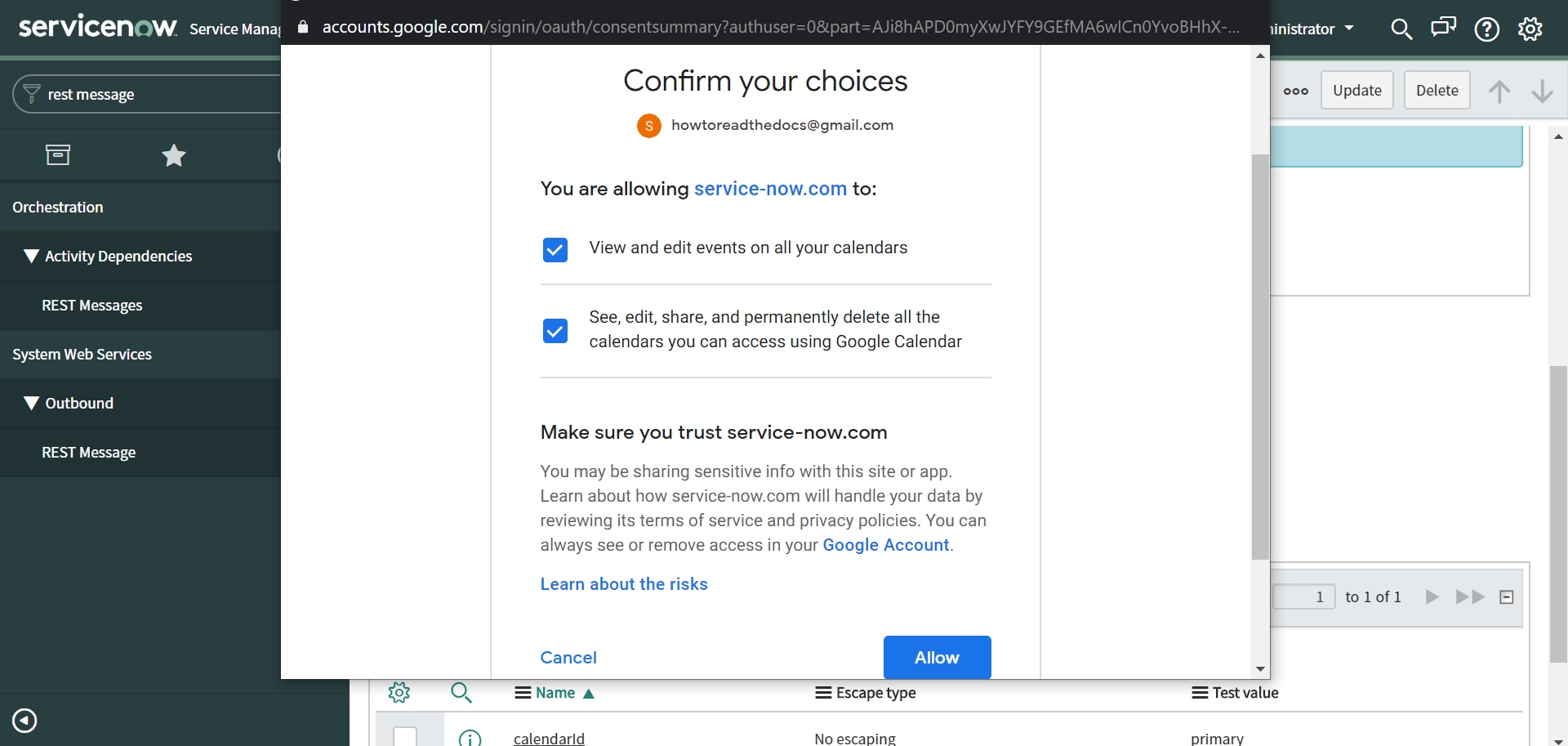
When a new OAuth provider is created, the system automatically generates a default profile for it without any scope

Step 6) Make sure the Accessible from value is selceted as 'All application ccopes' and click 'Submit'

Step 7) Open the record again and from the 'HTTP Methods' related list open 'Default GET'

Step 😎 Fill the form with the information provided below :
Name : Create an Event
HTTP Method : POST
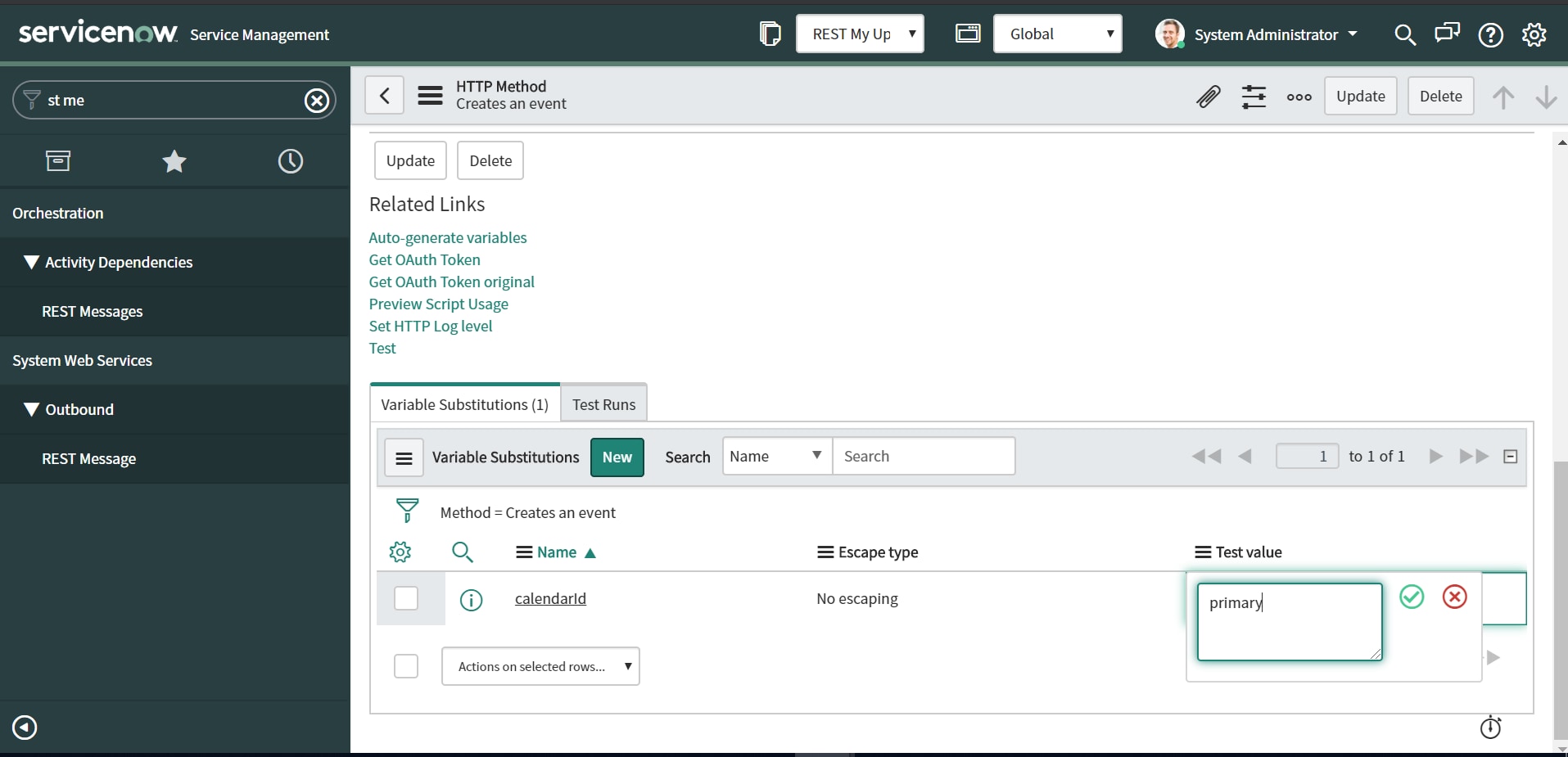
Endpoint : https://www.googleapis.com/calendar/v3/calendars/${calendarId}/events

Authentication type : OAuth 2.0


{
  'summary': 'Google I/O 2015',
  'location': 'Online on Meet',
  'description': 'Testing Google Calendar APIs.',
  'start': {
    'dateTime': '2020-07-21T09:00:00-07:00',
    'timeZone': 'America/Los_Angeles'
  },
  'end': {
    'dateTime': '2020-07-21T17:00:00-07:00',
    'timeZone': 'America/Los_Angeles'
  },
  'recurrence': [
    'RRULE:FREQ=DAILY;COUNT=2'
  ],
  'attendees': [
    {'email': 'howtoreadthedocs@gmail.com'},
    {'email': 'ewbsri9@gmail.com'}
  ],
  'reminders': {
    'useDefault': false,
    'overrides': [
      {'method': 'email', 'minutes': 1440},
      {'method': 'popup', 'minutes': 10}
    ]
  }
}


- 2,447 Views