- Post History
- Subscribe to RSS Feed
- Mark as New
- Mark as Read
- Bookmark
- Subscribe
- Printer Friendly Page
- Report Inappropriate Content
on 06-03-2020 04:48 PM
Hi All
In this article, I am going to talk about discovery process step by step:
There are four steps of discovery process (Scanning, Classification, Identification Discovery, Exploration) . Please refer to my following article to understand these steps in detail:
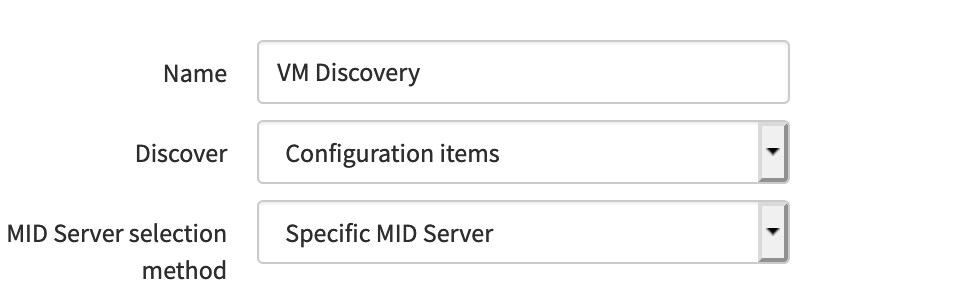
Step 1 - Go to discovery schedules, create new

I am calling mine VM discovery
Step 2 - First I am going to run IP address discovery which is step 1 or Shazzam. In this step discovery happens only to check if the target is alive on network and the information returned is minimal like type of the device, Unix or windows. You would need to ensure that firewall ports are open from ServiceNow instance to target.
This step is characterized by discovery probes or patterns scanning targets and finding out the ports on which ports are configured. For example if a target is responding to port 22 then it's likely be a Unix device and if responding on WMI 135 then it is likely be a windows device
Remember to configure IP Ranges or targets

Step 3 - Press Discover Now and it should create an Unique id like DIS0010108 and after completion, you should see the following screens.

Please note that IP discovery corresponds to Shazzam

Step 4 - In this step, we will run Configuration Items discovery. In this step, logging into device using the credentials provided happens and detailed info on the device is captured.


Detailed Information on the device scanned is displayed:

Step 5- In this step, Identification of targets takes place and more information about the device is gathered through the use of additional probes and sensors

You will also notice that information related to probes starts getting populated in the discovery log

Step 6 - This last step is all about finding applications and software running on the host. Step 5 and 6 are completed as a part of classification step (Step 4)

I hope that you find this article useful. Please like and or comment if it helps you.
- 6,466 Views
- Mark as Read
- Mark as New
- Bookmark
- Permalink
- Report Inappropriate Content
- Mark as Read
- Mark as New
- Bookmark
- Permalink
- Report Inappropriate Content
Great article. One thing I have been having trouble understanding is how to use IP address ranges to match to locations and how may discovery scheduled you should create. I understand the different ways to do this it is more the reason why you would choose one method over another.
- Mark as Read
- Mark as New
- Bookmark
- Permalink
- Report Inappropriate Content
Appreciate the feedback. I don't believe that there is an automated way to match IP ranges with location. This is something you should check with your network admins, they typically assign VLANs or IP ranges to different locations
How many schedules: I think it depends upon which location or which VLANs face the maximum number of churns for servers. The environments that face a large churn should be discovered more hence should have a different schedule than the envs or locations that face less churn. The other factor could be business requirement that is, for which location the most fresh data is required.
Please mark helpful so that it helps other with a similar question.

- Mark as Read
- Mark as New
- Bookmark
- Permalink
- Report Inappropriate Content
Great article, Vivektietsood!
If associating locations to ranges, rather than overall Discovery Schedules, is important, please upvote this idea.
Discovery Location attribute in Range Sets
Thanks!
Larry
- Mark as Read
- Mark as New
- Bookmark
- Permalink
- Report Inappropriate Content
Done. Thanks for sharing.
- Mark as Read
- Mark as New
- Bookmark
- Permalink
- Report Inappropriate Content
Yes Vivektietsood, that is what I have determined and until Larry's idea gets implemented it would seem I will need to continue to create a schedule for each location (we have over 500 locations in our environment)