- Post History
- Subscribe to RSS Feed
- Mark as New
- Mark as Read
- Bookmark
- Subscribe
- Printer Friendly Page
- Report Inappropriate Content
on 03-18-2021 10:42 AM
Learning how to create widgets can be a little overwhelming, especially if your only guides are the "hello world" example and looking at the out of the box widgets in your instance. Those are the product of years of experience, both with the platform and with the technologies specific to widget development, and some of them are nearly indecipherable in the beginning. As they say - "Rome wasn't built in a day" and you probably won't be building advanced widgets in a day either.
One of the challenges I faced when starting out was the lack of "moderate" examples from which to draw inspiration; it seemed like I could only find incomplete or very rudimentary samples, or I'd find something too convoluted and cryptic to be of use. What seemed to be missing were those intermediate steps that lead to understanding, which is partially what inspired my first post on the subject.
That being said, and hopefully of help to others, I've set out to document some of what I learned, and how I went about learning it. So, to get started:
One of the best approaches that I've found for building widgets (or really any code-centric project) is to break your requirements down into small, manageable segments that you can tackle as individual projects, rather than trying to do everything as a whole.
This approach has multiple advantages which include:
- It gives you the option to keep examples of specific functionality handy for later reference.
- It allows you to tackle specific challenges rather than tying to make everything work from the start.
- Working iteratively lets you make progress without potentially damaging what you've already accomplished.
With that in mind, this learning project will focus on the ultimate goal of producing a widget to meet the "simple" requirements of: Allow a user who is the manager of a group to easily add or remove group members in real-time via the self-service portal.
We will start off with a basic shell that does little more than take up space, and give us the first step; let the user select a group. There are multiple ways to go about it, but for this example I'm using the sn-choice-list field type because once you understand this one, it opens up a lot of possibilities.
Personally, I do most of the initial development for widgets in a PDI and only start an update set in the "real" development instances once I have about 80% of the concept complete. In situations where that isn't feasible (you're working with a lot of customizations or custom data) I create an update set for my drafts (one that will never leave Dev) and include a page on the portal just for widget testing. You only want your final update set to contain the "real" widget and the final placement for it.
That being said, once you are set up, we create the widget: Service Portal > Widgets and click New
The Body HTML Template for our widget will be:
<div class="panel panel-primary">
  <div class="panel-heading">Your Groups</div>
  <div class="panel-body">
    <sn-choice-list field="snGroup" sn-model="c.group" sn-items="data.groups" sn-value-field="sys_id" sn-text-field="name" ></sn-choice-list>
  </div>
</div>
Take note of a few things in our HTML.
- We're setting the "model" of our field to c.group, so that we can reference the selected value later.
- We're defining the part of the data object that holds our values as items.
- We're defining which attributes of our data object to use as both the value and the display text
Our Server Script will be:
(function() {
    data.groups = []; //prepare an array

	//query the server to populate the array
	var groups = new GlideRecord('sys_user_group');

	//build the query based on the logged in user as the group manager
	groups.addQuery('manager=' + gs.getUserID());
	groups.query();

	while(groups.next()) {
		//Because we are using a sn-choice-field we want to use an object
		//This lets us define different values for the label and the value
		var group = {};

		group.sys_id = groups.getUniqueValue(); //we will use sys_id as the value to make referencing these groups easier later on

		group.name = groups.name.toString(); //we will use name as the label that we display to the user

		//Now we push the object to the array and repeat
		data.groups.push(group);
	}


})();
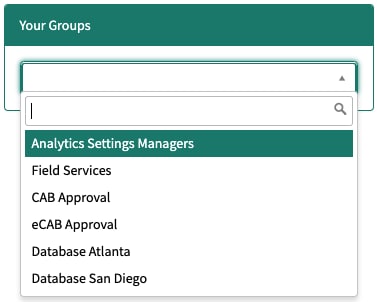
Save your widget with a memorable name and add it to your test page. Make sure you are the manager of at least one group and then go to your test page and you should see something close to this:

Simple, but functional. Congratulations, you just learned how to take data meaningful data from the server and display it!
Let's expand on that a little and take the next step - reacting to user input!
If you found this article useful or helpful, please be kind a click appropriately! If you really found it useful, maybe bookmark it for later reference 🙂
I hope this helps!
Michael Jones - Proud member of the CloudPires team!
- 1,971 Views