Hello Community! During my time implementing Virtual Agent, I’ve come across a few gotchas that I wished there had been more readily-available information available on. So I am writing the Community article I wished to see in the world, in hopes that you, dear reader, are able to avoid some of the mistakes I’ve made. I’m basing this on what is currently available in Paris.
I’m going to write this based on the assumption that folks reading this have some familiarity with basic Virtual Agent concepts, so if that’s not you I’d recommend starting in the docs
here and coming back later.
If you want to check out my list of NLU gotchas, that can be found
here.
******************************************************************************************************
Updating the Virtual Agent 'profile picture’
TLDR: It’s the picture on a Live Profile record accessible on the Branding record
Making this update is not especially tricky to execute, but it can be tricky to locate. You’ll need to go to Collaboration > Branding and Chat Menu, then click into whichever branding definition you’re using (I usually just update the default branding). Then, you need to locate the ‘Bot Profile’ field, which is toward the bottom in the ‘Chat Messages’ section. Once found, you can click into the Live Profile record and update the associated image. This will then appear as the Virtual Agent’s image when sending messages in a chat.
One additional note is that this isn’t captured in an update set, so will need to be moved between the instances manually.
******************************************************************************************************
So much lives in system properties
TLDR: Go to sys_properties.list and search ‘Name’ ‘starts with’ ‘com.glide.cs’ to see the bulk of VA system properties, or search ‘Name’ ‘starts with’ ‘com.glide.cs.general’ for a lot of the general messages you see outside of specific conversations.
Some common requests from clients include updating the greeting and ending messages from the OOB ‘Thanks for using our support chat’ to something a little more on-brand for the company. However this language often isn’t defined in Designer - a lot of it either lives in system properties or in UI messages.
To find the message you’re looking for, just go to sys_properties.list and type the phrase into the ‘Value’ column. If that doesn’t work, you can try going to System UI > Messages and searching the Key or Message columns.
Some other useful changes can be made in system properties, such as the frequency of sending the survey (com.glide.cs.survey.probability) or the minimum delay between sending messages (com.glide.cs.branding.msg_delay)(to simulate a more human interaction).
If you want to explore more, most Virtual Agent system properties begin with com.glide.cs. If you do search this though, keep in mind that a lot of the properties that will appear are more easily set by going to Collaboration > Branding and Chat Menu. Com.glide.cs.general will show you the greeting and ending messages along with several others.
******************************************************************************************************
Passing values into and from topic blocks
TLDR: Set the values to pass to and from the topic block by clicking the ‘Start’ and ‘End’ controls in the Flow view of the topic in Designer
Topic Blocks are an excellent feature that are on the newer side. They allow you to reuse a particular series of controls/nodes across different topics. OOB you are provided with several topic blocks such as Contextual Search, which searches the knowledge base using a user-provided query; and Request Catalog Item, which allows the user to populate the form needed order a catalog item.
Because topic blocks are meant to to placed in the middle of other conversations, it is necessary to pass values both to and from the topic block. For example, for the Request Catalog Item topic, you need to pass in the value of whichever catalog item the user is trying to order among other things. In the topic block, these inputs aren’t obvious to locate - but that’s why I’m here! They are defined at the very top of the conversation, in the ‘Start’ control. Here, you can define the variables, their default value, and whether or not they are required.
Similarly, passing a variable from the topic block is located within in the ‘End’ control. The Request Catalog Item topic block passes the value of the created record, that record’s table, and the variable values provided by the user. This information is then typically used to display a card control back to the user with the created record’s Number and a few key field values.
To pull it all together, when you include the topic block in a topic, the properties will display all of these inputs and outputs. You’re able to pass in values of other variables that have been defined as part of the conversation up to that point, and you can also change the names of the variables returned from the block if that fits your needs.
******************************************************************************************************
Not all catalog item variable types are supported
TLDR: If you want to allow users to order a catalog item/submit a record producer using VA, the docs are currently incorrect about which variable types are supported. Reference variables are also usable but can be tricky.
Speaking of the Request Catalog Item topic block, I want to touch on variable types. This functionality can guide the user through populating each variable on a catalog item form then submitting the item for them.
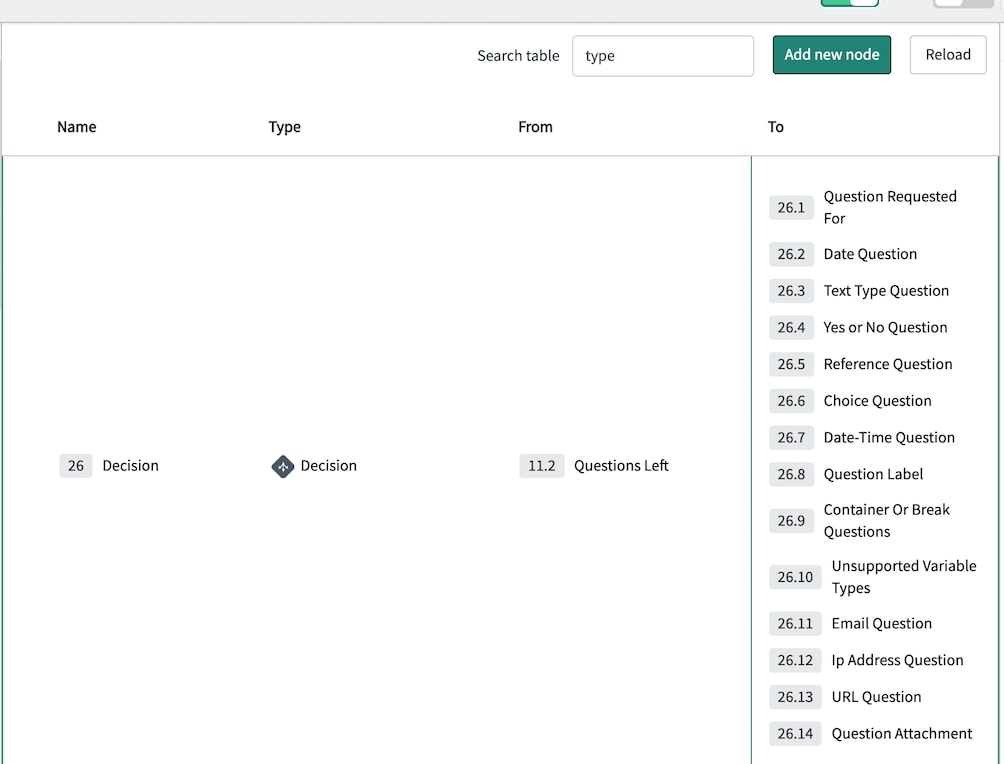
The docs provide a list of supported variable types, which is already a subset of the full list of variable types available (for example, List collector is not on the docs’ list). However I have found that the following are on the list but not actually supported:
-
Multiple choice
-
Lookup multiple choice
-
Lookup select box
List of variable types in the topic block itself:
So be sure to keep in mind that if you are wanting to enable form completion via Virtual Agent, you will need to check the relevant catalog item/record producer to confirm that these variable types are not on there.
Additionally, I want to call out that while the reference variable type IS supported, and was recently significantly improved by allowing the user to search the table within the conversation, it can be a subpar user experience if the table is large. You can put simple reference qualifiers on reference variables and have them function in VA, but advanced do not work. I also haven’t yet found a way to control which field is displayed or how the list is sorted.
This is most noticeable if the catalog item has a reference variable to the user table. A user will be presented with the first several ‘A’ names, and the ability to search might not be immediately obvious. So I’d recommend only using this variable type if the table is small or if you can significantly narrow the field using a simple reference qualifier.
******************************************************************************************************
Alright, thanks for reading and I hope this is helpful! If you’ve encountered anything counter to these experiences or have anything you want to add, please let me know in the comments!