Suzanne Smith

ServiceNow Employee
Options
- Subscribe to RSS Feed
- Mark as New
- Mark as Read
- Bookmark
- Subscribe
- Printer Friendly Page
- Report Inappropriate Content
04-20-2015
01:53 PM
ServiceNow plugins are optional, additional features you can add to your instance. For example, the Change Management Risk Assessment plugin provides a set of questions that can be answered to calculate the risk of making a change and the Data Certification plugin provides scheduled or on-demand certification of data at the field level.
There are three ways to obtain a plugin:
- Active plugins are activated by default - you just need to determine if the plugin is available in the release of ServiceNow installed on your instance. For example, some plugins became available in the Eureka release.
- Administrators can activate some plugins.
- Request the plugin from ServiceNow by filling out a short form on HI.
Plugins are sometimes retired. Often, when a plugin is retired, it is replaced by a new and improved plugin. For example, the Timeline plugin was replaced by the Timeline Pages plugin.
Researching plugins to activate
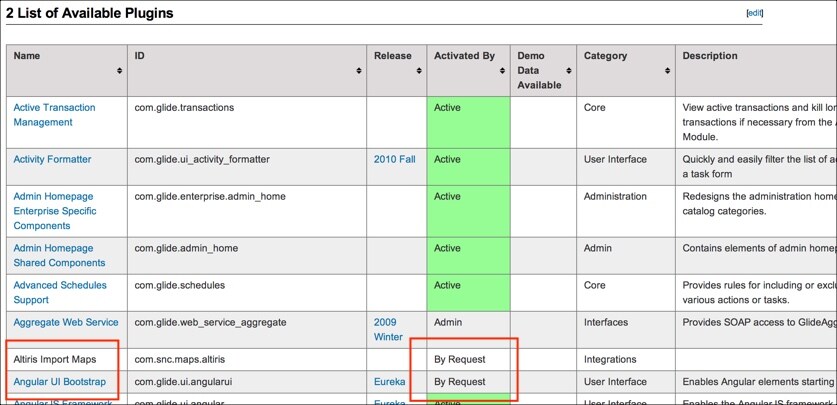
A complete list of plugins with descriptions is available in the ServiceNow product documentation. The Activated by column tells you how to obtain the plugin. Look over the list - you may find a plugin you did not know about that could help you work more efficiently. Here are a few favorites:
- Facilities Management Core: Coordinate facilities requests and tag the requests to a floor plan location.
- Geolocation: Use Google Maps and user cell phone latitude/longitude information to tracks users, plan routes, and determine travel times.
- Next Generation Business Service Management Map: Use an interactive and graphical interface to view configuration items and relationships between items.
If you find a plugin you want and the Activated by column states that the plugin is available By Request, note the exact name of the plugin and follow the instructions below to request the plugin from ServiceNow.
Having an administrator activate plugins
ServiceNow administrators can activate some plugins.
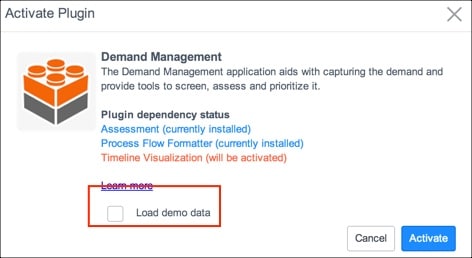
Note that certain plugins contain demo data that can show you features and common use cases. Consider loading the demo data if you first activate the plugin on a test instance. This enables you to play with the features and see what the plugin can do for you. If you don't want to load the demo data when you first activate, you can always do so later by repeating the activation steps below and selecting the Load demo data option.
- On your instance, navigate to System Definition > Plugins.
- Right-click the plugin name and select Activate/Upgrade.
- [Optional] Select the Load demo data option.
- Click Activate.
How to request a plugin from ServiceNow
Some plugins must be requested on HI. Generally a plugin is available only by request for one of the following reasons:
- It is a new plugin and ServiceNow wants to work directly with customers interested in implementing the plugin
- The plugin has operational considerations that makes the plugin appropriate only for certain deployments
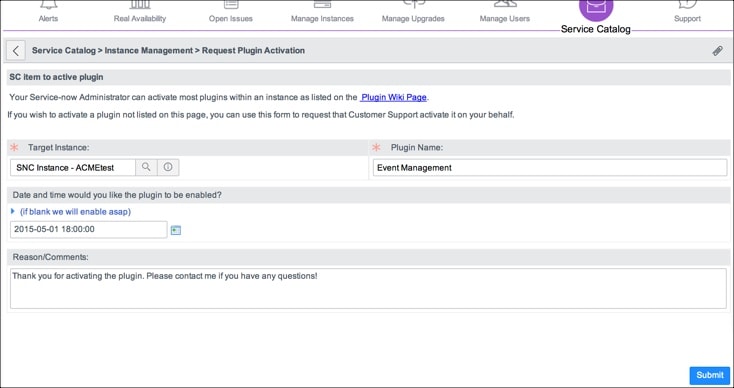
- Open HI at hi.service-now.com.
- Click Service Catalog.
- Click Request Plugin Activation.
- Specify the instance on which the plugin should be installed.
- Specify the name of the plugin.
- Specify the date and time you would like the plugin enabled.
- [Optional] Add a reason for the request or any comments you feel would be helpful.
- Click Submit.
Tips for requesting a plugin from ServiceNow
Your plugin request will go quickly and smoothly if you follow these tips:
- Use the correct name on the request form. Consider finding the name on the List of Plugins page, copying the text, and pasting it into the Plugin Name field on the request form. Some plugins have very similar names and if you don't add the exact name, someone from ServiceNow will have to contact you for clarification. This can delay plugin activation.
- Request one plugin at a time on the request form. Do not add multiple plugin names to the Plugin Name field.
- Request a plugin for one instance per request. Add the instance on which the plugin should be activated to the Target Instance field. Do not list extra instance names in the Reason/Comments field.
- You should specify a time at least 12 hours in the future. The time field uses a 24-hour clock, so 6:00pm should be entered as 18:00:00. To have the plugin activated as soon as possible, leave this field empty. Plugins are generally activated during business hours in the the Pacific Standard time zone, but can be scheduled for a different time with advance notice. For example, a plugin can be activated over a weekend, but the request must be received by 3:00pm Pacific Standard time on the Friday before. If you have an urgent need for a plugin to be activated outside Pacific Standard time business hours, contact Customer Support.
Activating ServiceNow plugins allow you to achieve specific functions that are not available upon setup of the product. Yvonntje showed us how Using the Restore Deleted Records plugin to retrieve lost data is important to do in order to be better safe than sorry. Depending on your company's needs and intended use of ServiceNow, you can install plugins to enhance your experience and capabilities.
You must be a registered user to add a comment. If you've already registered, sign in. Otherwise, register and sign in.