MrMuhammad
Giga Sage
Options
- Subscribe to RSS Feed
- Mark as New
- Mark as Read
- Bookmark
- Subscribe
- Printer Friendly Page
- Report Inappropriate Content
07-28-2022
12:00 AM
USE CASE
Many times there are situations where we need to import data from attachments into the ServiceNow table without relaxing the ACLs.
One of the common example is to import users manually in Servicenow because of any of the following reasons:
- No AD or any other integration is in place to auto-import users.
- Sometimes external users must be imported that can’t be synchronized via AD integration.
- We want to allow users to import new users without giving them higher privileges and native platform access.
- Many other reasons as well……..
WHAT WE ARE BUILDING?
Glimpse of output
LET's BUILD
Let’s get your hands dirty with guided steps.
Step 1: Create a Catalog item by navigating to Service Catalog > Catalog Definition > Maintain items.
Reference: Create a Catalog item | Servicenow Docs
For the sake of the demo, I've created a basic catalog item without any variables as I'm just going to import users from the file attached.
Step 2: Next we'll create a Data source to parse the file attachment and import users. Navigate to System Import Sets > Administration > Data source.
The data source configuration will be as per the below screenshot.
Reference: Create a data source | Servicenow Docs
Step 3: Attach the sample User's excel file that contains the users. Click on Paper-click on the top grey header and upload the excel file. Next click on Related Link > Test Load 20 Records.
Note: This step is important to auto-create the Import set table and import sample data with columns from the attachment.
Step 4: On the Next screen click on Create Transform map.
Reference: Create a Transform map | Servicenow Docs
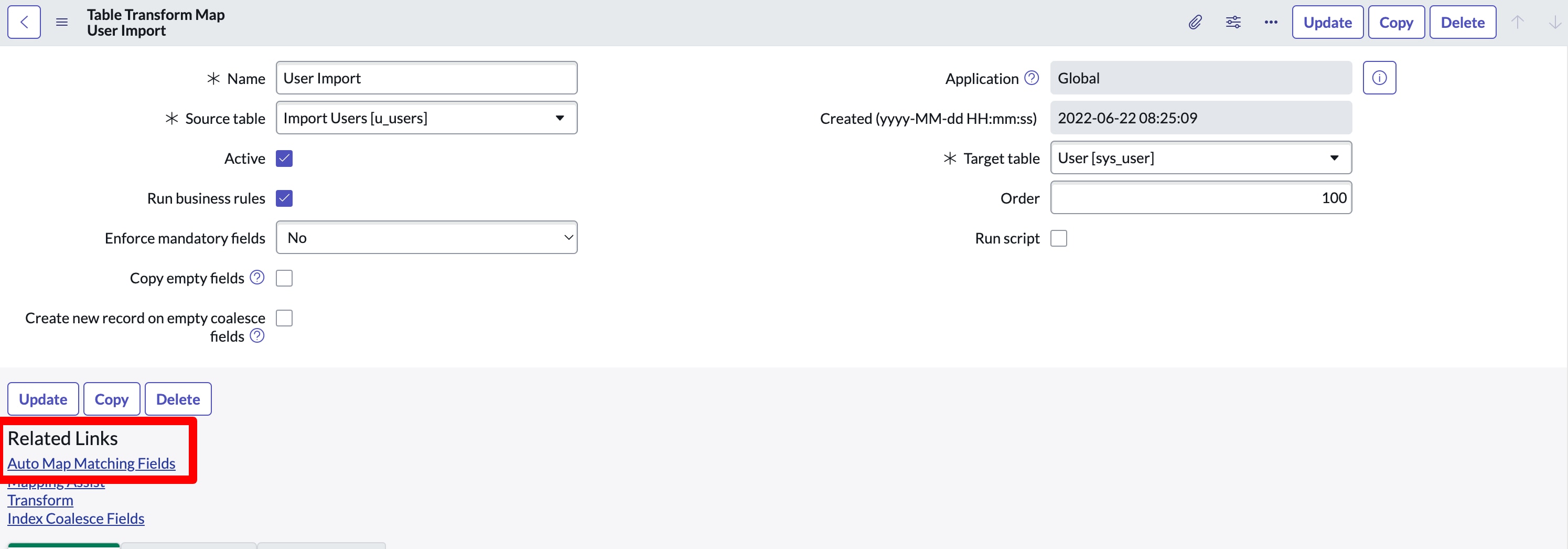
Step 5: Fill out the form as per the screenshot below & Click on Related Link > Auto Map matching fields
Note: Auto Map Matching Fields creates the Field mapping between the import set table and target user table. In case any field mapping is missing then please click on Mapping assist and manually map the field.
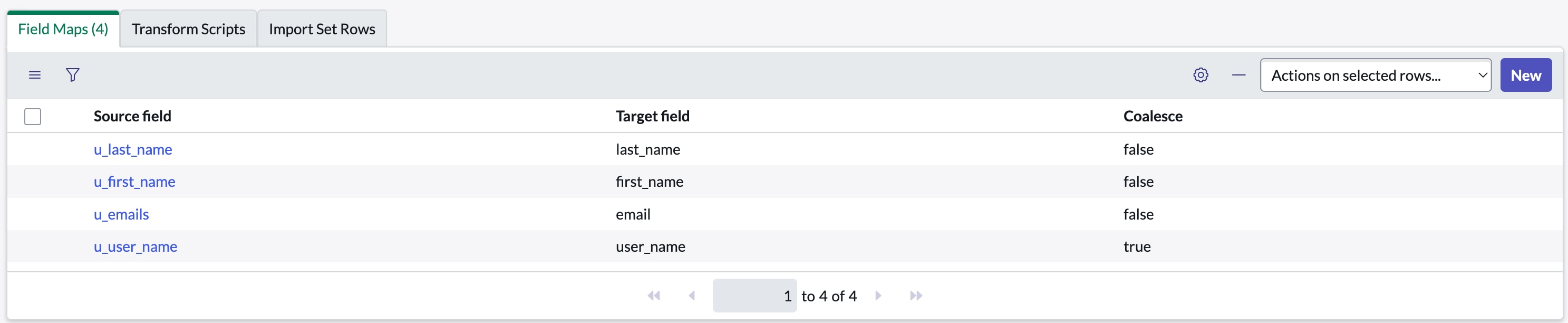
After the successful previous step, you should see Field maps created against all the columns coming from the excel sheet.
Note: I've only 4 columns populated with user information in my attachment so 4 field maps can be seen created. Your field maps could be different in number.
Step 6: Navigate to System import sets > Administration > Scheduled import sets.
SCRIPT
//delete attachments form data source after execution
var attach = new GlideSysAttachment();
attach.deleteAll(data_source);
Note: Active checkbox must be unchecked because we are going to write a script that will import attachment data upon request submission, not on a scheduled basis. Copy the sys_id of scheduled data import, we'll use it in the last step.
Step 7: The last step in our process is to create a Business rule that will copy attachments from the Requested item to the Data source so that the Data source can process it and create users.
Business Rule Configurations as per screenshot below
Under Advance Tab in the Script editor paste the below code:
(function executeRule(current, previous /*null when async*/) {

	// Add your code here
	var attachment = new GlideSysAttachment();
	var attached = attachment.copy('sc_req_item', current.getUniqueValue(), 'sys_data_source', 'b3e781382f5c9110344f2b5df699b6a9');

	if(attached){
		gs.info('Attachment Copied from: ' + current.number);
		var grImp = new GlideRecord("scheduled_import_set");
		if(grImp.get('25b941b82f5c9110344f2b5df699b6d4')){ // Replace "25b941b82f5c9110344f2b5df699b6d4" with sys_id of Schdeuled import
			gs.executeNow(grImp);
		}
	}

})(current, previous);
Note: Replace "25b941b82f5c9110344f2b5df699b6d4" with sys_id of Scheduled import copied in step 6.
Watch again the video output at the top to see what we implemented.
| Voila, Automation accomplished!! ✌️ |
| Comment below your questions and queries & I would highly appreciate it if you hit bookmark or mark it as helpful. |
- 99,469 Views
33 Comments
You must be a registered user to add a comment. If you've already registered, sign in. Otherwise, register and sign in.