jonnyseymour

ServiceNow Employee
Options
- Subscribe to RSS Feed
- Mark as New
- Mark as Read
- Bookmark
- Subscribe
- Printer Friendly Page
- Report Inappropriate Content
12-01-2015
12:10 PM
Inbound email actions are a truly stunning feature for 'processing emails.' It is scalable and simple design to a high standard that does not require expertise to develop them. Incoming emails with matching inbound actions are an ideal combination to provide a fine level for processing for incoming emails. It provides real feel of control and the scripting power mixed with modern email settings for very different scenarios. Independently tucked away, the inbound actions are executed by matching the incoming emails.
Let's talk about incoming email actions that do not have a real update. Not all emails that are processed will have a target set, even if the system has classified it as a reply with a matching record. This is normal.
Lets talk about:
- Incoming emails and matching inbound actions
- What is a 'real' update
- Examples to test incoming emails with no 'real' updates
- How to force the incoming email target
- Advanced cases when target table is none in the inbound actions
Incoming emails and matching inbound actions
Incoming emails are emails sent to the instance. The incoming emails are classified following an algorithm as New, Reply or Forward. Inbound email actions enable an administrator to define the actions ServiceNow takes when receiving emails. The feature itself offers a superb level for scripting and a well balanced design for classified emails, saves you time on coding, and guarantees a clear understanding to expand and keep your email actions up-to-date.
Inbound email actions are similar to business rules, using both conditions and scripts. If the conditions are met, the inbound email actions run the script. The inbound action's conditions include the Type, the Target Table and the condition itself. The 'Type' can be None, New, Reply or Forward to match the classified emails. None will match all types of incoming emails. The target table in the inbound action will help to define the GlideRecord created for 'current.' For inbound actions, the "current" is a GlideRecord based on the target table and the information gathered by the email system.
Here is a table to show the relationship between incoming email received type and matching inbound actions:
|
Incoming |
Received type |
Classified as New |
Classified as Reply |
Classified as Forward |
|
Emails |
Target record |
- |
Found |
- |
|
|
Target record if success |
New |
Found if data updated |
New |
|
|
Notes |
Target set based on inbound action target table |
Target set based on target found on reply |
Target set based on inbound action target table |
|
|
Logs if there is no update |
Skipping 'xxx', did not create or update incident |
Skipping 'xxx', did not create or update |
Skipping 'xxx', did not create or update |
|
Matching |
Type |
New or None |
Reply or None |
Forward or None |
|
Inbound Action |
Usual inbound action update |
current.insert() |
current.update() |
current.insert() |
|
|
Target table |
Set |
Set — it needs to match email target found with this table |
Set |
The table shows the incoming emails are classified then matched to the respective inbound actions. Setting the target table makes the inbound actions much easier to understand. Also, setting the inbound action type to None, increases the complexity as the rule matches all received types.
A 'real' update
A real update means that at least one field on the 'current' record has been changed or the 'current' record has been created. If after receiving an incoming email there is not real* update on the inbound action 'current' record, the target field on the matching incoming email will remain empty.
It makes sense as a way to control which emails would display in the activity formatter.
The Incoming email target is only set if the 'current' record is updated or inserted in the inbound action. Otherwise, it remains empty
Examples to test incoming emails with no 'real' updates
Besides inbound actions that do not meet the conditions, there are a few cases where the current.update() does not execute because the data has not changed.
I've created the following incoming email action to validate the behaviour:
|
Inbound action |
|
|
|
Name |
= |
Update Incident.JS |
|
Target table |
= |
Incident |
|
Type |
= |
Reply |
|
Condition |
= |
current.getTableName() == 'incident' |
Script is
gs.log('CS - Update Incident.JS starts'); // comment on prod
// the following line set impact to 2 = Medium
current.impact = 2;
// As the previous change is a static field,
// if current is already 2, no update happens
current.update();
// No further inbound actions are required - stopping them
event.state="stop_processing";
gs.log('CS - Update Incident.JS ends'); // comment on prod
The inbound action looks as follow:
For the test, I have created an incident 'TETS' with impact = 3.
Example #1: First reply email to the instance to update 'Incident: TETS'.After sending an inbound email to the instance, once it get processed the first time, the following is the result:
The incoming email target is set to 'Incident: TETS' as expected. This is because current.impact was 3, then the script change it to 2, causing the current.update() to execute, the the system will set the target to current. |
Example #2: Second reply email to the instance to update 'Incident: TETS'.After sending a second inbound email to the instance, once it get processed, the following is the result:
The incoming email target is set to (empty) as expected. This is because current.impact was already 2, then the script set it to 2 again, which is not causing any change, then the current.update() do not to execute. Then the system will set the target to (empty). This does not mean the watermark did not match. |
Example #3: Inserting a different record than 'current'I've created a new inbound action that creates a new problem called "vproblem." It looks like follow:
After sending an inbound email to the instance, once it get processed, the following is the result: Results: The incoming email target is set to (empty) as expected. This is because the system only tracks the inbound action 'current' to set the incoming email target. As current did not have any update or insert, the the system will set the target to (empty). That is the reason I prefer to use 'current' on inbound actions. |
Force the incoming email target
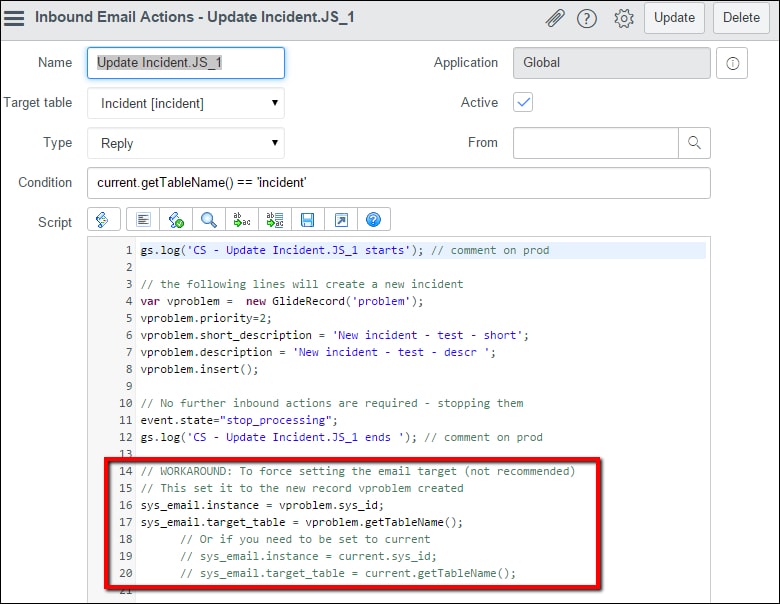
You can manupulate sys_email.instance to set the target and sys_email.target_table to set the target_table.
The following is an example of an incoming email action that explicitly set the incoming email target:
|
Inbound action |
|
|
|
Name |
= |
Update Incident.JS_1 |
|
Target table |
= |
Incident |
|
Type |
= |
Reply |
|
Condition |
= |
current.getTableName() == 'incident' |
Script is
gs.log('CS - Update Incident.JS_1 starts'); // comment on prod
// the following lines will create a new incident
var vproblem = new GlideRecord('problem');
vproblem.priority=2;
vproblem.short_description = 'New incident - test - short';
vproblem.description = 'New incident - test - descr ';
vproblem.insert();
// No further inbound actions are required - stopping them
event.state="stop_processing";
gs.log('CS - Update Incident.JS_1 ends '); // comment on prod
// WORKAROUND: To force setting the email target (not recommended)
// This set it to the new record vproblem created
sys_email.instance = vproblem.sys_id;
sys_email.target_table = vproblem.getTableName();
// Or if you need to be set to current
// sys_email.instance = current.sys_id;
// sys_email.target_table = current.getTableName();
The inbound action looks like:
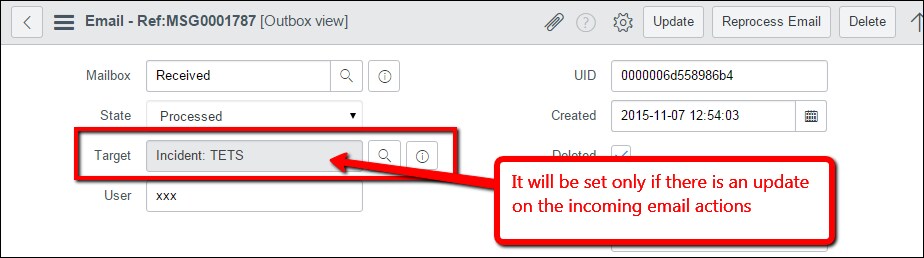
After sending an inbound email to the instance, once it get processed, the following is the result:
The incoming email target is force to be set to the problem created. This is because we manipulated the sys_email record on the script. It could be forced to any record. If the target is empty on the incoming emails, we can assume there were no valid update on the matching inbound actions. Sometimes simple is more.
I have tested this with Fuji and Chrome as the browser.
More information here:
- Email Resources Page (KB0540674)
- Inbound Email - New, Reply, and Forward - ServiceNow Guru
- Inbound Email Troubleshooting (KB0524472)
- Part Three | Verifying Inbound Email User and Incident Creation Settings - YouTube
- Incoming email classified as reply to 'null' via watermark
- Docs: Inbound action processing
- Docs: Inbound email actions
- My other blogs
- 20,046 Views
8 Comments
You must be a registered user to add a comment. If you've already registered, sign in. Otherwise, register and sign in.