We're reclaiming inactive PDIs to keep them available for active builders. Learn what's changing, who's affected, and how to protect your work. Read More

Suzanne Smith
ServiceNow Employee

Are you already using UI actions? Many ServiceNow customers use them in a variety of creative ways. If you are using UI actions in your instance, consider refining them and controlling when they appear and for whom. For example, you can show the Delete button on the Problem form only to users with the admin role instead of all users.


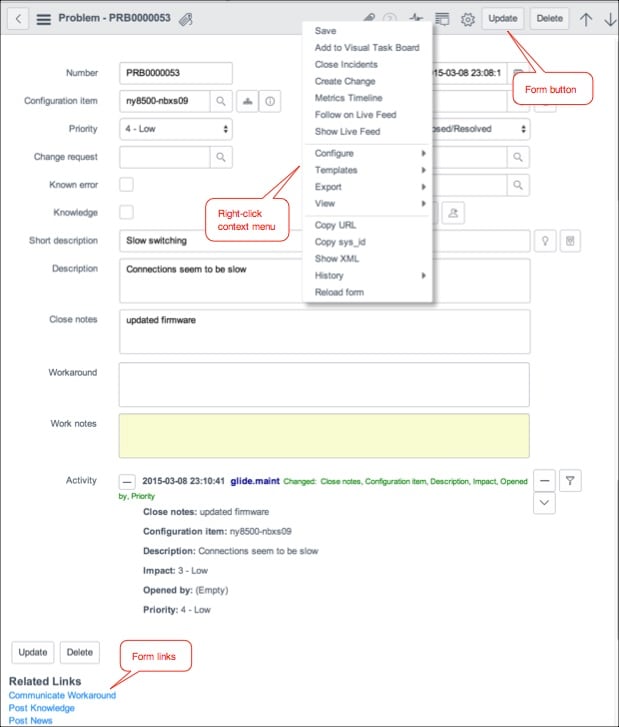
For those who are not using them yet, a brief definition. UI actions are elements such as buttons, links, or a context menu that you can add to a form or list. When a user clicks the element, some script is executed. UI actions help customize the user interface and make it more specific for individual users. Users with the admin or ui_action_admin role can create UI actions.


ui_actions1.jpg


How to limit access with conditions:

Many users limit a UI action by defining a condition. If the condition is true, the action is visible. (Note that leaving the field empty defaults the condition to true.)


Here is an example for the Delete button on a Problem record:

ui_actions2.jpg

In this UI action, the Delete button only appears on the Problem record if the problem is in Closed/Resolved state.


How to limit access with roles:

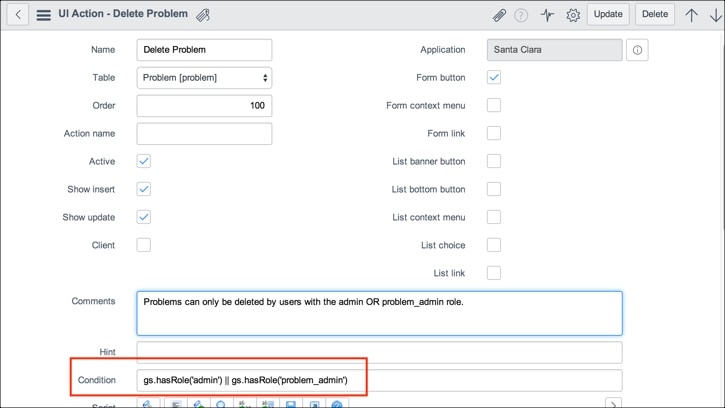
Combine conditions and roles to limit access to UI actions by user role. The syntax is: gs.hasRole('role_name').Here is an example again for the Delete button on the Problem record, but this time we are controlling access by role:

ui_actions3.jpg

In this UI action, the Delete button only appears on the Problem record if the user has the admin or problem_admin role.


How to limit access with views:

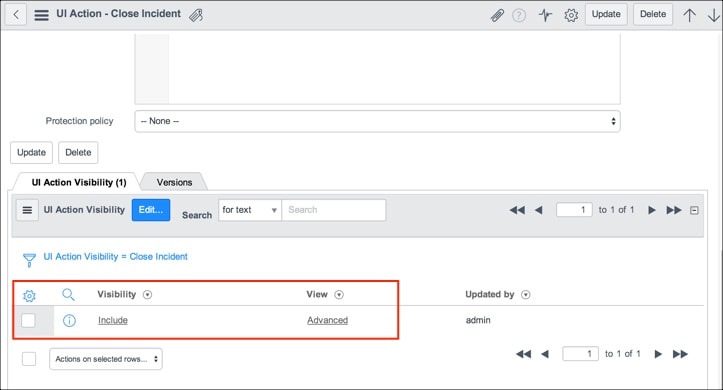
Another nifty way to control who sees a UI action is by including or excluding views using the UI Action Visibility related list. Note that if you do not include or exclude views, the action appears on all views. In this example, we are specifying that the Close Incident UI Action is only included (visible) in Advanced view:

ui_actions4.jpg


There are some great discussions the community about UI action visibility:


ServiceNow offers more information about UI actions in the product documentation:

11 Comments
scottjus82
Kilo Guru

Further to Suzanne Smith post, we have used UI actions extensively throughout our modules to good affect ,


Every step of our change process is a button click so our users know exactly where they are and what to do next.


In our purchase orders module we have added a final check button which prompts the user to review the PO one final time before submitting to the ExCo.


UI buttons and how easily they can be configered and restricted is, I find, one of the useful features when designing how a process will work.


Suzanne Smith
ServiceNow Employee

That is great, Steve. It sounds like you are really using UI actions strategically. I like that final check you added in your purchase orders module. (Ask me how many times I have quickly changed my order or fixed an error on Amazon during that final review step!)


scottjus82
Kilo Guru

Thanks.


That was added after I warned the people in the purchasing department that their mistakes would be obvious in an automated system as, unlike a paper based system a mistake can be ripped up and re-created where as once they send submit they can not call back the approval request to correct any mistakes. The idea of management spotting mistakes did not sit well. Hence the final check button was added. Clicking yes to that ticks a hidden box which then show the "request approval" button. It works well


Naveen Kumar J
Tera Expert

Hi Suzzane,


How to a UI action to be enable for the project manager of the project?


I have a project manager field and i would like to enable it for the current project manager, not for others .


Thanks,


Naveen


rodin
Giga Contributor

It seems restricting visibility within views doesn't work for UI Actions with table defined as Global. Or am I wrong?


shrutityagi
ServiceNow Employee

Hi Pavel,


Can you elaborate your questions? What I understood from your question so far is you can add condition for view in UI Action and that should handle UI Action visibility on the basis of condition you have.


There are some OOB UI Actions that have sysparm_view in condition. You can check it.


Thanks


Shruti


If the reply was informational, please like, mark as helpful or mark as correct!


rodin
Giga Contributor

Hi Shruti!


I am referring to the article's "How to limit access with views" paragraph. For me it doesn't work if UI Action has value "Global" in Table field.


shrutityagi
ServiceNow Employee

Hi Pavel,


Just tested in on OOB UI actions, it should work even though UI Action has value "Global" in Table field. Here is one OOB example I looked for:


UI Action name: Timeline Visualization


Exclude on Workbench View


Open list rm_story if you satisfy condition to see this UI Action you will get this UI Action as List link at the bottom


Switch your view to workbench This UI action will not be visible.


There are more OOB UI actions you can take a look:


https://<your-instance-name>.service-now.com/sys_ui_action_view_list.do?sysparm_query=sys_ui_action....  


I guess in your case what may be happening is you may have two separate UI actions with same name may be other UI action is showing not the one you are thinking. In order to confirm it check the sys_id of the UI action which is showing.


Let me know if this helps.


Thanks


Shruti


If the reply was informational, please like, mark as helpful or mark as correct!


davilu
Mega Sage

Our team has a form that has numerous mandatory fields (30+).  Is there a way for a button to become visible only after all the mandatory fields have been filled in?  We know that we can do something like current.variable1!='' && current.variable2!='' && etc...but is there a way to check all mandatory fields are filled in without listing each one out?  Thanks!

Paul Porter
Tera Expert

Suzanne

Just wanted to let you know the section "How to limit access with views" instantly solved an issue I created for myself with some DOM manipulation code I dropped into a Client Script to solve Ui Action visibility for a particular Incident View.  The DOM manipulation code backfired on me after performing performing my first pre-prod upgrade to Madrid.  May I suggest adding a little bit of content to the section to mention you can also toggle the "include" to "Exclude".

Many thanks!

~Paul